Backup
The Backup menu for the CE device is a critical tool for managing configuration settings. It enables creation of snapshots of the current setup, downloading them for safekeeping, and restoring the device to a previous state if required. This guide covers all available functions in the Backup menu, from creating a new backup to restoring a saved configuration.
| Feature | Description |
|---|---|
| Backup Device | Creates a new backup of the device's current configuration. |
| Set as Default | Sets a specific backup as the default configuration. |
| Download | Downloads a backup file to your local system for offline storage. |
| Delete | Permanently removes a backup from the device. |
| Clear Default | Removes the currently set default backup. |
| Restore | Reverts the device to the default backup configuration upon reboot or reset. |
| Platform Config | Downloads a JSON file containing the device's platform configuration. |
Creating a Backup
-
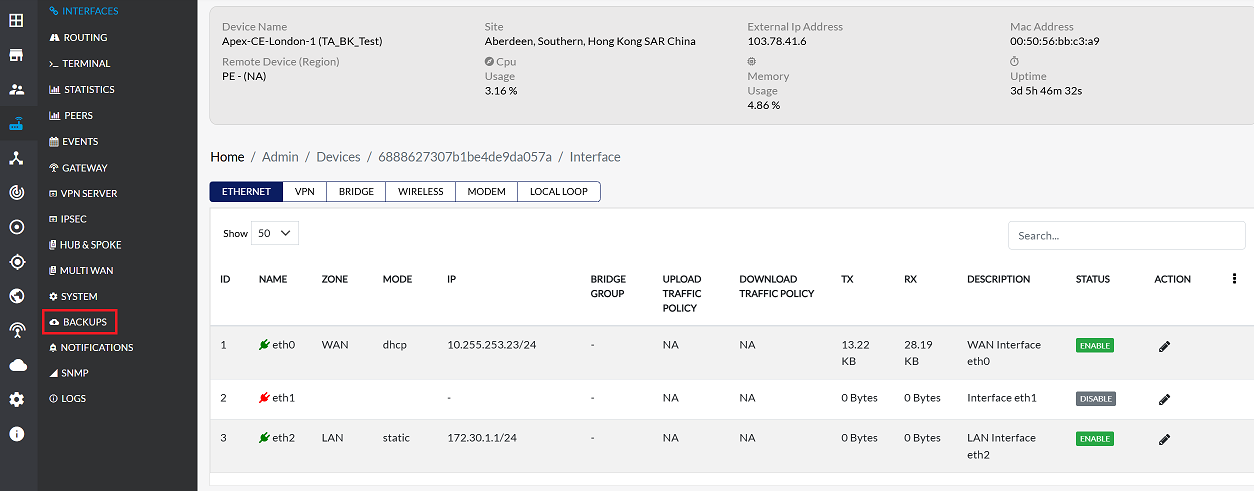
Go to the Login > CE Devices > [Select CE].
-
From the menu on the left, click Backups.
-
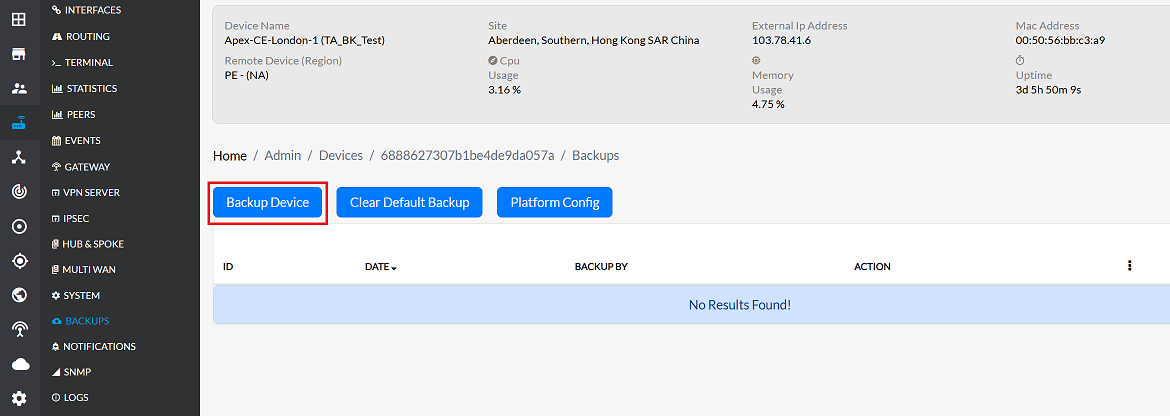
To initiate a new backup, click the Backup Device button.
-
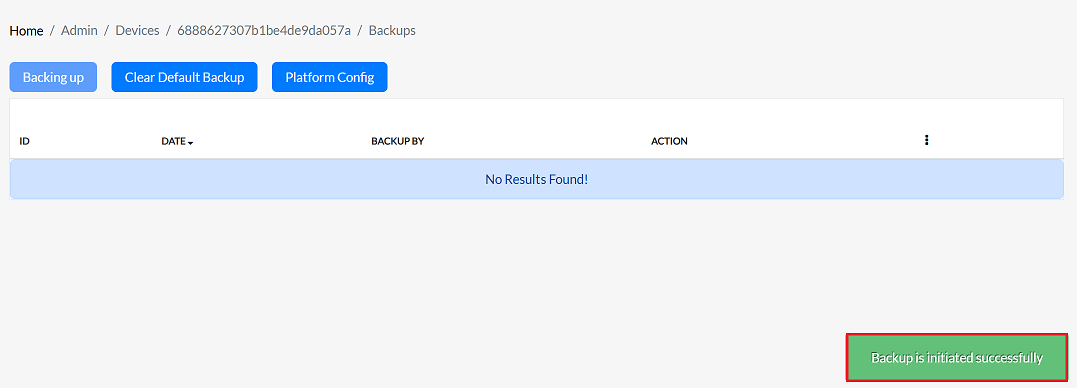
After clicking on Backup Device button, the backup will be displayed in 2 to 3 secound, and a Backup is initiated successfully message will appear.
-
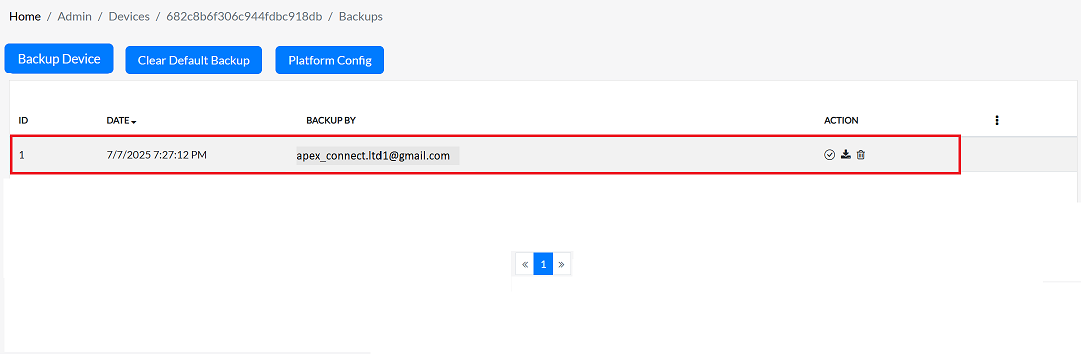
The backup is now visible on the page.
Set the Backup
-
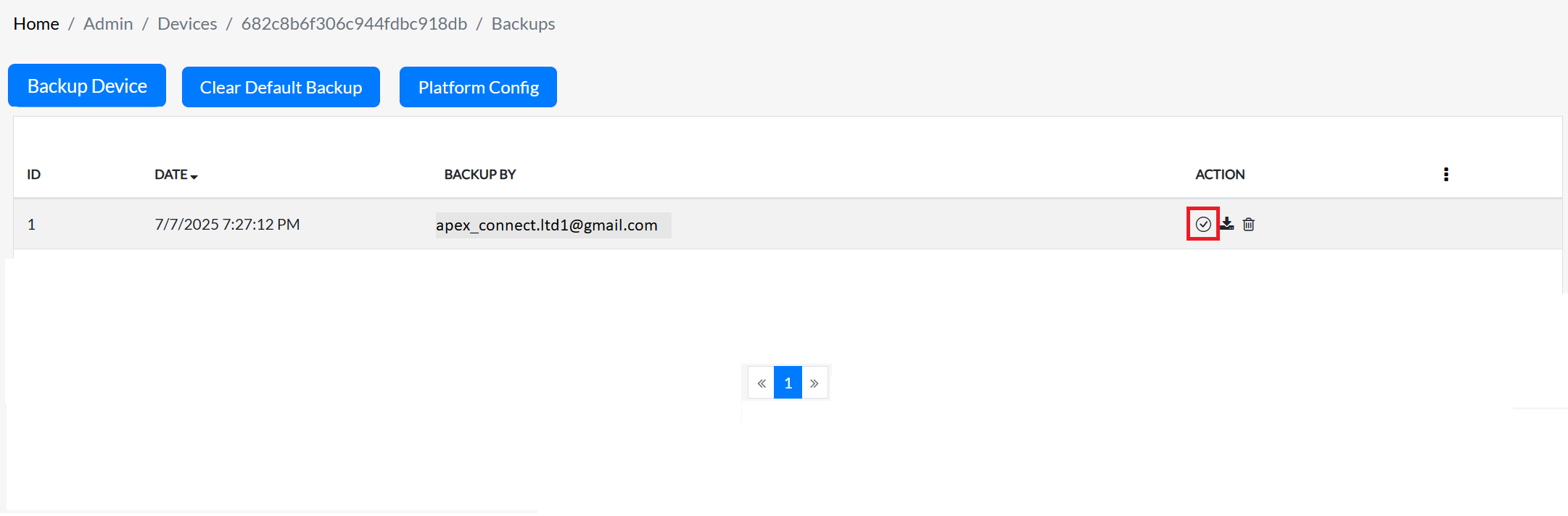
To set a particular backup as the default, click on the right icon associated with the backup.
-
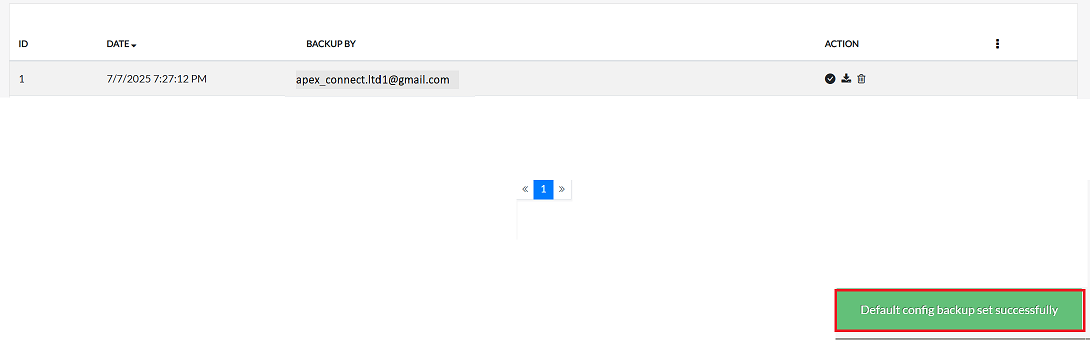
Upon successfully set backup, a confirmation message, Default config backup set successfully, will be displayed.
Download backup
-
To download a particular backup as the default, click on the download icon associated with the backup.
-
The backup file will be a
.tarfile and will be downloaded to the local system.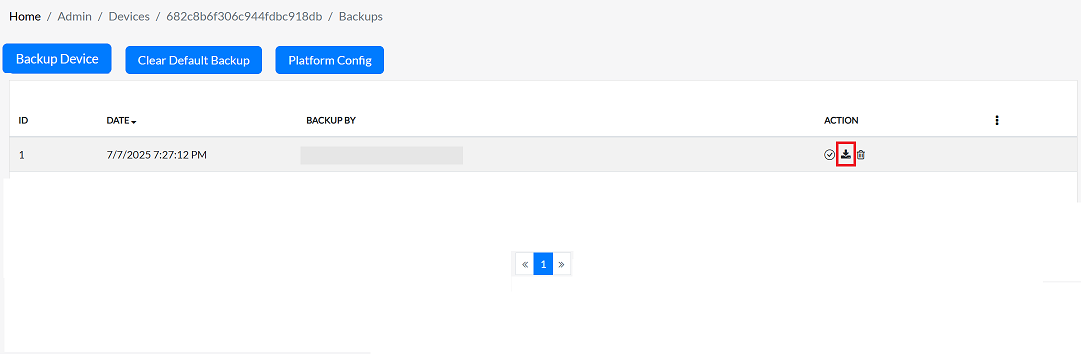
Delete a Backup
-
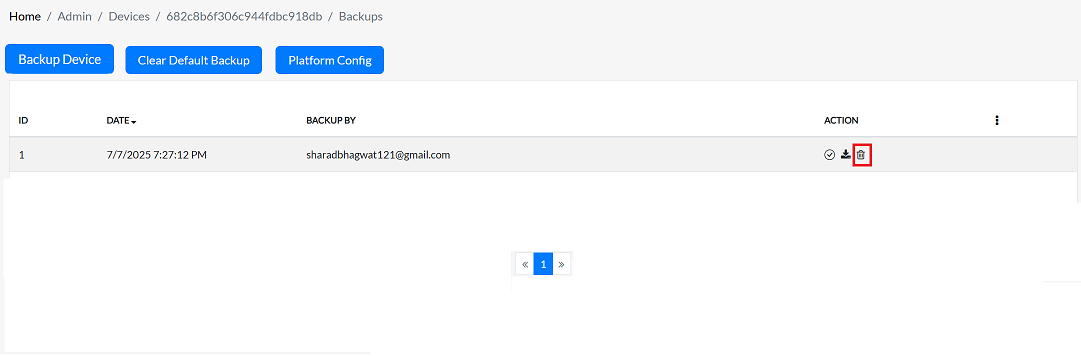
To delete a backup, click on the delete icon associated with the backup.
-
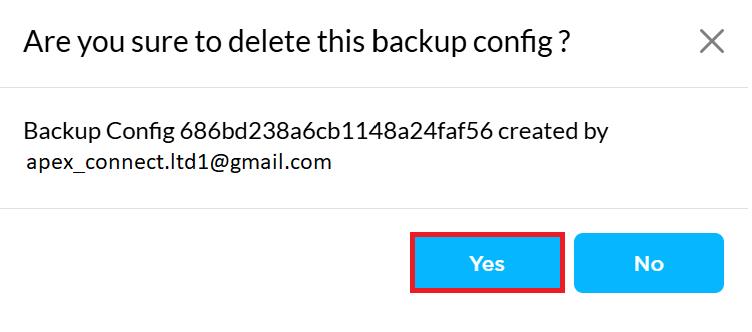
After clicking, a confirmation message will appear. clicking the Yes button.
-
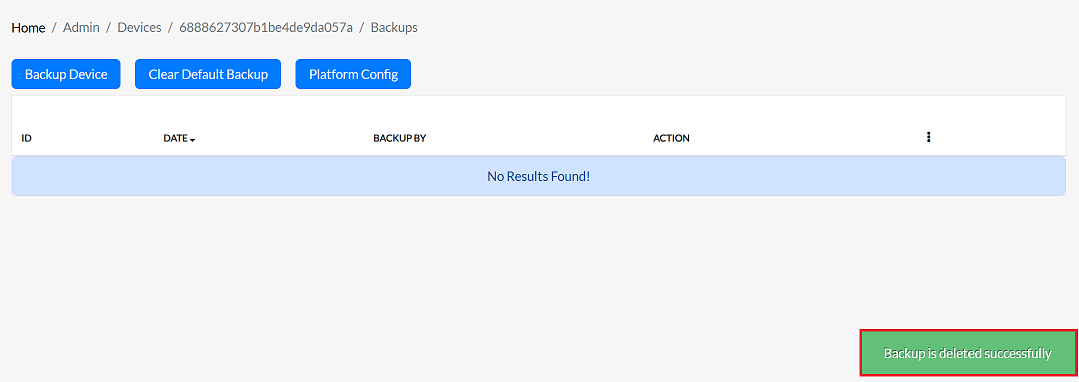
Once confirmed, a Backup is deleted successfully message will be displayed, indicating the backup has been removed from the system.
Clear the Default Backup
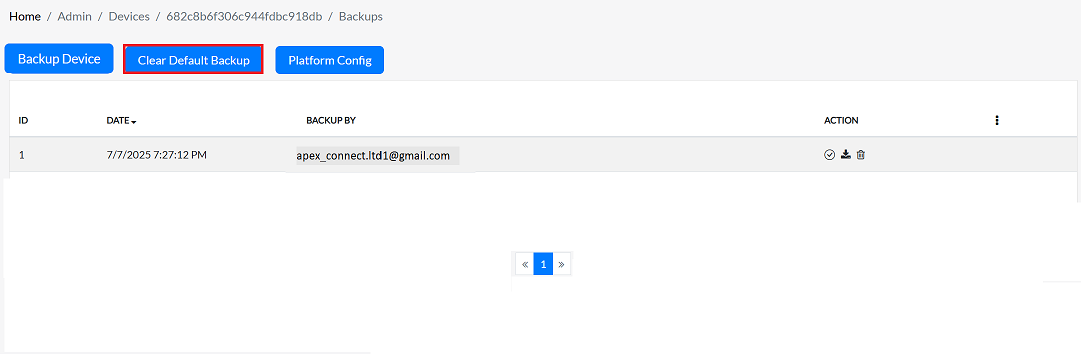
- To remove the default backup, click on the Clear default backup button.
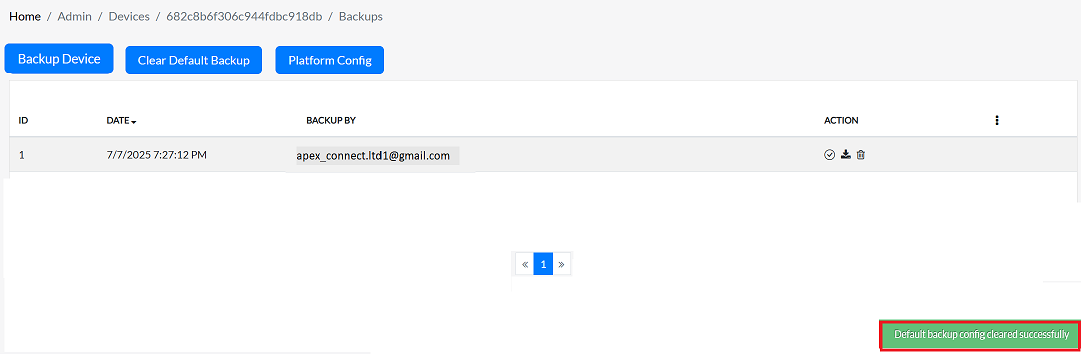
- Upon successfully clear backup, a confirmation message, Default backup config cleared successfully, will be displayed.
Restore Backup
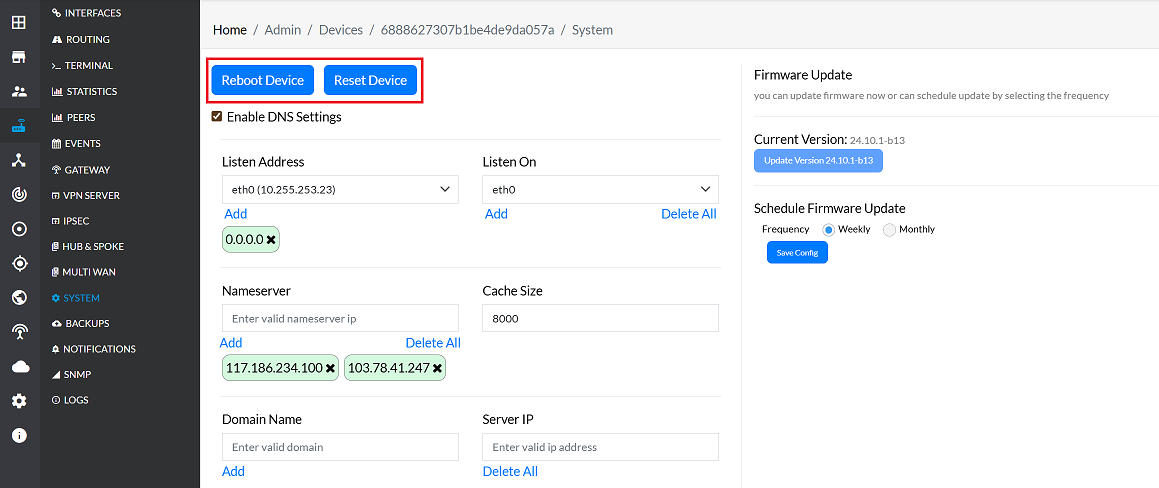
To return to the original configuration after making changes to the CE, you can restore the previous settings using the default backup taken before any changes. To restore the default backup, you need to set it as the default first. Once the default backup is set, reboot or reset the device to apply the original settings and undo the changes made. This process ensures that the device returns to its previous state, maintaining the integrity of the original configuration.
- Click on the right icon associated with the backup.
- Go to the System menu > click on Reboot Device or Reset Device.
Platform Config
-
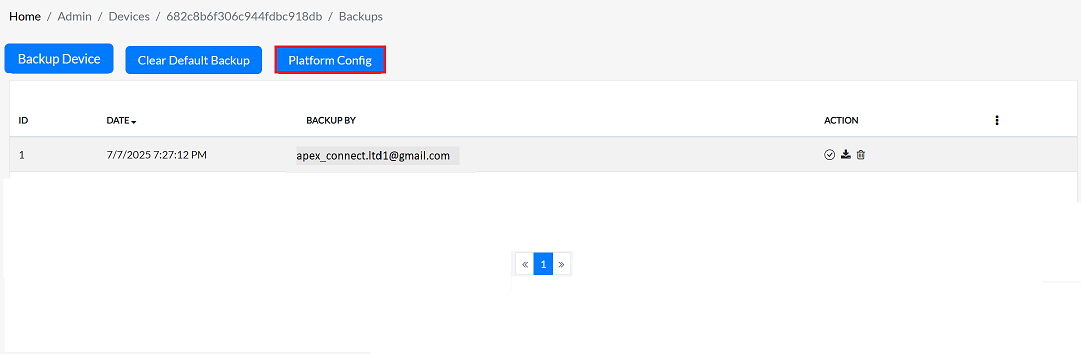
First of all, click on the Platform Config button given in the backup menu.
-
Clicking the Platform Config button automatically downloads a JSON file to the client system.
-
This file will store all the information about the device's platform configuration. This file can be used to restore the device's settings in the future.
Important Notes for Users
- Restoring works only from the default backup
- Always take a backup before making major changes
- Deleted backups cannot be recovered
- Keep downloaded backups stored securely
- Use meaningful names or timestamps for easier identification
- Avoid deleting the only valid backup
- Restoring requires device reboot/reset
- Platform Config is different from normal backup
- Only authorized users should manage backups
- Backup creation may take a few seconds — do not refresh the page
FAQs
Q1: Will rebooting lose my current configuration?
- Rebooting – No, rebooting the CE device does not erase or lose your current configuration. It simply restarts the device, and all existing settings remain intact.
Q2: Will resetting lose my current configuration?
- Resetting – Yes, resetting the CE device will revert it to the default backup configuration. If no default backup exists, the device will return to its factory default configuration, and all custom settings will be lost.