CE Device Listing
This document provides information about the list of Customer Edge (CE) devices in the system. It outlines the key areas, operations, and management options. This document will serve as a guide for users to understand and effectively manage CE devices.
CE Device list
- Navigate to Login > CE Device.
CE Device Column Fields Information
| Field | Description |
|---|---|
| ID | The ID is a sequential number to identify each row in the grid |
| CE DEVICE | If the CE device is assigned to an organization, it displays its assigned name; otherwise, it displays the device ID along with the MAC address |
| REMOTE DEVICE | Connected remote device name |
| SITE | Physical or logical location of the device |
| ORGANIZATION | Associated organization for the device |
| PEERS | List of connected peer devices |
| STATUS | Current operational status |
| FIRMWARE | Firmware version running on the CE device |
| TRAFFIC POLICY | Applied network traffic policies |
| ACTION | Available management actions |
- The CE Device grid includes categorized tabs for better organization and filtering of devices
- The All tab displays the status of all devices, including:
- Assigned – Devices linked to an organization.
- Unassigned – Devices not yet assigned to any organization.
- Online – Devices that are currently active and connected.
- Offline – Devices that are inactive or disconnected.
- The All tab displays the status of all devices, including:
Tabs Overview
-
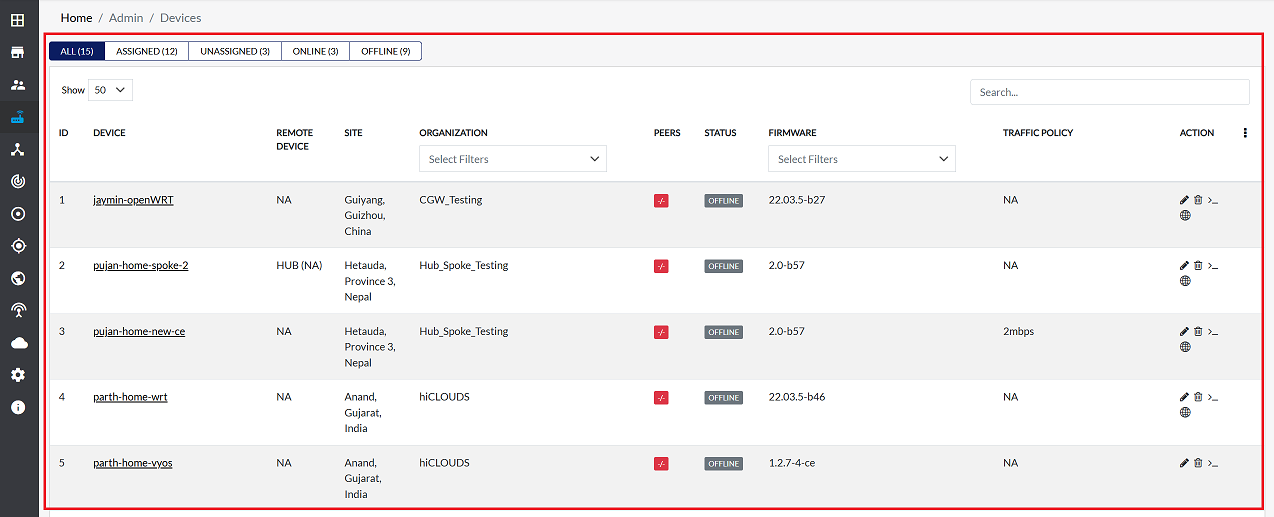
ALL:
This tab displays a comprehensive view of All CE devices and their status, including whether they are assigned, unassigned, online, or offline.
-
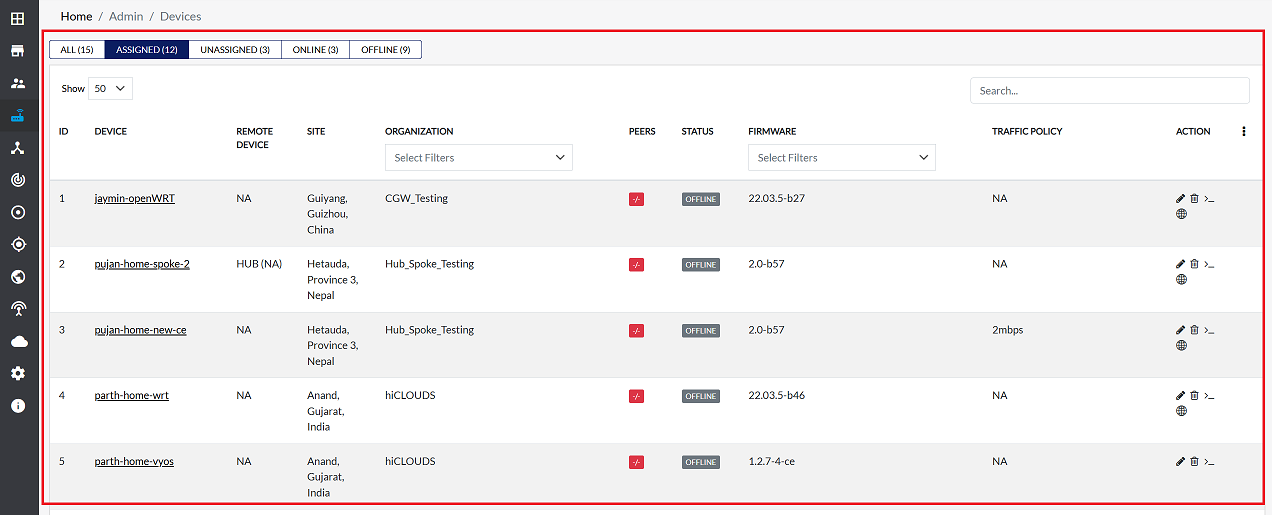
ASSIGNED:
To view a filtered list of CE devices assigned to a specific organization, use the ASSIGNED Tab. For instructions regarding device assignment, refer to the How to Assign a CE Device.
-
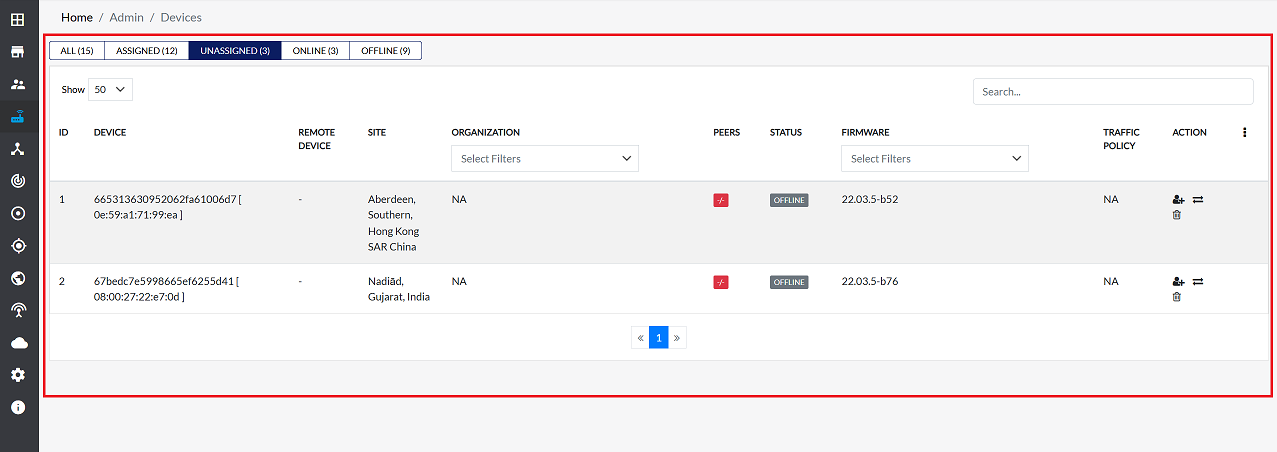
UNASSIGNED:
The UNASSIGNED tab shows a list of CE devices that are not currently assigned to any organization.
-
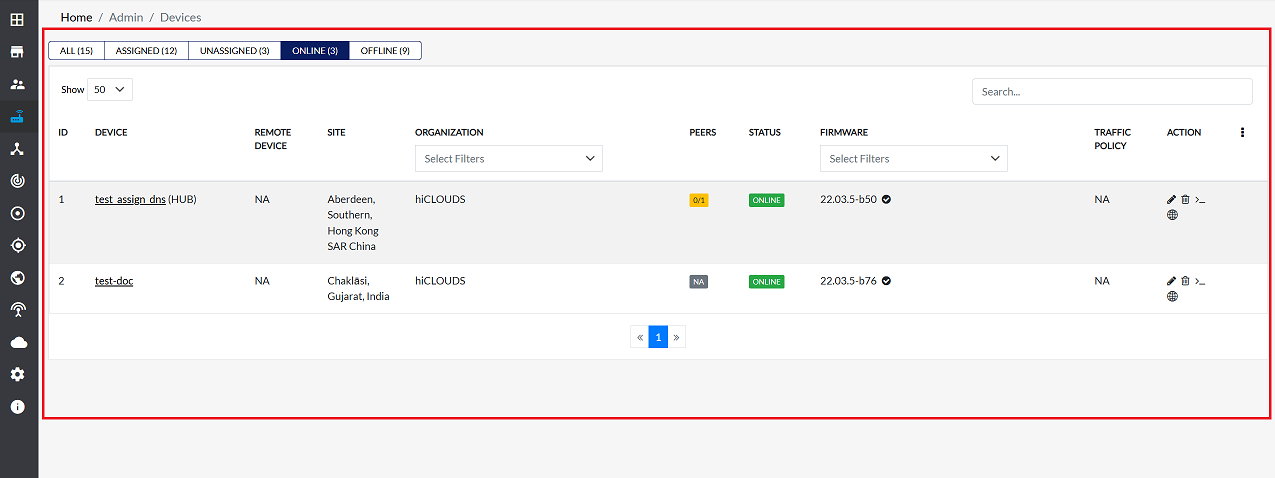
ONLINE:
The ONLINE tab display information about all CE devices that are connected and powered on to the network.
-
OFFLINE:
The OFFLINE tab shows a list of CE devices that are currently turned off or not working.
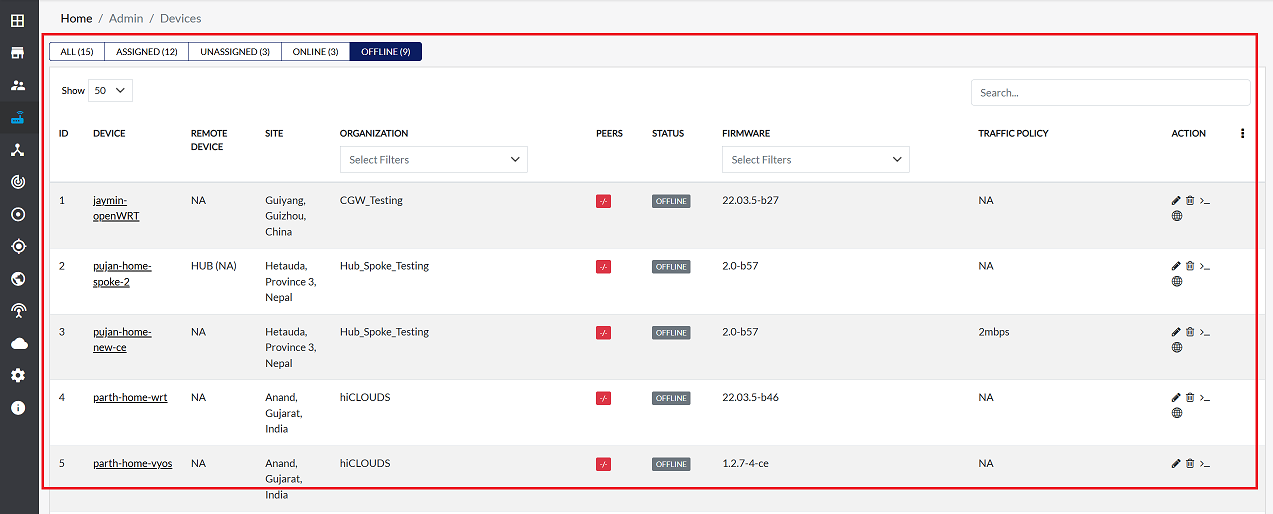
Filtering and searching for devices
-
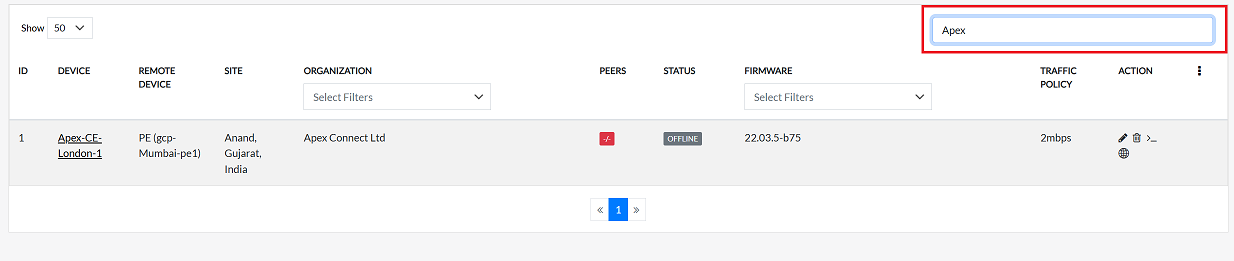
Search:
To quickly find a specific CE device, use the search bar located on the right-hand side of the grid. You can search by entering either the device name or its MAC address.
-
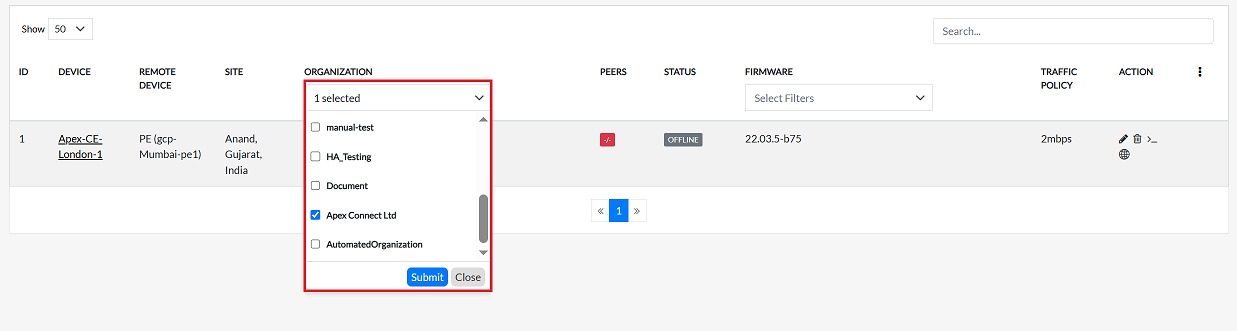
Filtering by Organization:
To filter devices by a specific organization, use the search bar under the Organization column header. Select the desired organization from the list and click the Submit button to display all devices associated with that organization.
-
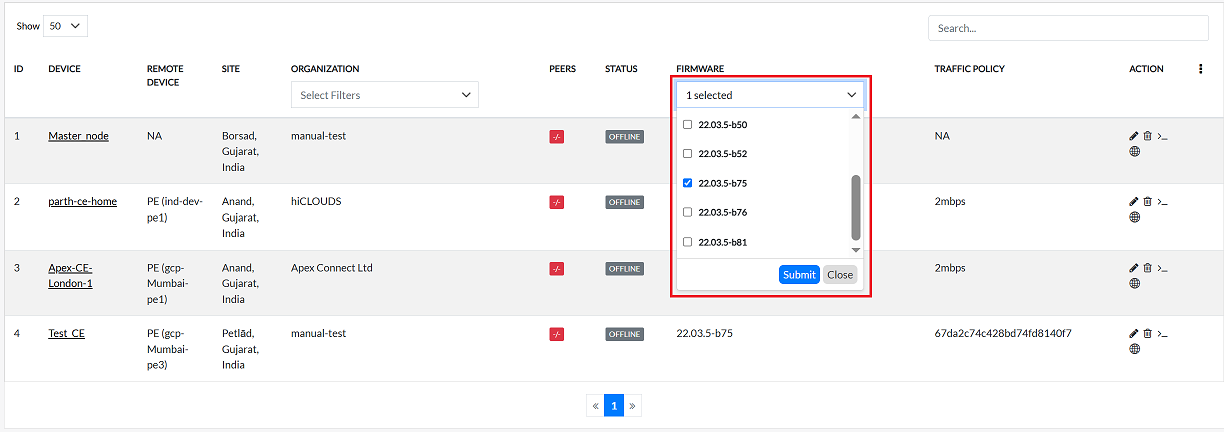
Filtering by Firmware:
To search for devices with a specific firmware version, use the search bar under the Firmware column header in the CE grid, select the firmware version and submit. It will show the devices that have that firmware.
CE Device actions
-
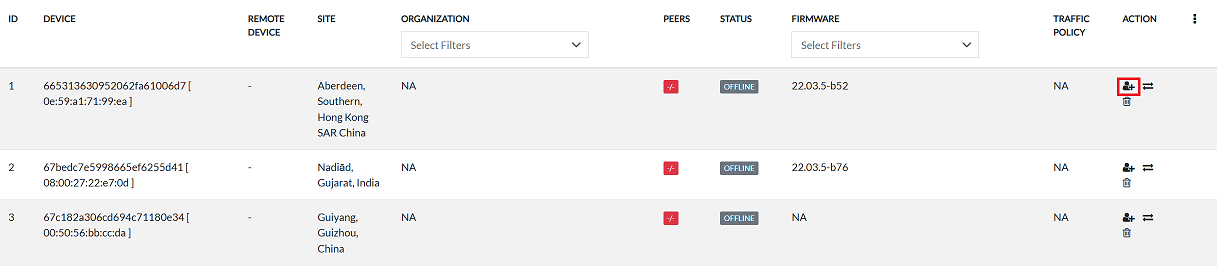
Device Assign:
To assign a device, click on the "Assign" icon on the right. For information on how to assign a device, refer to this document How to assign a CE device.
-
Device Editing:
To edit a CE device, click the Edit icon on the right side of the screen. For more information, see this document How to edit a CE device.

-
Terminal Access:
To create a command-line connection to a CE device, a terminal interface is required. To open the terminal, click the terminal icon on the right side of the screen. For more information, see this document How to open terminal.

-
Web Terminal Access:
A web terminal is used to access it on the web. To open luci, click on the icon next to the device as shown in the image. For more information, see this document How to open web terminal.

-
Device Deleting:
To remove a CE device from the system, click the "Delete" icon. For detailed instructions, refer to the How to edit a CE device document.

-
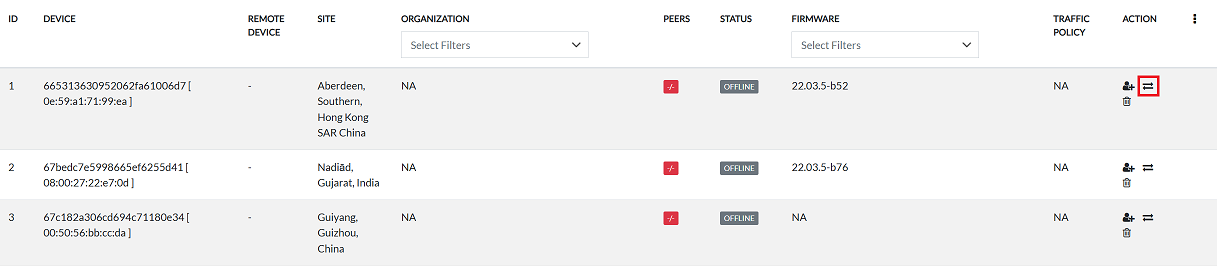
Device Replace:
To replace a CE device, click the Replace icon on the right side of the screen. For more information, refer to this document How to Replace a CE device.
Important Notes for Users
- Deleting a device is irreversible proceed with caution.
- Only users with appropriate permissions can assign, edit, or delete devices.
- Unassigned devices cannot receive configurations until assigned.
- Device status depends on network connectivity & power state.
- Always verify firmware compatibility before upgrades or replacements.
- Using filters helps manage large device inventories efficiently.
- Ensure organization mapping is correct to avoid access issues.
FAQs
Q:1 What is the difference between "Terminal Access" and "Web Terminal Access"?
Terminal Access: Opens a command-line interface (CLI) to the CE device, typically via SSH. This is used for advanced configuration, troubleshooting, and executing commands directly on the device. Web Terminal Access: Opens the LuCI WebUI (browser-based interface) for managing the CE device. It provides a graphical interface that simplifies administration tasks such as configuring settings, monitoring performance, and applying policies.
Q:2 What actions can I perform on a CE device from the listing?
Q:3 How do I know if a device is online or offline?
The Status column in the CE Device Listing shows the current operational state, Devices listed under the ONLINE tab are active and connected to the network, Devices listed under the OFFLINE tab are inactive, disconnected, or powered off.