Exporting the Task Report
This document outlines the steps to export the device diagnostics Task Report data from the management interface to an Excel file.
Steps to Export Task Report Data
Follow these instructions to download the Task Report Data:
-
Go to the Login > CE Device > [Select CE Device] > Diagnostics > Task Report > Export.
-
Locate and click the Export button.
-
Clicking this button will initiate the download of the Task Report data.
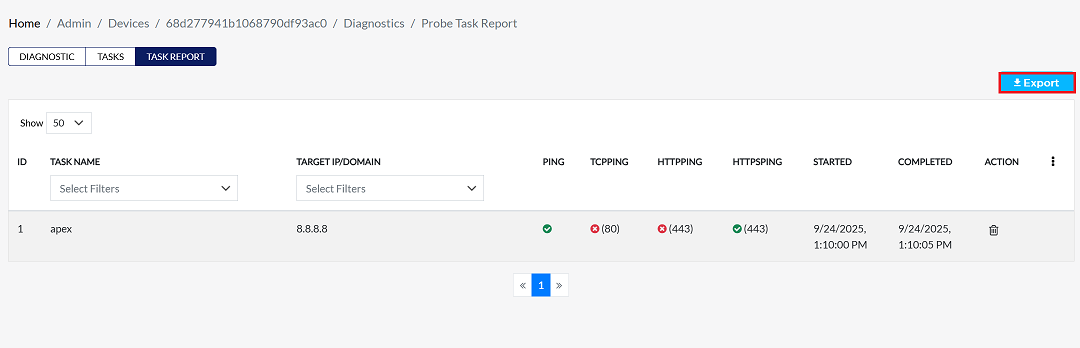
-
-
Once the download is complete, open the file explorer and navigate to the Downloads folder (typically This
PC > Downloads) -
Find and open the exported file. It will be an Excel spreadsheet (
.xlsx or .xlsformat)
Understanding the Exported Data
The Excel file contains detailed results for each diagnostic test performed. The report uses the following columns to help you understand the results:
| Column Name | Description |
|---|---|
| Device ID | A unique identifier for the device that ran the task. |
| Device Label | A user-friendly name for the device (e.g., Apex-CE-London-1). |
| Organization Name | The name of the organization the device belongs to. |
| Device Type | The model or type of the device (e.g., ce). |
| Task ID | A unique identifier for the specific diagnostic task. |
| Task Name | The name of the task (e.g., apex). |
| Target | The destination the test was run against (e.g., an IP address like 8.8.8.8). |
| Task Type | The kind of diagnostic test performed (e.g., ping, httpping, tcpping). |
| Port | The specific network port used for the test, if applicable (e.g., 443 or 80). |
| Result | The outcome of the task: success or fail. |
| Executed At | The exact date and time the diagnostic task was run. |
Example data
| ID | Device Name | Task Name | Type | Task ID | Source | Target IP | Method | Port | Result | Timestamp |
|---|---|---|---|---|---|---|---|---|---|---|
| 68d277941b1068790df93ac0 | Apex-CE-London-1 | manual-test | ce | 823ea8118c074f5e9c255fb4077d45af | apex | 8.8.8.8 | ping | NA | success | 2025-09-24T13:10 |
| 68d277941b1068790df93ac0 | Apex-CE-London-1 | manual-test | ce | 823ea8118c074f5e9c255fb4077d45af | apex | 8.8.8.8 | httpping | 443 | fail | 2025-09-24T13:10 |
| 68d277941b1068790df93ac0 | Apex-CE-London-1 | manual-test | ce | 823ea8118c074f5e9c255fb4077d45af | apex | 8.8.8.8 | httpsping | 443 | success | 2025-09-24T13:10:01 |
| 68d277941b1068790df93ac0 | Apex-CE-London-1 | manual-test | ce | 823ea8118c074f5e9c255fb4077d45af | apex | 8.8.8.8 | tcpping | 80 | fail | 2025-09-24T13:10:02 |
Important Notes for Users
- File Format: The exported report is in Excel format (.xlsx or .xls). Ensure you have a compatible program to open it.
- Data Accuracy: The report reflects the status of the diagnostic tasks at the moment of export. Any changes after export will not appear in this file.
- Task Volume: Large numbers of tasks may take longer to generate and download.
- Permissions: Only users with sufficient diagnostics access rights can export Task Reports.
- Confidentiality: The exported file may contain sensitive data. Handle it according to your organization’s data security policies.
- Error Handling: If the export fails, refresh the page, check your network connection, and try again.
FAQs
Q:1 What action initiates the download of the Task Report data?
The download of the Task Report data is initiated by clicking the Export button on the Task Report page. Once clicked, the system automatically generates and downloads the report file in Excel format (.xlsx or .xls). The file can then be accessed from the Downloads folder on the local system.
Q:2 What are some examples of 'Task Type' found in the report data?
The Task Type column specifies the kind of diagnostic test performed. Examples include: ping → Tests basic ICMP connectivity. httpping → Checks HTTP connectivity on port 80. httpsping → Checks HTTPS connectivity on port 443 with SSL/TLS negotiation. tcpping → Tests TCP port reachability (e.g., port 80 or 443). These task types help administrators quickly identify which diagnostic method was used and whether the target responded successfully.