Tasks
This document provides a comprehensive guide to the creation, editing, reporting, and deletion of diagnostic tasks within the Cloud Platform's Diagnostic section for CE Devices.
Creating a Task
-
Go to the Login > CE Device > [Select CE] > Diagnostic > Tasks > Add.
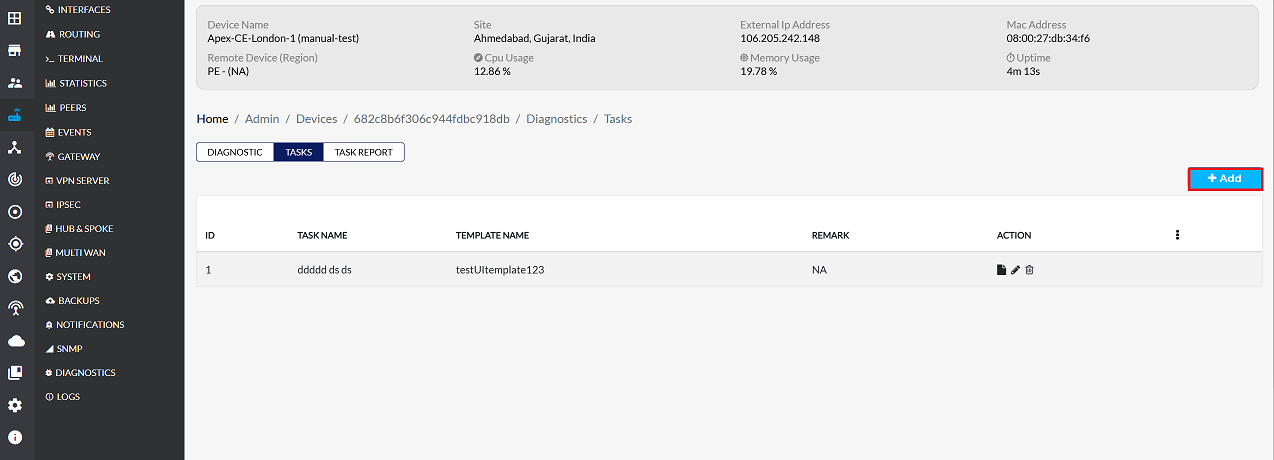
-
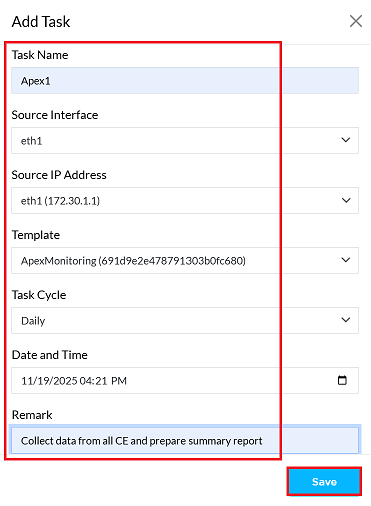
Fill in the task details that appear:
- Task Name: Enter a descriptive name for the task. For example:- Apex.
- Source Interface: Select the interface. Selecting the interface will target its IP address.
- Source IP Address: This field is auto-populated with the IP address associated with the chosen Source Interface.
- Template: Select a template from the dropdown menu. If a new template needs to be created, refer to the Templates document. For this example, select ApexMonitoring(691d9e2e478791303b0fc680).
template createA template must exist before creating a task.
-
Task Cycle: Select the frequency of the task from the Task Cycle dropdown. Four options are available:
- Daily:- To see daily updates, select daily. which provides daily task report.
- Weekly:- To see Weekly updates, select Weekly. which provides Weekly task report.
- Monthly:- To see Monthly updates, select Monthly. which provides Monthly task report.
- Quarterly:- To see Quarterly updates, select Quarterly. which provides Quarterly task report. For this example, daily is selected, but the option that best fits the needs should be chosen.
-
Date and Time:- Enter the date and time. This will be based on the CE device's local time. For example: 11/19/2025 04:21 PM.
-
Remark:- Add any relevant remarks or notes about the task. For example: Collect data from all CE and prepare summary report.
-
Click the Save button.
-
Once the task is successfully created, a message will appear on the screen stating Probe task created successfully
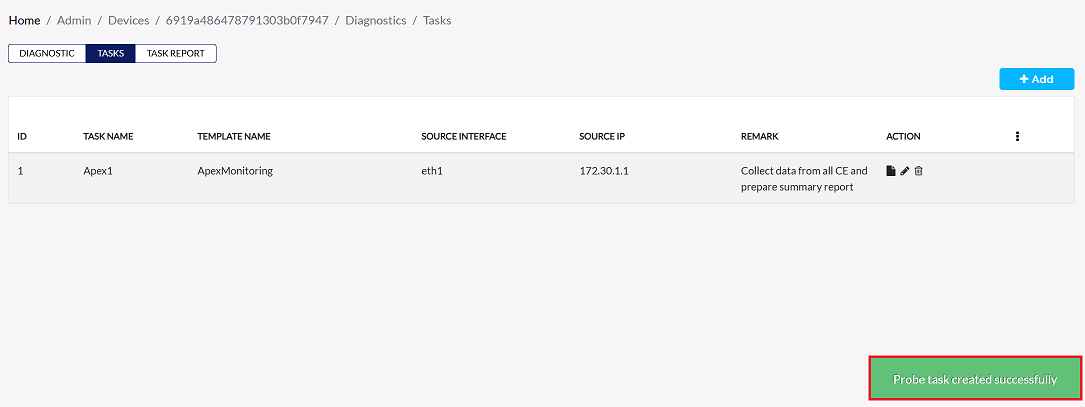
Fields and Descriptions
| Field | Description |
|---|---|
| Task Name | A name for the task. |
| Template Name | The template that defines the data to be collected. |
| Remark | A brief description of the task's purpose. |
| Action | Options to Report, Edit or Delete a task. |
Reporting on a Task
To view the results of a task, a report can be generated.
-
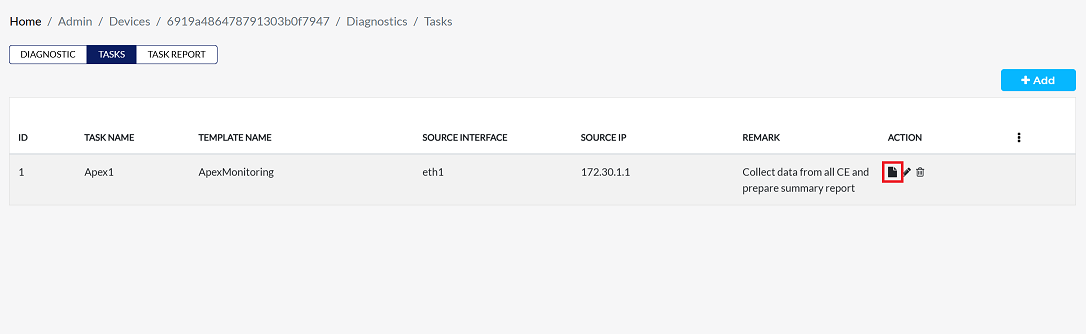
On the Tasks screen, locate the task to report on.
-
Click the Report button next to the task entry.
-
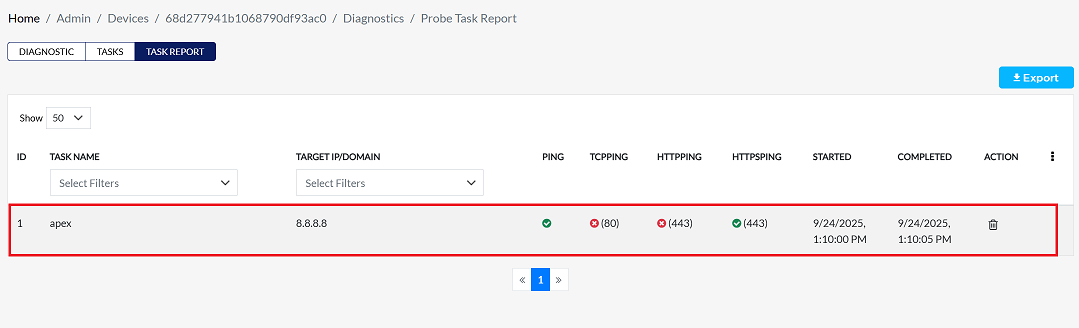
Redirected to the Task Report tab. For detailed instructions on how to view and interpret the report data, please visit the Task Report.
Editing a Task
To modify an existing task:
-
On the Tasks screen, locate the task to edit.
-
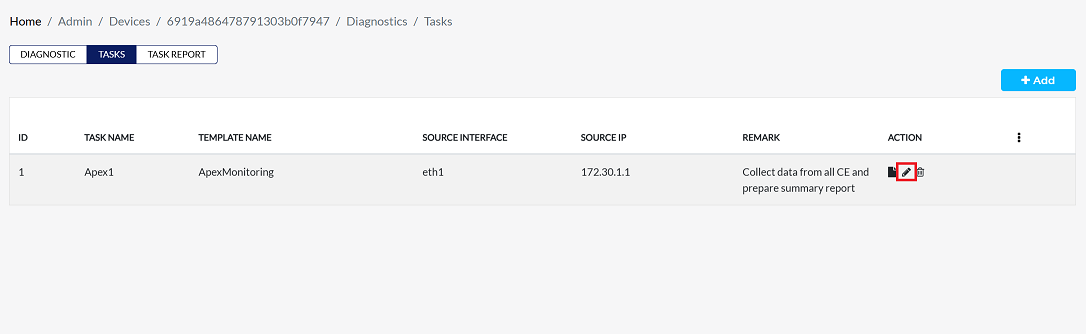
Click the Edit button on the right side of the task row.
-
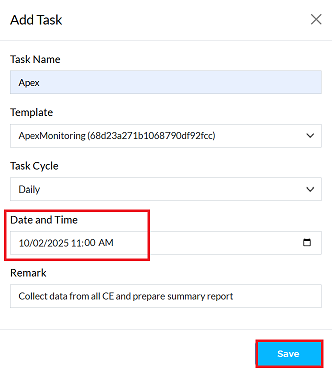
Edit the task details as needed. The following fields can be updated:
- Task Name: If a name change is required, enter the new name here.
- Template: New templates can be added or the existing one can be changed here.
- Task Cycle: If there is a requirement to change the task cycle, it can also be updated.
- Date & Time: The scheduled date and time for the task can be changed.
- Remarks: Any new or updated remarks can be added here.
-
In this specific update, only the Date & Time was changed from 09/23/2025 01:10 PM to 10/02/2025 11:37 AM. All other fields Task Name, Template, Task Cycle, and Remark have been left unchanged as they did not require an update.
-
After making all the necessary changes, click Save to confirm and apply the updates.
ImportantChanges will not be applied until the Save button is clicked.
-
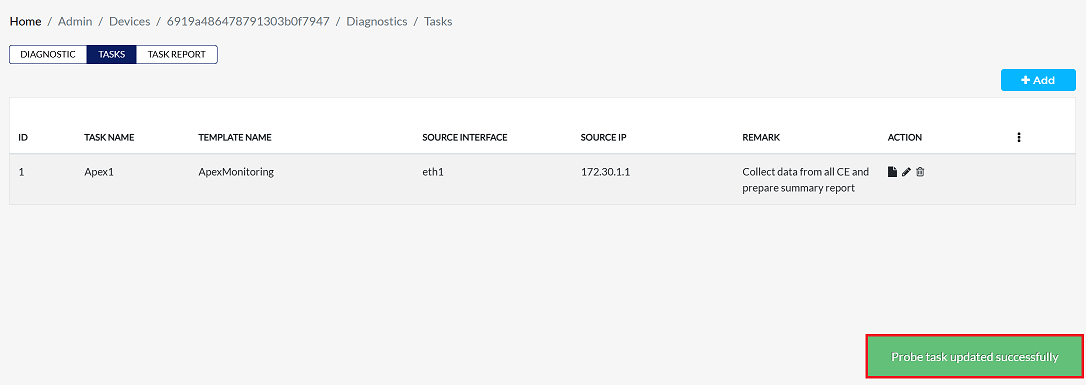
A confirmation message, Probe task updated successfully will be displayed upon a successful update.
Deleting a Task
-
To delete any Task, follow these steps:
-
Click on the Delete option in the 'Action' column in the row of the task to be deleted.
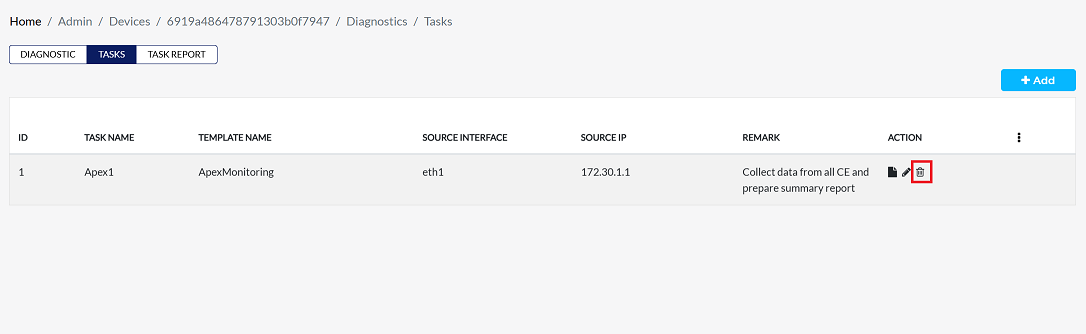
-
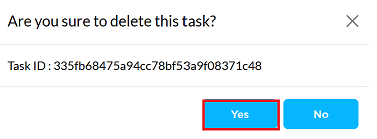
By clicking on the Delete option, a confirmation message popup will open on the screen. This popup asks to confirm the deletion action again, which prevents accidental deletion.
- The task has two options available:
- Confirm Delete: If the task really wants to delete the information, click on the Yes button in the popup.
- Cancel Delete: If not intended to delete or clicked by mistake, click on the No button to cancel the action and keep the information safe.
- The task has two options available:
-
Decision taken in the image As mentioned, the Yes button has been clicked in the image. This means that the deletion action has been confirmed by the task and the relevant data will be removed from the system.
-
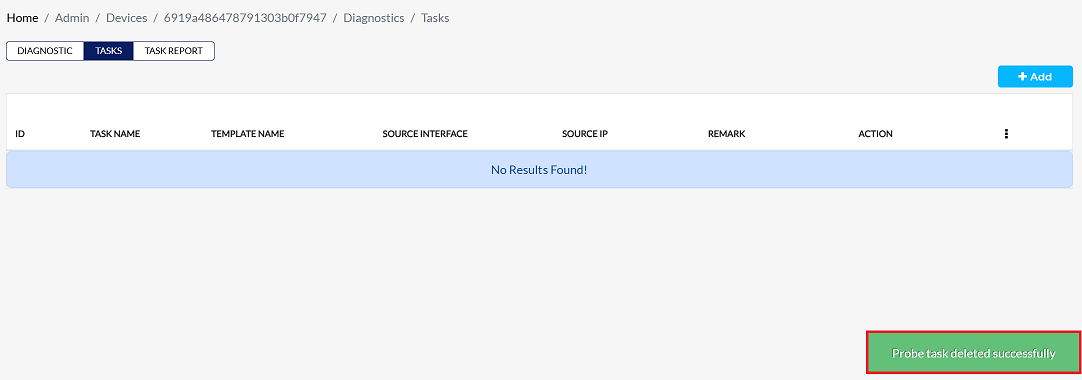
Upon successful deletion, a message will confirm: Probe task deleted successfully.
Important Notes for Users
- Always verify all fields before saving a task to avoid incorrect data collection.
- Ensure the template exists before creating a task.
- Deleted tasks cannot be recovered. Use the Cancel option if unsure.
- Only users with required permissions can create, edit, or delete tasks.
- Task cycles should align with reporting requirements to avoid unnecessary load on CE devices.
- Always check the CE device’s local time while scheduling tasks.
- Provide meaningful remarks for clarity in reporting.
Faqs
Q:1 How do I view the results or data collected by a task?
Go to the Tasks screen in the Diagnostics section. Locate the task you want to view. Click the Report button next to the task entry. You will be redirected to the Task Report tab, where the collected data and results are displayed. This report provides detailed insights based on the template and cycle defined for the task.
Q:2 What confirmation message is displayed after a task is successfully created?
After successfully creating a new task, the system displays the message: “Probe task created successfully” This confirms that the task has been added and is now active in the Diagnostics section.
Q:3 How do I view the results or data collected by a task?
The process is the same as in : On the Tasks screen, click the Report button for the desired task. The system redirects you to the Task Report tab, where you can view and interpret the collected diagnostic data.