Traditional Cloud Gateway
What is CGW
A gateway is a network point that acts as access to another network. With the help of the CLOUDS gateway, you can Enable and Disable your gateway. You can also select different modes. It has different modes (1) Global mode: As much as there will be global traffic. Global means that whatever traffic outside will be through the CGW. (2) Full mode: Full mode means all global, local, and domain traffic will be through the CGW. and (3) Selective mode: The website and domain you select will use the CGW and the rest will use the local.
Why do we need a CGW
Gateways play a crucial role in CLOUD computing by facilitating communication and data transfer between disparate networks, making it possible for different systems to work together seamlessly. A Gateway can enable communication between different networks, facilitating data transfer and integration.
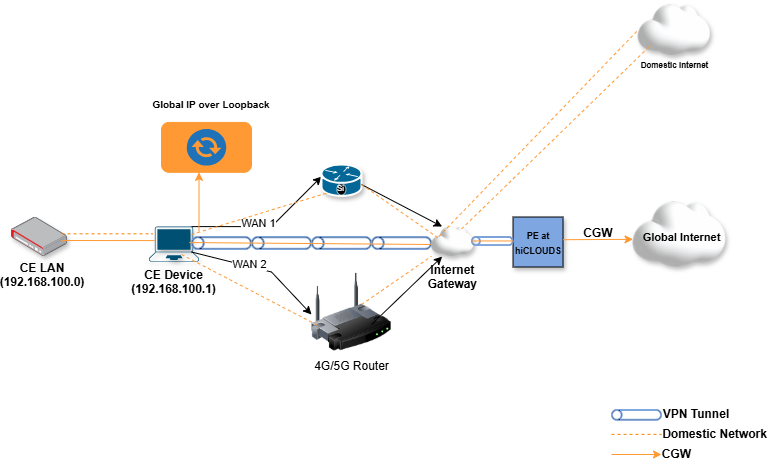
Enable CGW
Before enabling the cloud gateway, the CE and PE must be connected. Therefore, first, check whether the CE and PE are connected or not. If the CE and PE are not connected, what to do is explained below.
-
Before enabling CGW, you need to create and connect a VPN interface. To learn how to create and connect a VPN interface, Please visit this document How to VPN Link PE
-
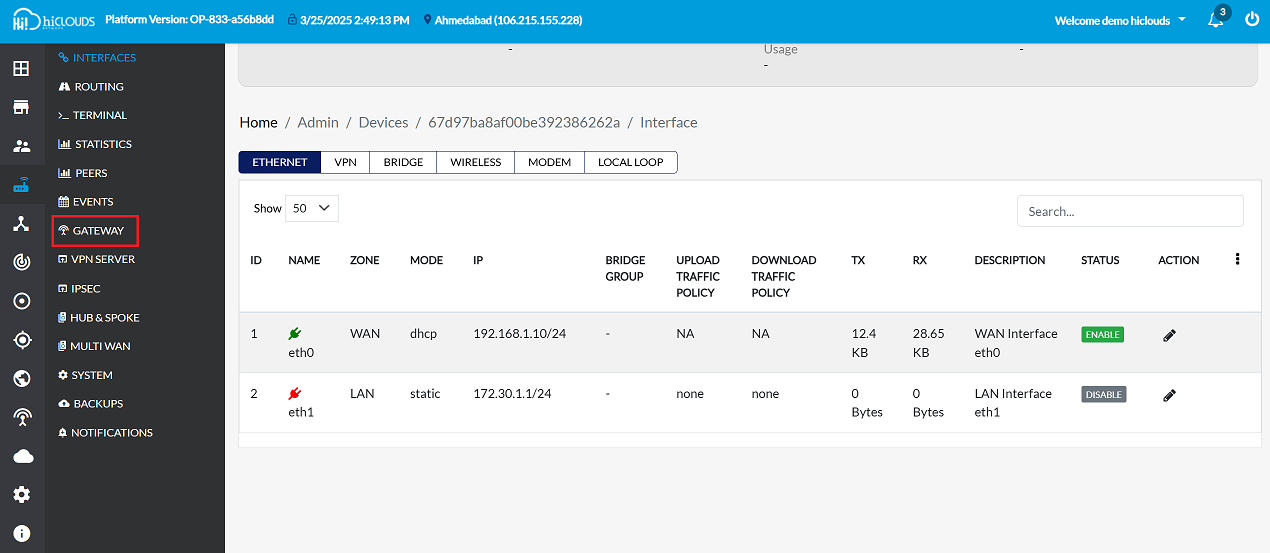
Navigate to the GATEWAY menu on the left panel.
-
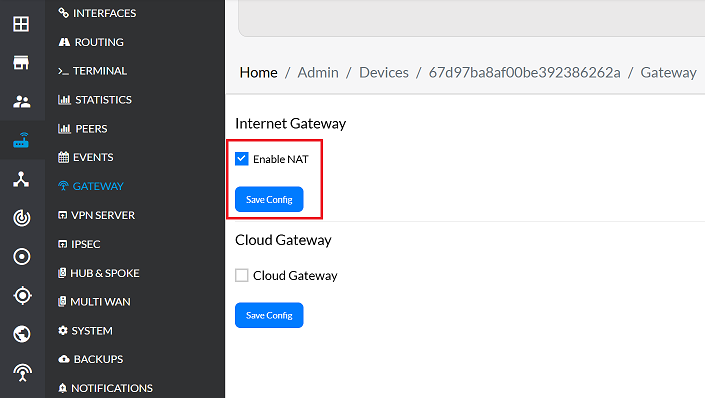
By default, the box called Enable NAT may already be ticked. If you feel the need, you can turn it on or off as per your requirement.
-
Click on the Save Config button.
-
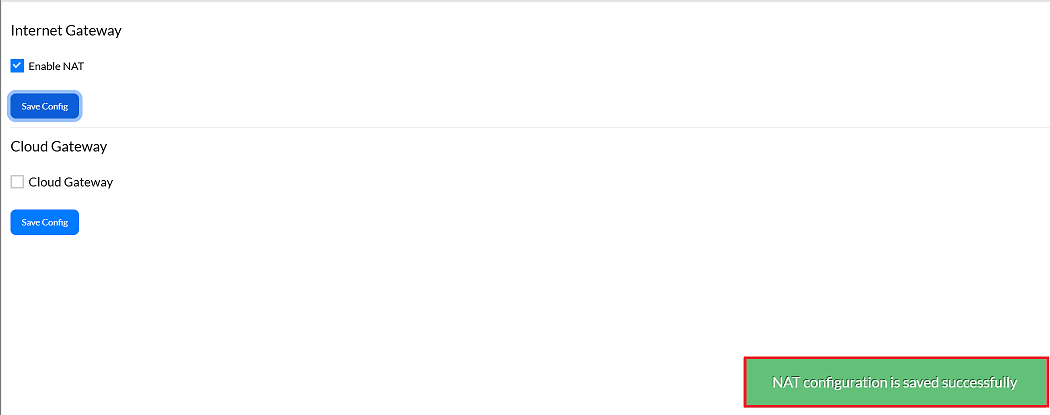
As soon as you click on Save Config, you will get a message on the screen that the NAT configuration is saved successfully.
-
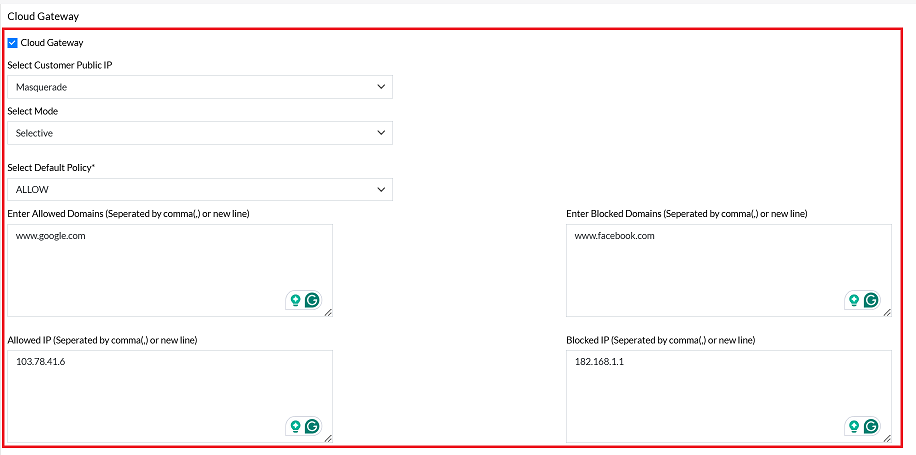
Select the Cloud Gateway checkbox.
-
Upon specific selection, additional settings sections will appear.
- Select Customer Public IP:- Enter the customer's public IP address. If the public IP address is not available, select the "Masquerade" option.
- Select Mode:- There are three modes available:
- Global Mode
- Full Mode
- Selective Mode: Select the desired mode based on your needs. For more information about each mode, please refer to this documentation how to select mode.
- Select Default Policy:- Two options are available:
- Allow: Permits traffic through CGW.
- Block: Traffic passing through the CGW will be blocked. If you select Block, the CGE will not handle traffic.
- Configure Whitelists and Blacklists: Enter the required values for:
- Allowed Domains
- Blocked Domains
- Allowed IPs
- Blocked IPs
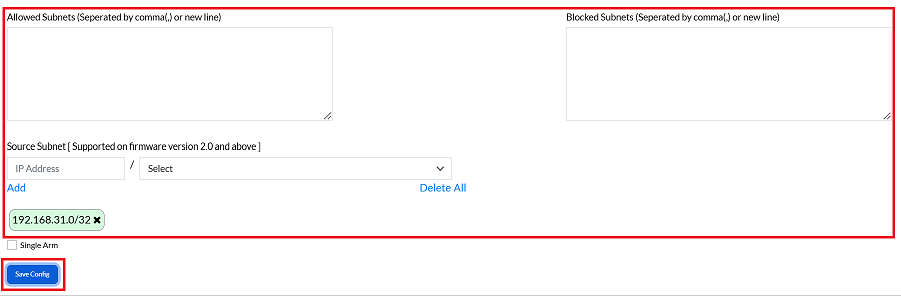
- Allowed Subnets
- Blocked Subnets For detailed instructions, refer to how to add allowed/ block domains and IP.
- Source Subnet:- Enter source subnet IP. A source subnet is a set of IP addresses from which network traffic originates. This information is important for properly routing, filtering, and securing network traffic.
-
Click on the Save Config button.
-
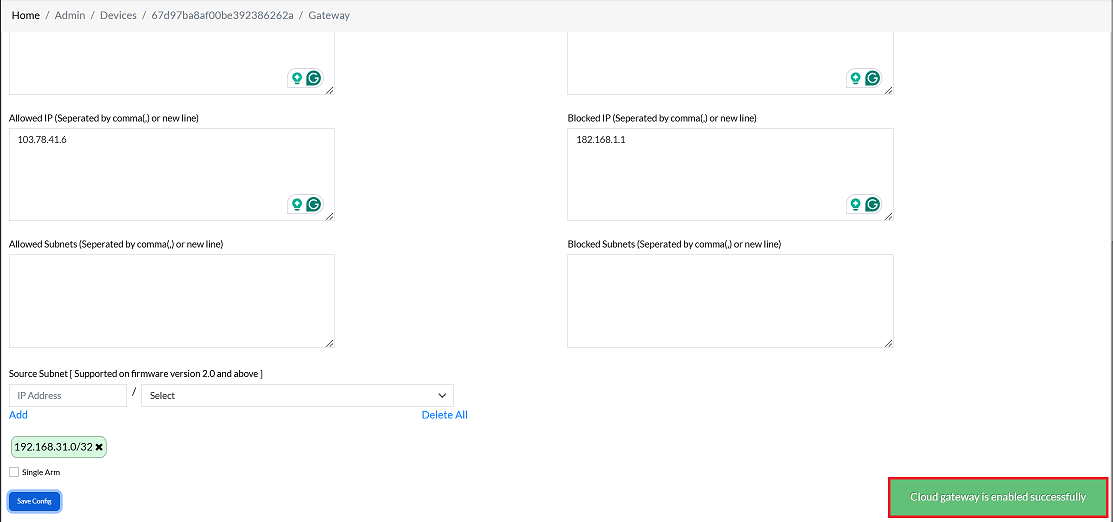
By clicking on Save Config button, a message will appear on the screen indicating that the Cloud gateway is enabled successfully.
Disable CGW
-
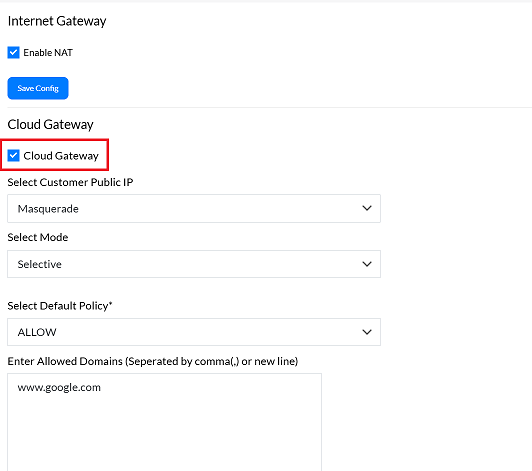
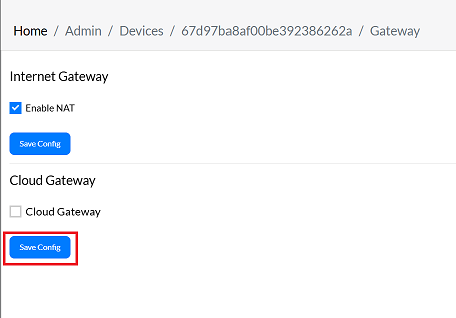
Uncheck the Cloud Gateway option.
-
When you Uncheck on Cloud Gateway you will get such a window.
-
Now click on Save Config.
-
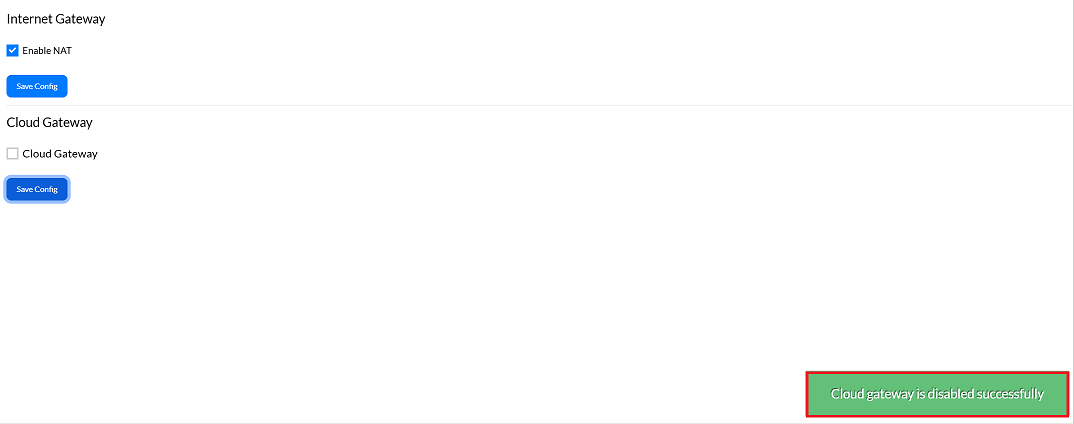
By clicking on Save Config button, a message will appear on the screen indicating that the Cloud gateway is disabled successfully.
Important Notes for Users
- CE and PE connection is mandatory before enabling CGW.
- NAT configuration should be carefully reviewed before saving.
- Selective Mode requires proper domain/IP configuration; otherwise, traffic may bypass CGW unintentionally.
- Blocking traffic disables CGE from handling it, so use the Block option cautiously.
- Always verify source subnet, whitelists, and blacklists to prevent connectivity issues.
- Any misconfiguration may impact network traffic flow; double-check settings before enabling.
FAQs
Q1: What is a Cloud Gateway (CGW)?
A Cloud Gateway (CGW) is a network component that allows the CE device to route traffic through the cloud instead of directly through the local network. It acts as a bridge between different networks, enabling secure communication, centralized control, and flexible traffic routing. With CGW enabled, you can: Route traffic through the cloud based on selected modes (Global, Full, Selective), Apply filtering rules such as allowed/blocked domains, IPs, and subnets, Manage how local and global traffic flows, Improve security and visibility by routing traffic through the cloud platform. In short, CGW provides a controlled and secure way to manage how your CE device communicates with external networks.
Q2: What is the purpose of the "Enable NAT" option?
The Enable NAT option controls whether Network Address Translation is applied on the CE device. Its purpose is to: Allow devices on the internal network to access external networks using the CE’s IP, Hide internal IP addresses by translating them to a single public or masqueraded IP,Ensure proper routing when multiple devices share the same outbound connection. When NAT is enabled, the CE rewrites source IP addresses so traffic can flow correctly through the CGW or local network. If NAT is disabled, internal devices must have routable IPs or proper routing rules in place.