CE link Three Different PE
This document details the step-by-step process for configuring a CE device to connect to multiple PE devices. The main steps include ensuring that the PE is assigned to a common region, navigating to the "Link PE" configuration, selecting the appropriate region and all three PE device IP addresses, and then assigning them to the CE. Upon successful completion, the system will confirm successful linking.
Prerequisites
- Before linking the CE to the PEs, ensure the following:
-
Creating a region: A region must be created. Refer to the Create a region documentation for detailed instructions.
-
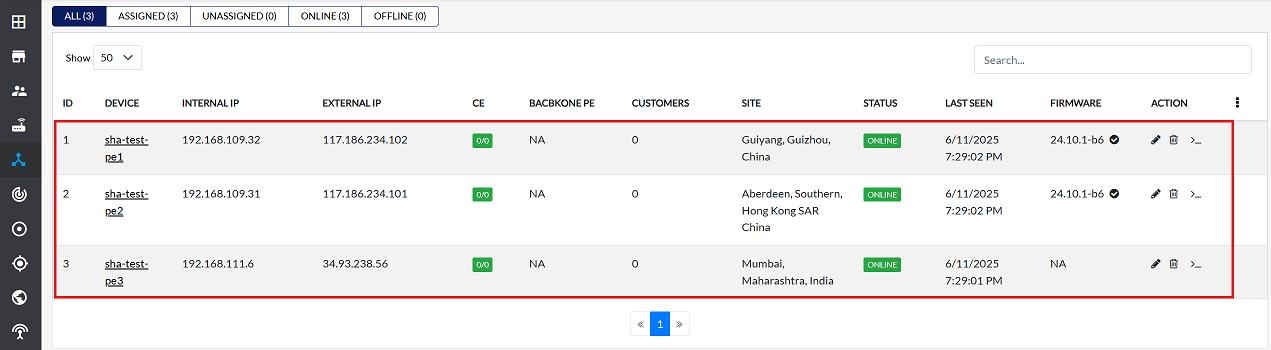
PE assignment to a region: Three PE devices must be assigned to the same region.
- Important: All three PE devices must reside within the same designated region, as illustrated in the example image below. Refer to the Assign PE documentation for guidance on assigning PEs to a region.As shown in the example image below, all three PE devices must be in the same designated region. For guidance on assigning PE devices to a region, refer to the Assign PE documentation.
-
Procedure for Linking CE to PEs
Follow these steps to link the CE device to the three PE devices:
-
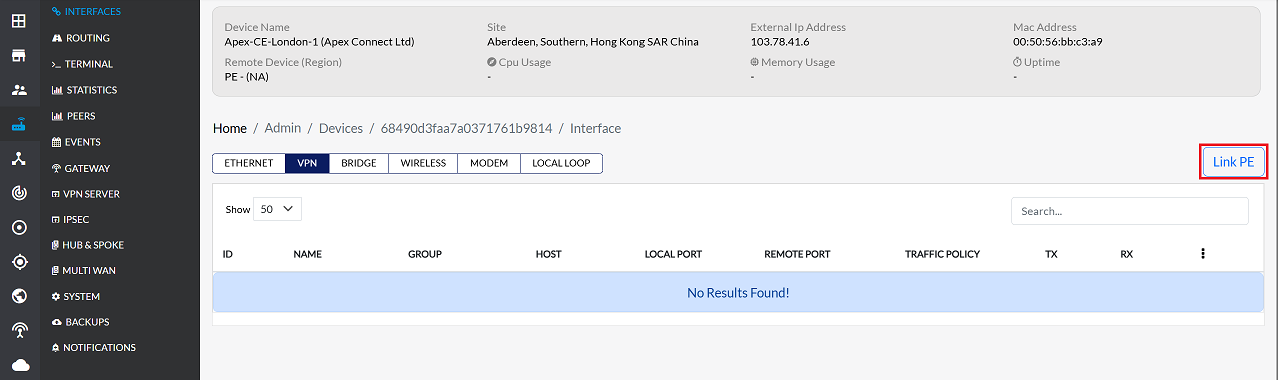
Navigate to the Interfaces > VPN > Link PE
-
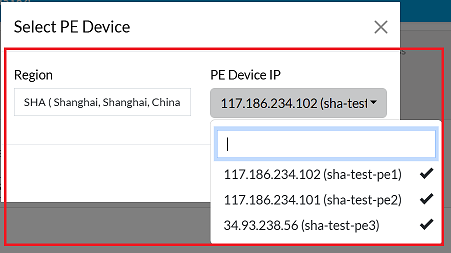
On the Link PE configuration screen, fill in the following details:
-
Region: From the dropdown menu, select the region assigned to the PE devices.
-
PE Device IP: The dropdown list will display the IP addresses of PE devices associated with the selected region. Select all three PE device IP addresses by clicking on each one individually.
-
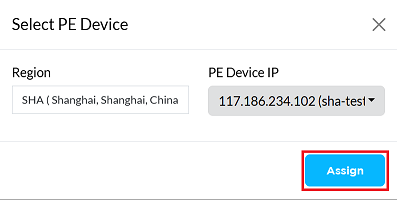
Click the Assign button to complete the linking process.
-
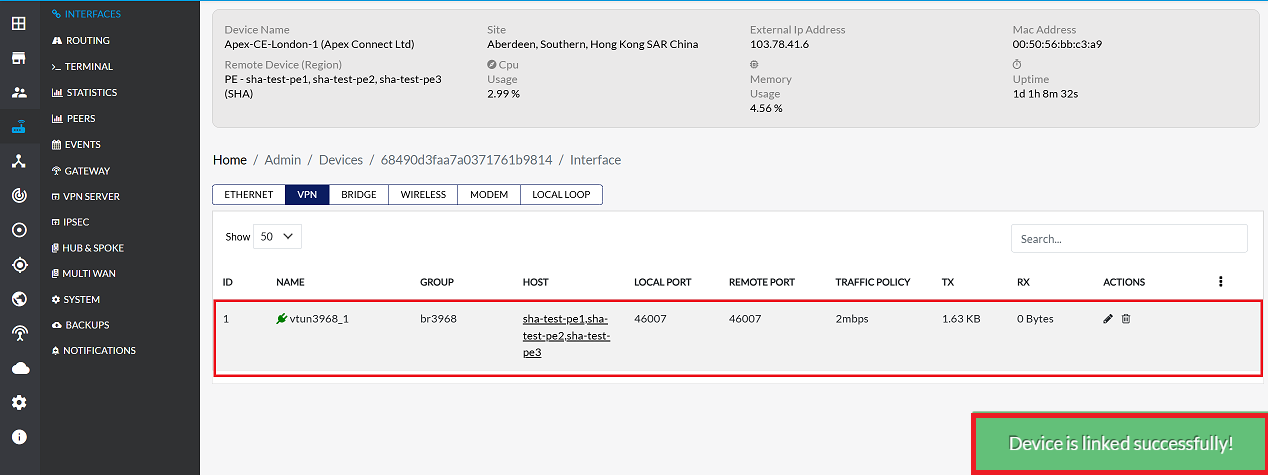
On successful linking, a confirmation message will appear on the screen stating Device successfully linked. The VPN interface will also appear in the grid, indicating its successful linkage to the PEs. After a short while, the signal status should turn green, and the TX/RX columns should start showing live data, confirming active communication.
Managing Linked Devices
For information on unlinking, deleting, or editing device configurations, please refer to the following documentation:
Important Notes for Users
- Ensure all PE devices are active and correctly assigned to the selected region before linking.
- The system will only show PE devices in the selected region; PEs in other regions will not appear.
- Always verify that the IP addresses you select belong to the correct PE devices to avoid misconfiguration.
- After linking, allow a short time for the VPN interface to turn green and for live TX/RX data to appear.
- If issues occur, refresh the Link PE page or recheck the PE assignment process before troubleshooting further.
- Only users with proper permissions can perform linking operations.
FAQs
Q1: Is it mandatory for PE devices to be in the same region before linking a CE device?
Yes. All PE devices must be assigned to the same region before linking them to a CE device. The system only displays PE devices that belong to the selected region, so if the PEs are not grouped under a common region, they will not appear in the selection list. This ensures consistent routing, proper configuration, and seamless connectivity.
Q2: What should I do if I can't see the IP address of the PE devices in the dropdown menu?
If the PE device IPs are not visible in the dropdown, check the following: Ensure all three PE devices are correctly assigned to the selected region. Verify that the region you selected in the dropdown is the same region where the PEs were assigned. Confirm that the PE devices are active and properly configured in the system. Refresh the page or reopen the Link PE screen to reload the device list. If the issue persists, recheck the PE assignment process or refer to the assigned PE documentation.
Q3: After linking, when will the VPN interface turn green?
If the PE device IPs are not visible in the dropdown, check the following: Ensure all three PE devices are correctly assigned to the selected region. Verify that the region you selected in the dropdown is the same region where the PEs were assigned. Confirm that the PE devices are active and properly configured in the system. Refresh the page or reopen the Link PE screen to reload the device list. If the issue persists, recheck the PE assignment process or refer to the assigned PE documentation.