Manage Remote Device
This guide will walk you through the process of managing remote devices in the VPN interface. By following these steps, you can successfully link/unlink the remote devices and configure the bridge interface and PE devices as required.
Steps to Manage a Remote Device
-
Navigate to Login > CE Device > [Select CE]> Interface > VPN > [Pick VPN Interface] > Edit > Manage Remote Devices.
-
On the Manage Remote Device modal dialog, follow these steps
- Select Bridge Interface: Use the dropdown menu to choose the desired Bridge Interface.
- Select PE Devices: Use the dropdown menu to choose the appropriate PE Device.
-
Click on the Assign Device button.
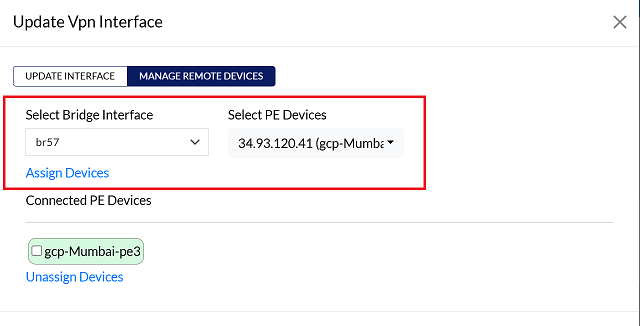
-
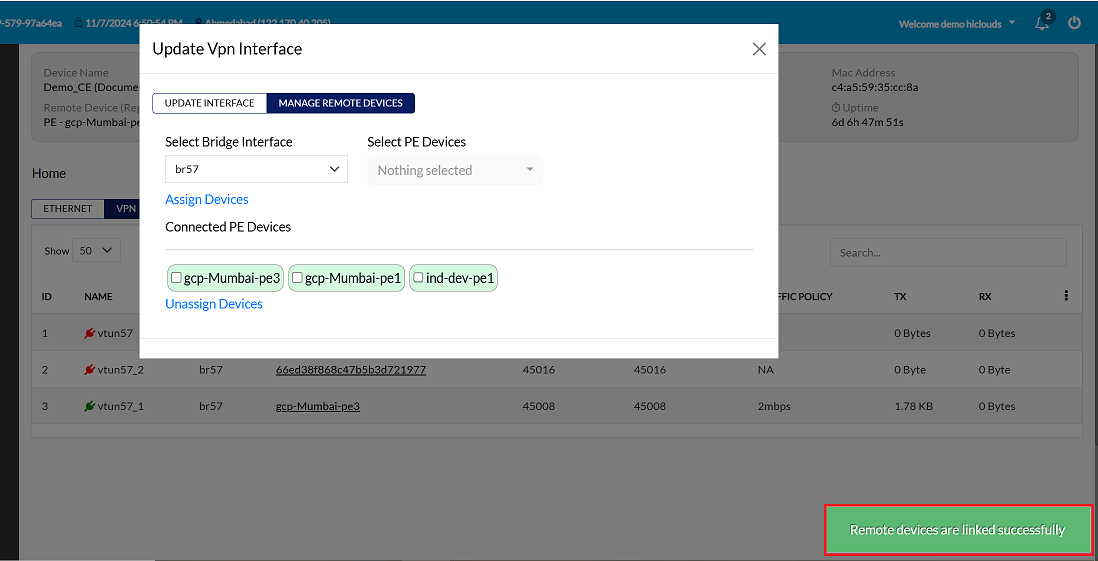
Upon clicking Assign, a confirmation message, Remote devices are linked successfully will appear on the screen.
Unlink Device
-
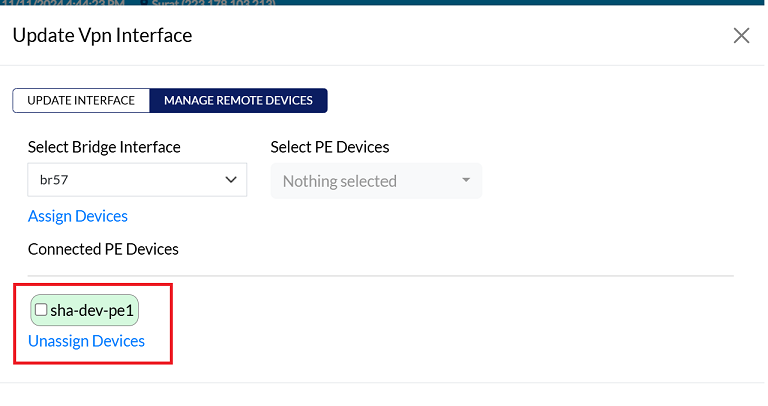
To unassign, select the assigned PE device by clicking the checkbox next to it, then click on Unassign Devices as shown in the image.
-
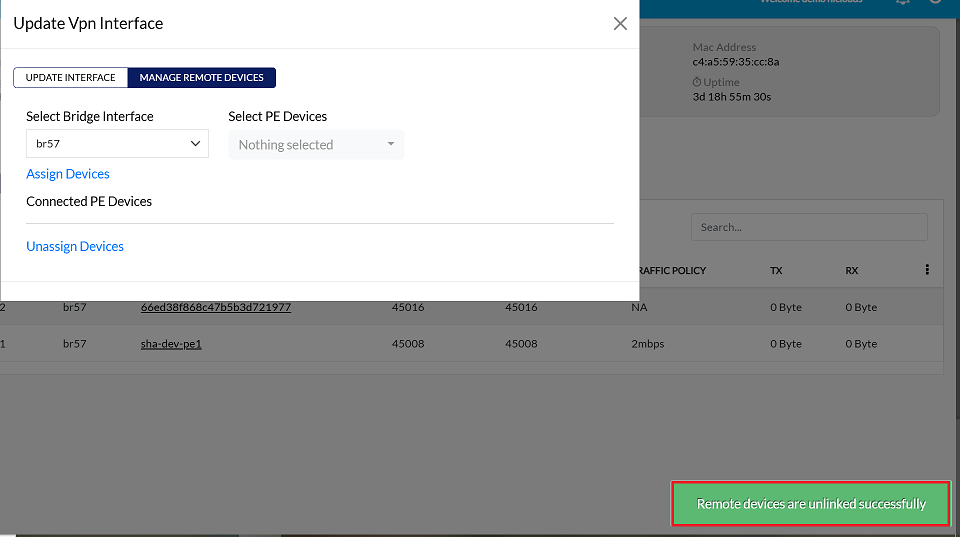
User will get a message on the screen that Remote devices are unlinked successfully.
Delete Device
-
Click on the Delete option in the 'Action' column in the row of the vpn interface to be deleted.
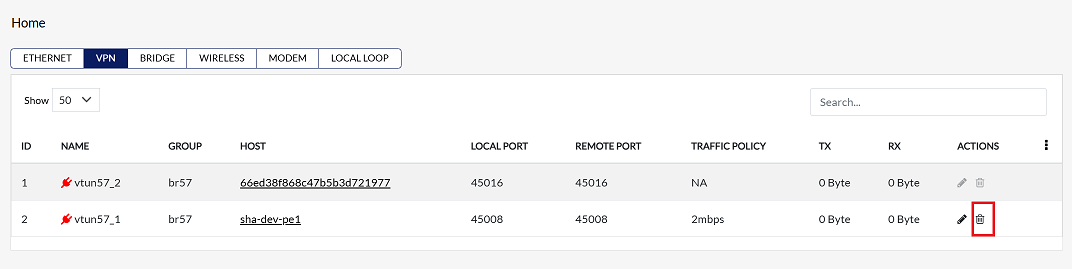
-
By clicking on the Delete option, a confirmation message popup will open on the screen. This popup asks to confirm the deletion action again, which prevents accidental deletion.
- The vpn interface has two options available:
- Confirm Delete: If the vpn interface really wants to delete the information, click on the Yes button in the popup.
- Cancel Delete: If not intended to delete or clicked by mistake, click on the No button to cancel the action and keep the information safe.
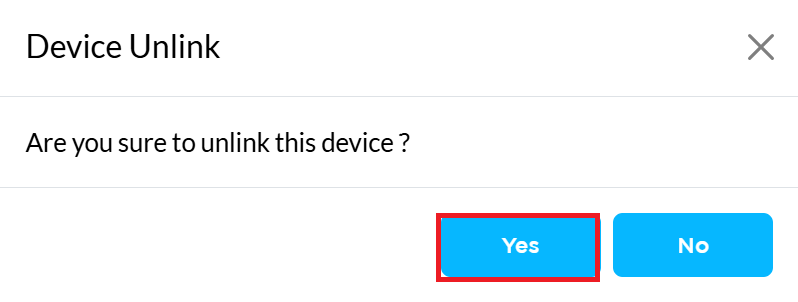
- The vpn interface has two options available:
-
User will get a message on the screen that Interface is deleted successfully.
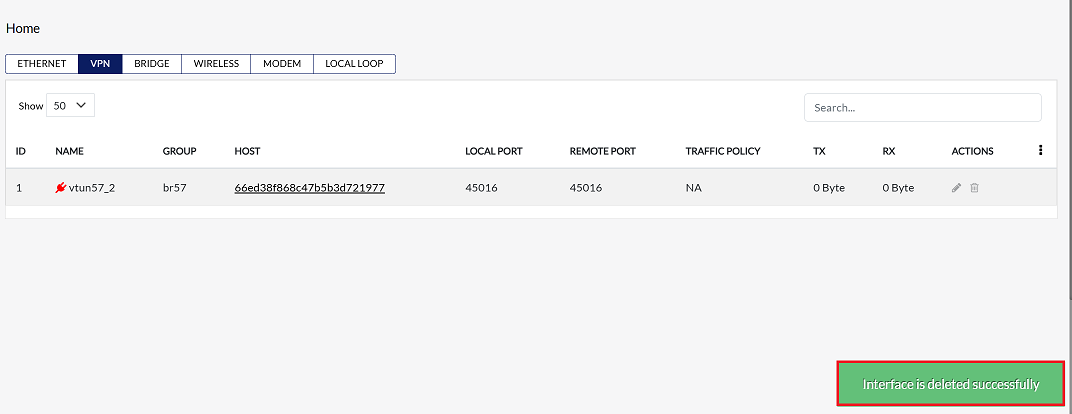
Important Notes for Users
- Link Carefully: Ensure that the correct Bridge Interface and PE Device are selected before assigning. Wrong assignments can disrupt VPN connectivity.
- Unlink with Caution: Unlinking a remote device will temporarily stop traffic flow. Make sure to perform this action during maintenance windows if possible.
- Delete Confirmation: Deletion is permanent. Only delete VPN interfaces if you are certain they are no longer required.
- Permissions Required: Only users with the necessary access roles can assign, unassign, or delete devices.
- Verify Changes: Always verify that the assignment, unlinking, or deletion has been successful by checking the confirmation messages on the UI.
FAQs
Q1:What is a Remote Device?
A remote device refers to the PE (Provider Edge) device that connects to the selected VPN interface of the CE device. It enables communication between the CE and the service provider network. By linking a remote device, you establish the required connectivity path for VPN traffic to flow between sites.
Q2: How do I access the "Manage Remote Devices" dialog?
To access the Manage Remote Devices dialog, navigate through the following path: Login → CE Device → [Select CE] → Interface → VPN → [Pick VPN Interface] → Edit → Manage Remote Devices. This will open the modal where you can assign or unassign bridge interfaces and PE devices.
Q3: What is the purpose of the "Bridge Interface" and "PE Devices" dropdowns?
The Bridge Interfacedropdown allows you to select the interface on the CE device that will be used to bridge traffic for the VPN connection. The PE Devices dropdown lets you choose the Provider Edge device that the CE device will connect to. Assigning the correct PE device ensures proper routing and connectivity between the CE and the service provider network.