Update Interface
This guide provides step-by-step instructions for configuring the VPN interface on your device. It covers setting up encryption, managing traffic bandwidth, enabling SOCKS proxy settings. This will help you ensure a secure and optimized VPN connection for your network.
Steps to Configure the Update Interface
-
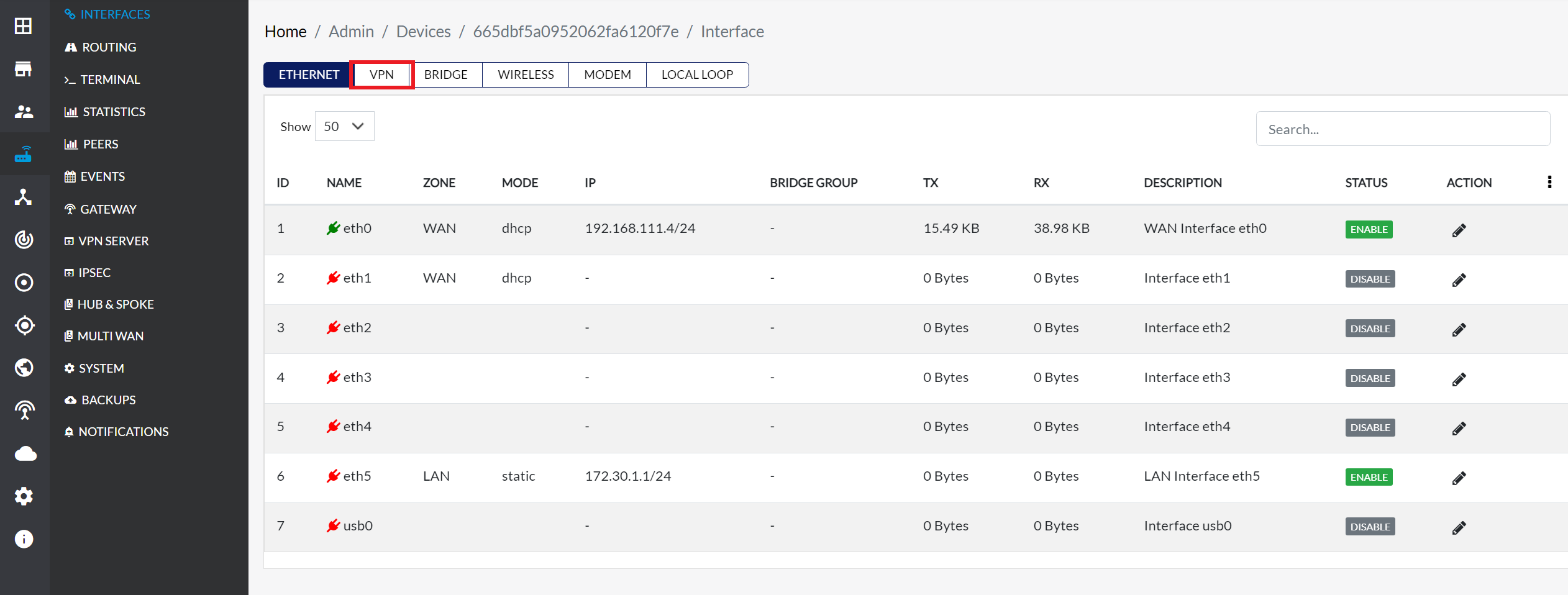
Navigate to Login > CE Device > [Select CE] > Interface > VPN Tab.
-
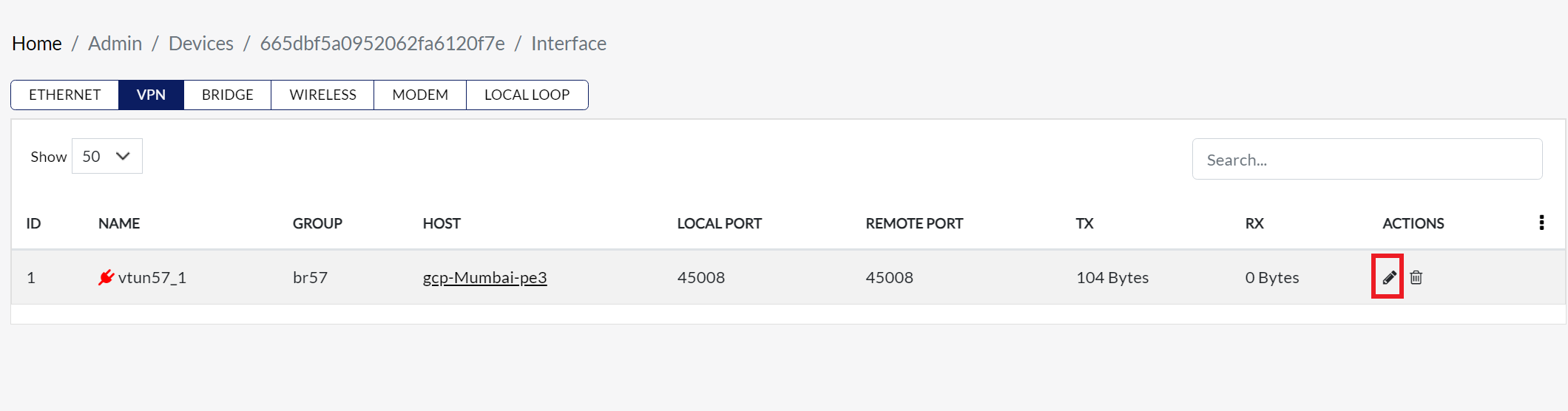
Click the Edit button associated with the VPN interface. This will open the VPN Interface Settings modal dialog, where user can modify the configurations.
1. WAN Interface and Priority
-
Once Edit is clicked, the Update VPN Interface Model dialog appears, allowing configuration of various settings.
-
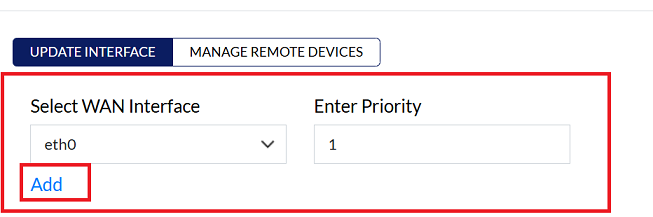
This option allows you to assign a priority level to the WAN interface that will handle the VPN connection. Higher-priority interfaces will be preferred for VPN traffic.
procedure
-
WAN Interface: Select WAN Interface from the dropdown menu.
-
Priority: Enter the priority level in the input box next to the dropdown.
-
Click on Add button.
2. Configure Encryption Settings
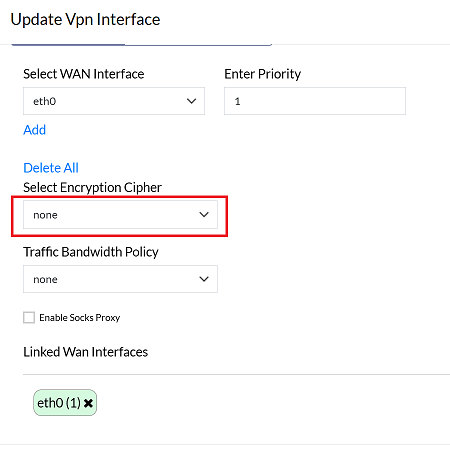
- Encryption ensures the privacy and security of data transmitted over a VPN connection. Depending on your needs, you can choose different levels of encryption.
procedure
-
Choose an encryption cipher from the available options:
- Default: The standard option.
- None: For setups where encryption is not required.
- AES-256-CBC: A secure encryption option.
3. Configure Traffic Bandwidth Policy
- Bandwidth limits control the amount of data that can pass through the VPN interface, helping to manage network traffic and optimize performance.
procedure
- Users can use the Traffic Bandwidth policy dropdown to select the appropriate bandwidth limit based on their traffic requirements.
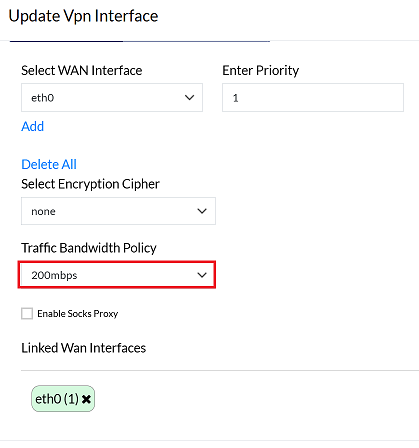
If the VPN interface does not achieve the desired speed due to encryption overhead, selecting "None" for encryption can enable an end-to-end connection at maximum speed. If maximum speed is not required, you may retain the default encryption settings.
4. Enable Socks Proxy
-
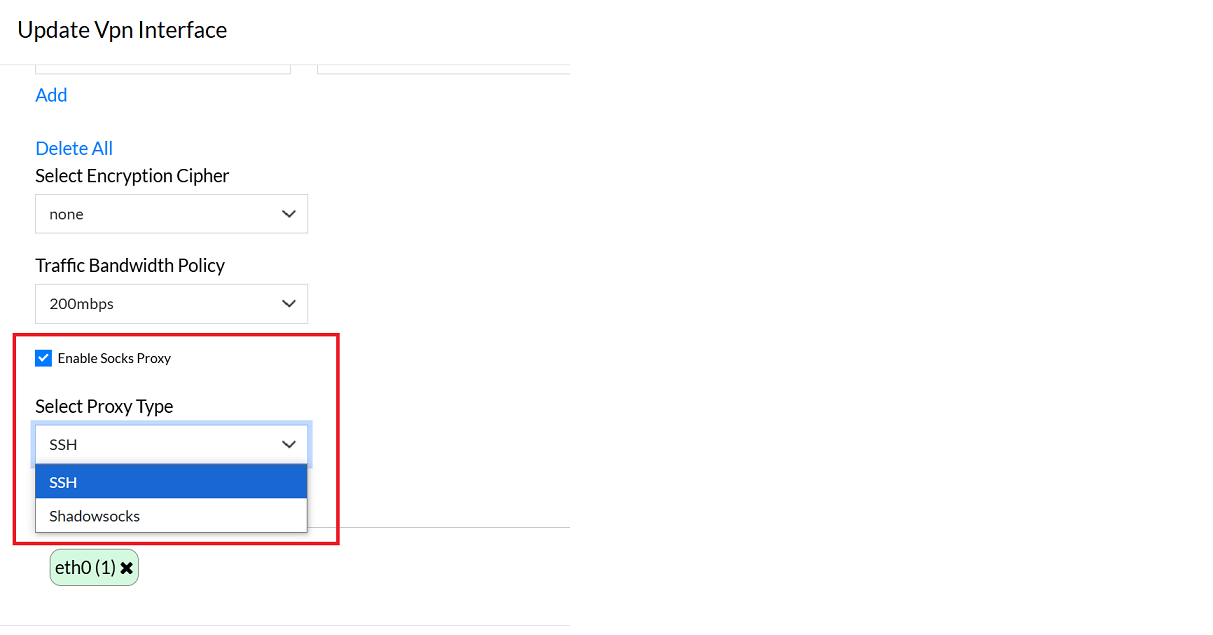
A SOCKS proxy routes VPN traffic through a proxy server, adding an extra layer of security and privacy. The available proxy types are SSH and Shadow SOCKS.
-
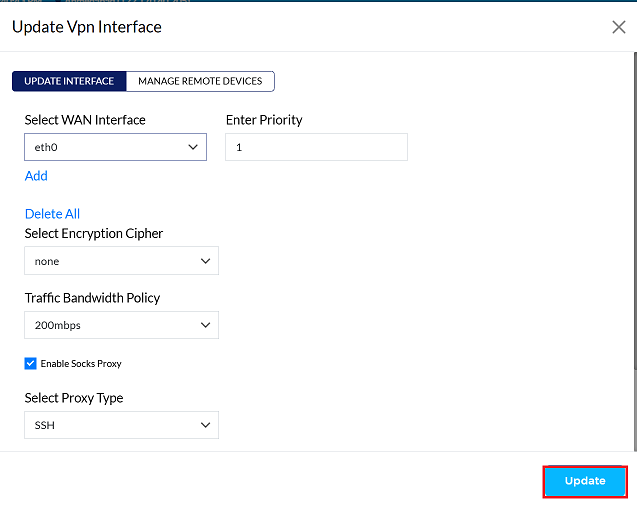
Click on the Update button to save the changes.
-
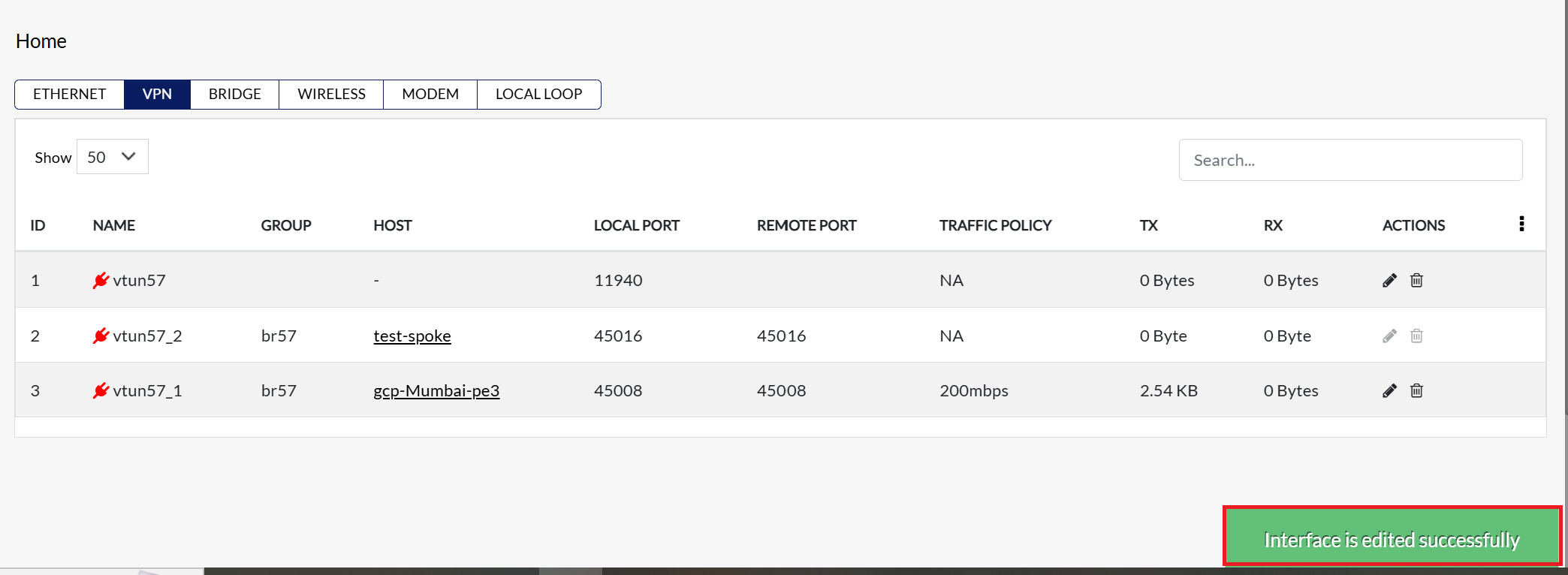
By clicking on Update, a message will appear on the screen indicating that the Interface is edited successfully
Important Notes for Users
- Always verify the WAN Interface and Priority settings to avoid routing conflicts.
- Choose encryption based on your network requirements: Default is recommended for most users; None should be used only if performance is critical and security is less of a concern.
- Apply bandwidth policies carefully to prevent network congestion or throttling of critical traffic.
- Ensure the correct SOCKS proxy type is selected; wrong proxy settings may prevent VPN connections.
- Always click Update after making any changes and confirm the success message appears before exiting.
- Changes take effect immediately; plan updates during maintenance windows if necessary.
- Only authorized users with proper permissions should edit VPN interface settings to maintain network security.
FAQ
Q:1 What is the standard encryption used by devices by default, and why is it commonly chosen?
The Default encryption option typically corresponds to widely adopted ciphers such as AES-128-CBC or similar secure algorithms, depending on device firmware. It is commonly chosen because:
- Balanced Performance & Security: Provides strong encryption while minimizing overhead, ensuring stable VPN speeds
- Compatibility: Supported across most CE and PE devices, making it reliable for interoperability
- Industry Standard: AES-based encryption is recognized globally for secure VPN tunnels, protecting data against unauthorized access
In short, default encryption is selected to give users a secure connection without requiring advanced configuration, making it the most practical choice for general deployments.