Live Logs
The Live Logs feature in the Cloud interface allows real-time monitoring of events and activities occurring on a selected CE device. This is useful for troubleshooting, verifying configurations, and tracking ongoing processes.
| Feature | Description |
|---|---|
| Purpose | Monitor real-time activities and events on a selected CE Device. |
| Use Cases | Troubleshooting errors, verifying applied configurations, tracking live processes. |
| Access Path | Login → CE Devices → Select CE Device → Logs |
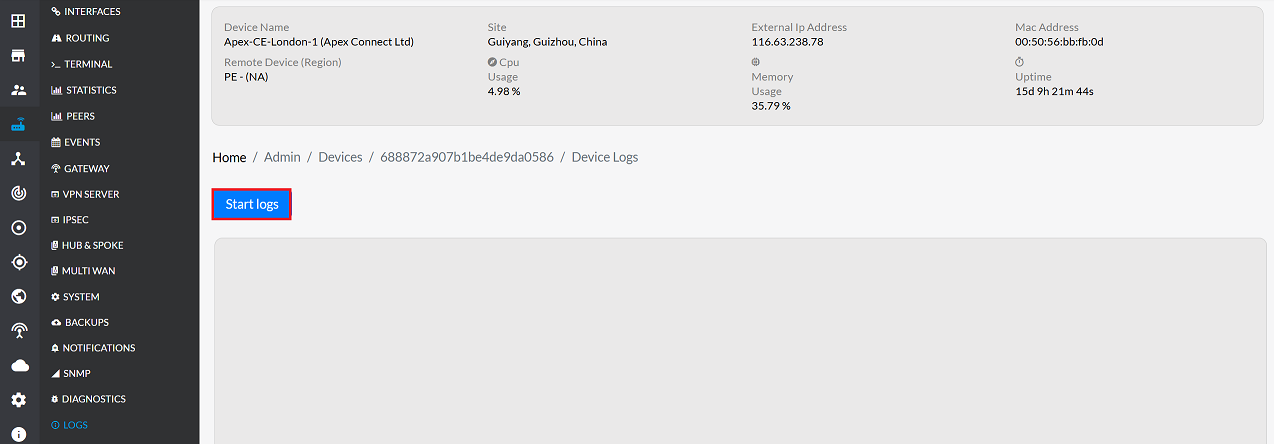
| Start Option | Click Start Logs to begin live streaming of log entries. |
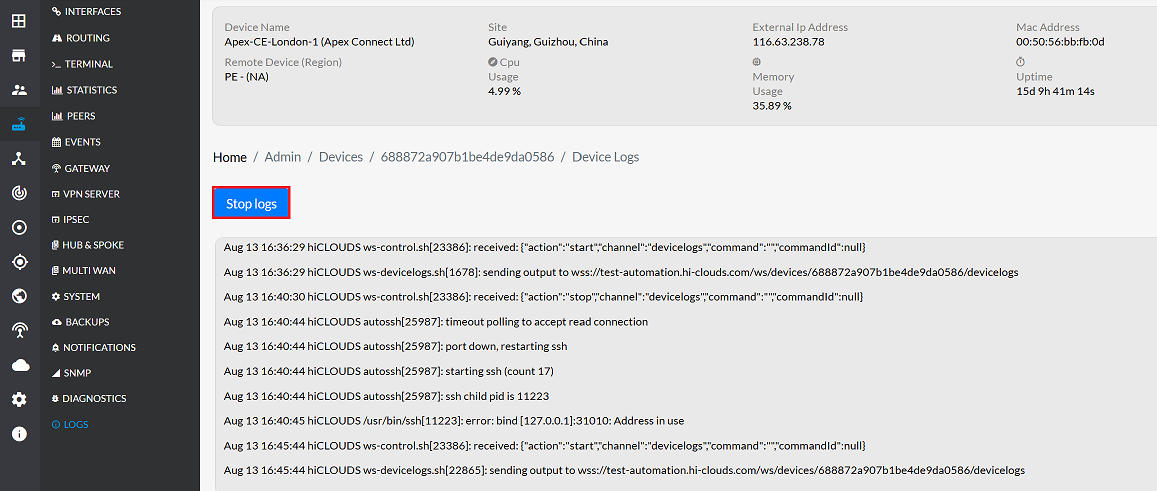
| Stop Option | Click Stop to end live streaming and freeze the display. |
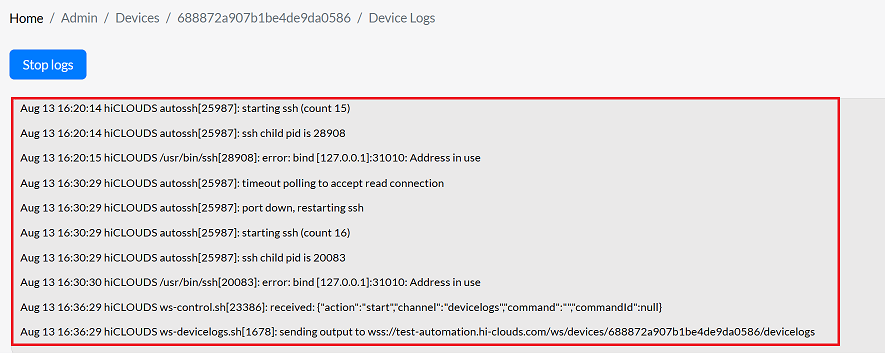
| Output Format | Continuous real-time stream of log entries related to device activities. |
Viewing Live Logs
Follow these steps to access and view the live logs for your device:
- Navigate to the Login page and select CE Devices.
- Choose the specific CE Device to monitor from the list.
- Click on the Logs tab.
- To start viewing real-time data, click the Start Logs button.
Once Start Logs is clicked, the system displays a live stream of all configuration details for the selected device. This stream shows the activities occurring on the device in real time.
Stopping the Logs
To stop the live log stream, click the Stop button. This freezes the display, allowing review of the final log entries or ending the monitoring session.
Important Notes for Users
- Only authorized users with CE Device access can view live logs.
- Logs are real-time and may scroll quickly; pause or stop to review details carefully.
- Sensitive information may appear in logs; avoid sharing publicly.
- If the CE device is disconnected, live logs may stop automatically.
- Always click Stop Logs after monitoring to avoid unnecessary resource usage.
- Use the Export Logs option if you need a permanent copy for troubleshooting or reporting.
FAQs
Q:1 What is the purpose of the Live Logs feature?
The Live Logs feature allows administrators to monitor real-time activities and events on a CE device. It is primarily used for troubleshooting errors, verifying applied configurations, and tracking ongoing processes as they happen.
Q:2 What format is used to display Live Logs?
The output is shown as a continuous real-time stream of log entries. Each entry reflects device activities, configuration changes, or events as they occur, making it easier to track and diagnose issues instantly.