Past Logs
This document details the procedure for retrieving, filtering, and viewing Past Logs for a specified CE Device. This feature provides essential data for system diagnostics and network analysis by categorizing events into System Logs and Flow Logs.
| Field | Description |
|---|---|
| Feature Name | Past Logs (Historical Log Access) |
| Purpose | Retrieve and analyze System Events and Connection Events of the selected CE device for a specific historical date. |
| Access Path | Login → CE Devices → Select CE Device → Logs → Click Past Log |
| Configuration Steps | 1. Log Type Selection: Choose System Logs (System Events) or Flow Logs (Connection Events). 2. Date Input: Enter the required historical date (e.g., 11/09/2025). |
| Log Type Category – System Logs | Records system events such as configuration changes, service start/stop, device status, internal warnings/errors. |
| Log Type Category – Flow Logs | Records connection events such as network traffic flow, successful/failed connection attempts, and data transfer metrics. |
| Data Retrieval | After clicking Submit, logs are processed based on the selected Log Type and Date and displayed in structured format. |
| Output Format | Each entry typically includes Timestamp, Log Type, and a detailed event message. |
Viewing Past Logs
Follow these steps to access and filter historical logs:
-
Navigate to the Login page.
-
Select CE Devices.
-
Choose the specific CE Device to monitor from the displayed list.
-
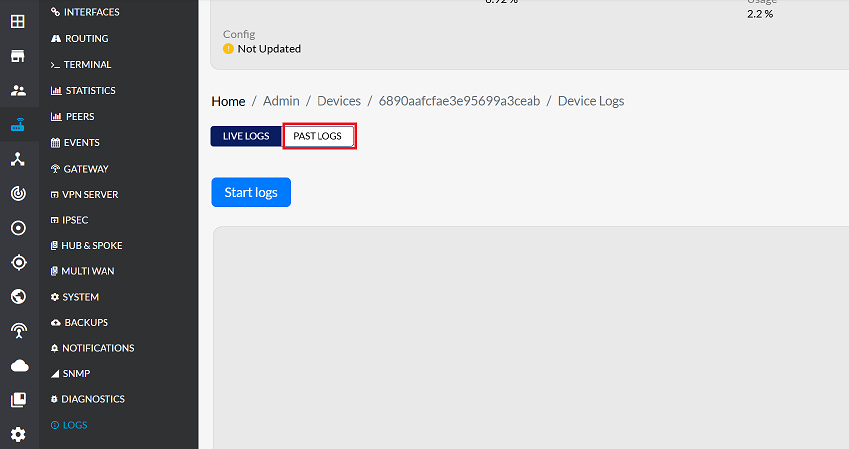
Click on the Logs tab.
-
Click on Past Log to begin the historical log retrieval process.
-
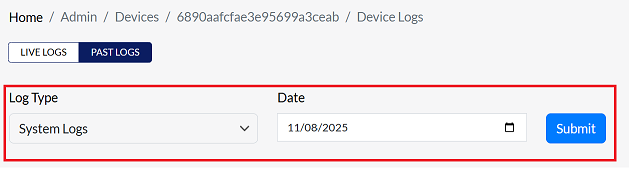
Upon clicking Past Log, the user is prompted to select a Log Type. This feature offers two primary categories of logs:
| Log Type | Description |
|---|---|
| System Logs | Records System Events (e.g., configuration changes, service startups/shutdowns, device status, and internal warnings/errors). |
| Flow Logs | Records Connection Events (e.g., network traffic flows, successful and failed connection attempts, and data transfer metrics). |
-
Select the required type based on the information being sought (
e.g., choose System Logs to troubleshoot device errors). -
In the Date field, enter the specific historical date for which logs need to be viewed. (
e.g:-Enter 11/09/2025 to retrieve logs from that particular day.) -
Click the Submit button.
-
After clicking the Submit button, the logs for the selected date are processed and displayed in a structured format.
-
The displayed log entries mainly include the following details:
Field Name Description Timestamp The exact time when the event occurred. Date The date when the event occurred. Process The system process or service that generated this log. Process ID (PID) The unique ID of the associated system process. Message A detailed description of the event (message). This is the main information. 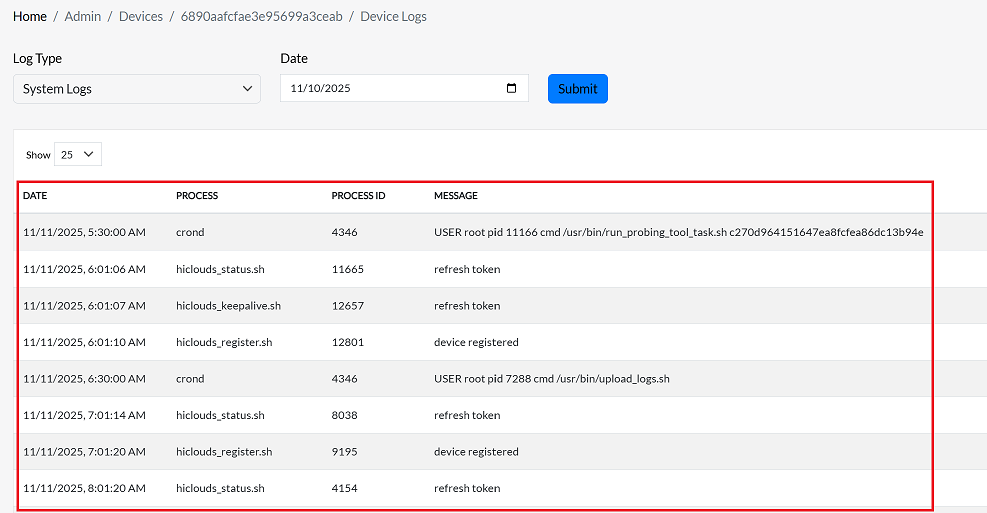
Important Notes for Users
- Ensure you select the correct Log Type to retrieve relevant data.
- Enter the exact historical date; incorrect dates will return no results.
- Logs are read-only; no edits or deletions can be made through this interface.
- Large logs may take a few seconds to load depending on device activity.
- Use Flow Logs for network traffic and connection analysis, and System Logs for device/system troubleshooting.
- For continuous monitoring, consider exporting logs using the system's Export feature.
FAQs
Q:1 Can I view logs for multiple dates at once?
No, the Past Logs feature only supports retrieval for a single date at a time. When using the Date field, you must enter one specific historical date (e.g., 11/09/2025). The system will then process and display logs only for that selected day. If you need to analyze logs across multiple dates, you must repeat the process by entering each date individually and retrieving the logs separately. This ensures that the log data remains structured, accurate, and easy to filter for diagnostics and analysis.