Replace CE
When a customer equipment (CE) device experiences a problem or failure, a replacement process can be initiated to ensure continuity of service. This process includes registering the new CE device, applying the previous device's configuration, and completing a seamless transition. This guide provides step-by-step instructions for replacing a CE device and completing login, navigation and replacement details.
Replacement Process
-
First, log in to the platform using valid credentials. After successful login, the device management dashboard appears.
-
From the dashboard, select CE Device Menu. This menu allows managing all customer devices
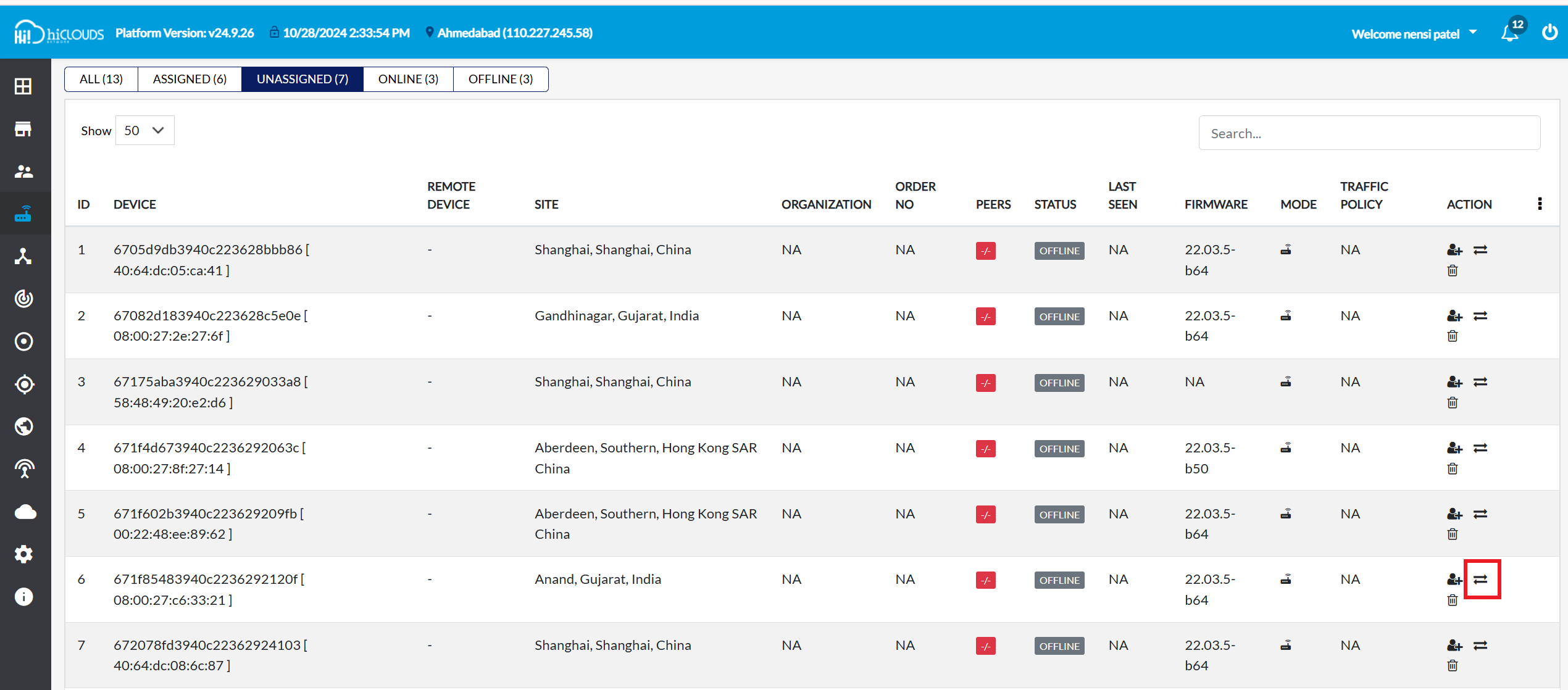
- Find a device eligible for replacement: In the CE Device menu, click the Unassigned tab. This tab will list devices that are eligible for replacement.
-
Click on the Replace CE icon on the right side opposite the device to be replaced. This opens the replacement form.
-
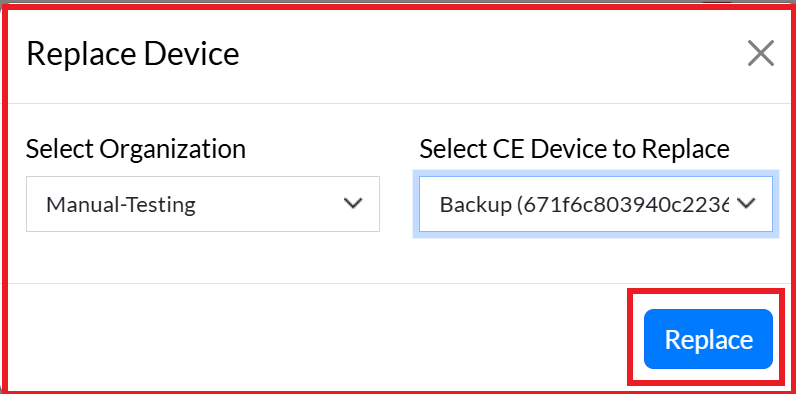
In the replacement form, two main details are required:
- Select Organization: Select the relevant organization from the drop-down list.
- Select CE Device to Replace: A list of defective CE devices associated with the organization selected above will be displayed here. Select the correct device from this list.
important-noteOnly devices associated with the selected organization will be displayed here.
-
After filling in both the details, click on the Replace button to finalize the process.
-
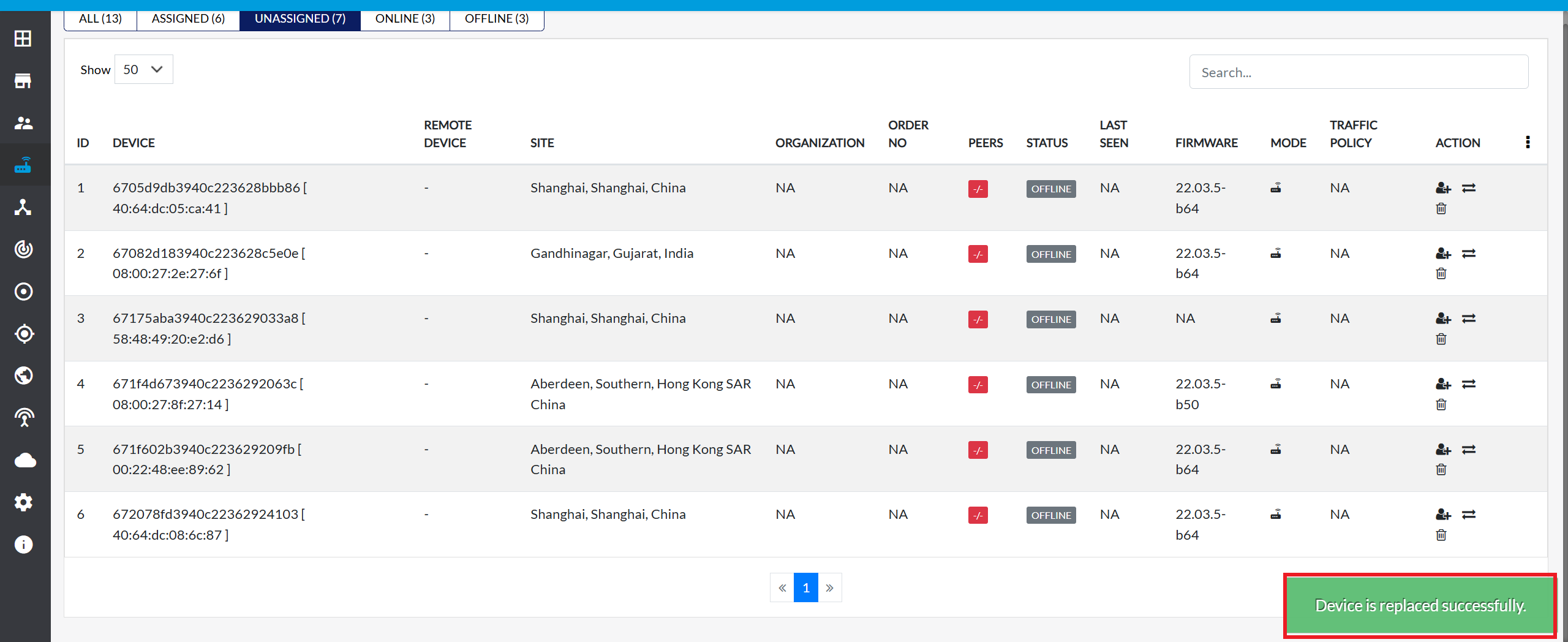
Upon successful replacement, a message will appear on the screen Device is replaced successfully.
Important Notes for Users
- Only eligible CE devices will appear in the Unassigned list.
- Ensure the correct organization is selected before submitting.
- Replacement applies the previous CE configuration automatically.
- Avoid powering both old and new CE devices simultaneously during replacement.
- Only users with replacement permissions can perform this action.
- Verify the serial number or device ID before confirming.
- Internet connectivity may be briefly affected during the switch.
- If the device remains online but faulty, replace during maintenance hours where possible.
FAQ
Q:1 How to replace CE when configured with provisionedConfig?
If the CE device is configured with provisionedConfig, the replacement process will automatically apply the same configuration to the new device. During replacement, the system ensures that the new CE inherits the previous device's provisioned settings, so no manual reconfiguration is required.
Q:2 Can CE be replaced with different type of CE model?
Yes, a CE can be replaced with a different model, provided the new device is compatible with the organization's configuration and policies. The system will apply the existing configuration to the new model, but certain hardware-specific features may vary depending on the device type.
Q:3 Can CE be replaced successfully if old CE is still online?
No, the replacement process requires the old CE to be offline. If the defective CE is still online, the system will not allow replacement to avoid conflicts between the old and new devices.
Q:4 How to get CE listed in the "Unassigned" list?
CE device appears in the Unassigned list when: It is newly registered but not yet assigned to any organization, It has been unassigned manually from its organization., It is added to the system as a replacement candidate but not linked yet, Only devices in the Unassigned tab are eligible for replacement.