SNMP
This document provides detailed steps to configure SNMP for CE Devices, including SNMP versions v1, v2c, and v3. It explains every configuration field and option to help users configure SNMP effectively.
Common Configuration Fields
| Field | Description |
|---|---|
| Host Name | Enter the host name (e.g., apex.com) |
| Location | Enter the physical or logical location (e.g., Shanghai) |
| Version | Select SNMP version: v1, v2c, or v3 |
| Port | Enter the port number used for SNMP |
| Description | Add a description for reference |
| Contact | Enter valid contact email address (e.g., apex_connect.ltd1@gmail.com) |
Field Visibility Based on SNMP Version and Security Level
| Field | v1 / v2c | v3 – noAuthNoPriv | v3 – authNoPriv | v3 – authPriv |
|---|---|---|---|---|
| Community | Visible | Not Applicable | Not Applicable | Not Applicable |
| Username | Not Applicable | Visible | Visible | Visible |
| Auth Protocol | Not Applicable | Not Applicable | Visible | Visible |
| Auth Password | Not Applicable | Not Applicable | Visible | Visible |
| Privacy Protocol | Not Applicable | Not Applicable | Not Applicable | Visible |
| Privacy Password | Not Applicable | Not Applicable | Not Applicable | Visible |
Accessing SNMP Configuration
-
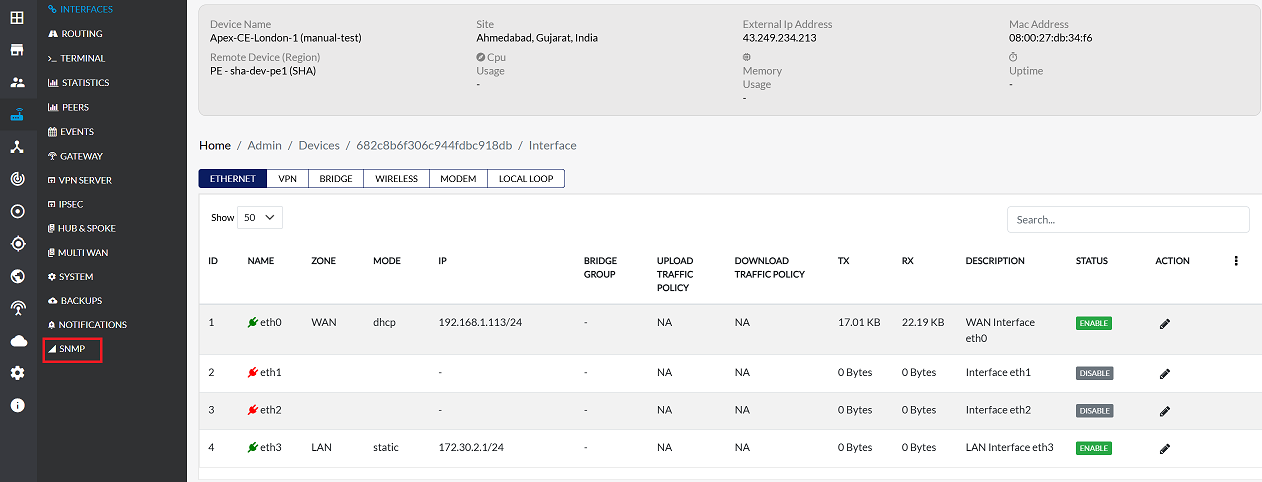
Navigate to Login > CE Device > [Select CE] > SNMP.
-
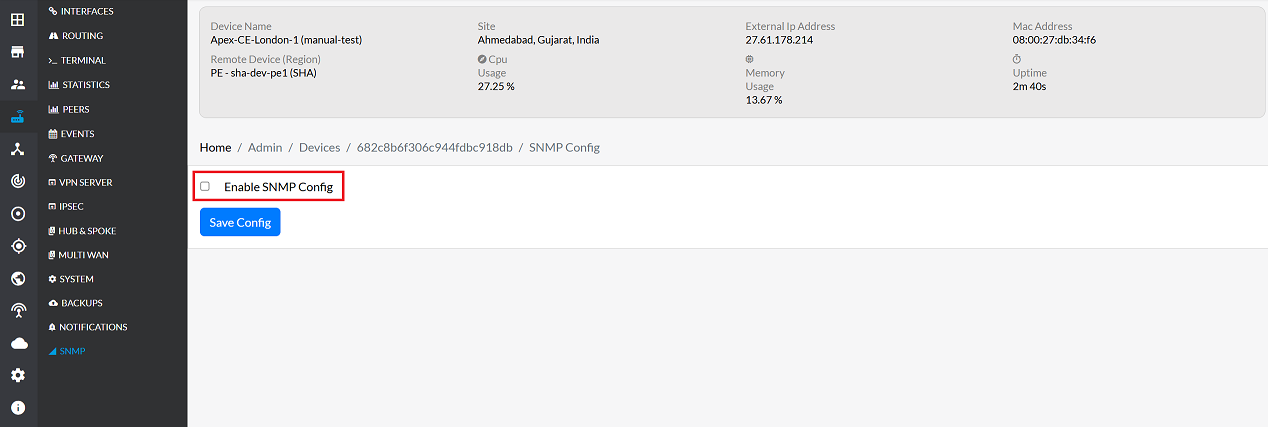
Enable the SNMP configuration by selecting the checkbox labeled Enable SNMP Config.
-
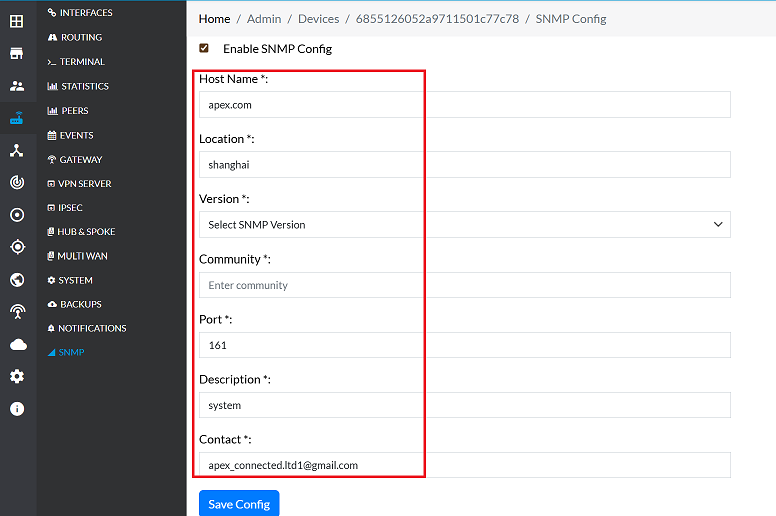
Fill in the following fields:
- Host Name: Enter the hostname of the device. (e.g., apex.com)
- Location: Specify the geographical location of the device. (e.g., Shanghai)
- Version: Select either v1 ,v2c or v3 from the dropdown menu.
- Port: Enter the port number for SNMP communication (e.g., 161)
- Description: Add a brief description for the SNMP configuration. (e.g., System)
- Contact: Enter valid contact email address. (e.g., apex_connect.ltd1@gmail.com)
These remain the same for all SNMP versions. Select the appropriate SNMP Version from the dropdown to proceed with version-specific settings.
SNMP Version v1 and Version v2c Configuration
-
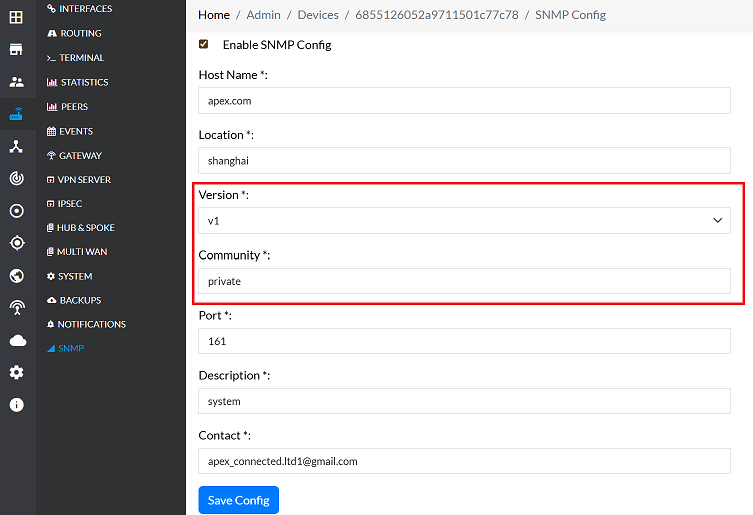
SNMP v1 and v2c follow the same process:
- Fill in the following fields:
- Version: Select either v1 or v2c from the dropdown menu.
- Community: Enter the community string (e.g., public, private). This string is used in SNMP v1/v2c to control access to SNMP data on the device.
- Fill in the following fields:
SNMP Version v3 Configuration
SNMP v3 supports multiple security levels. After selecting version v3, the following options appear based on the chosen Security Level.
SNMP v3 Security Levels
SNMP v3 provides three security levels:
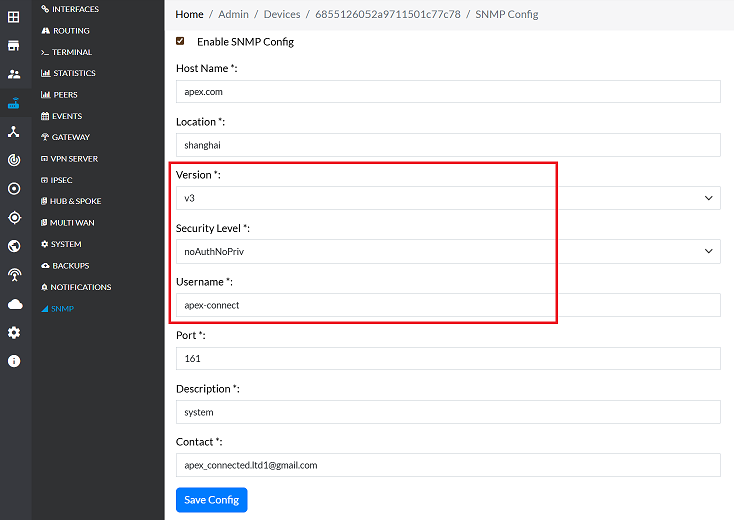
1. noAuthNoPriv
This level offers no authentication and no privacy.
- Security Level: Select Security level. (e.g., noAuthNoPrivt)
- Username: Enter a username. (e.g., apex_connect)
2. authNoPriv
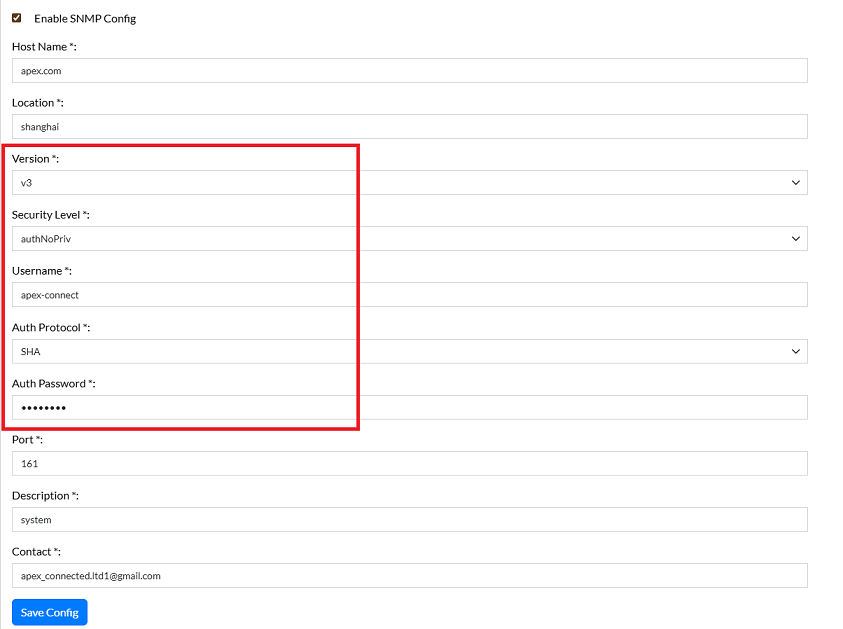
This level provides authentication but no privacy (encryption).
- Security Level: Select Security level. (e.g., authNoPriv)
- Username: Enter a username. (e.g., apex_connect)
- Auth Protocol: Select the authentication protocol. (e.g., SHA, MD5)
- Auth Password: Enter the authentication password. (e.g., MySecretPwd)
3. authPriv
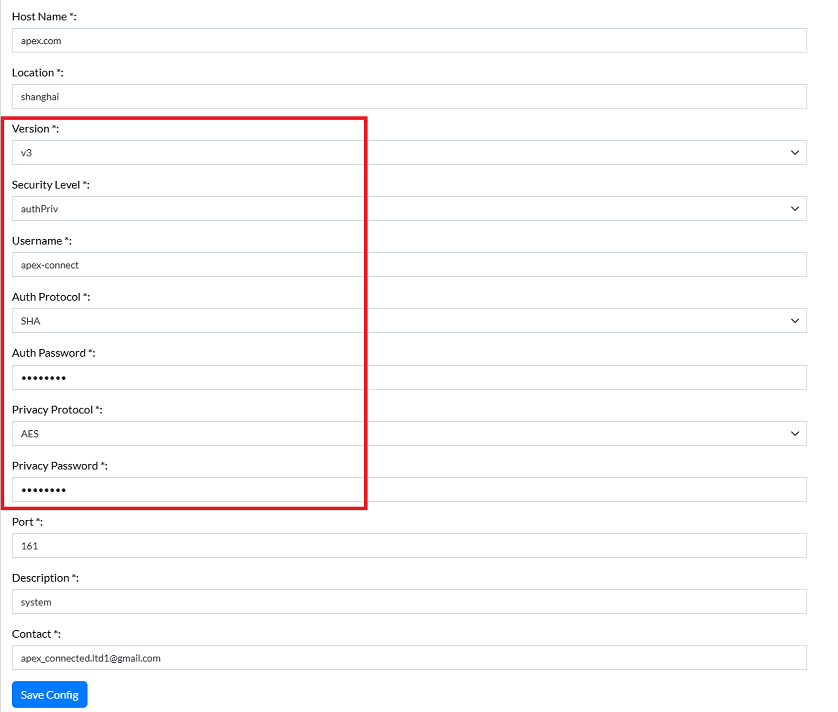
This is the highest security level, providing both authentication and privacy (encryption).
- Security Level: Select Security level. (e.g., authPriv)
- Username: Enter a username. (e.g., apex_connect)
- Auth Protocol: Select the authentication protocol. (e.g., SHA, MD5)
- Auth Password: Enter the authentication password. (e.g., MySecretPwd)
- Privacy Protocol: Select the privacy protocol. (e.g., AES, DES)
- Privacy Password: Enter the privacy password. (e.g., MySecretPwd)
Saving Configuration
-
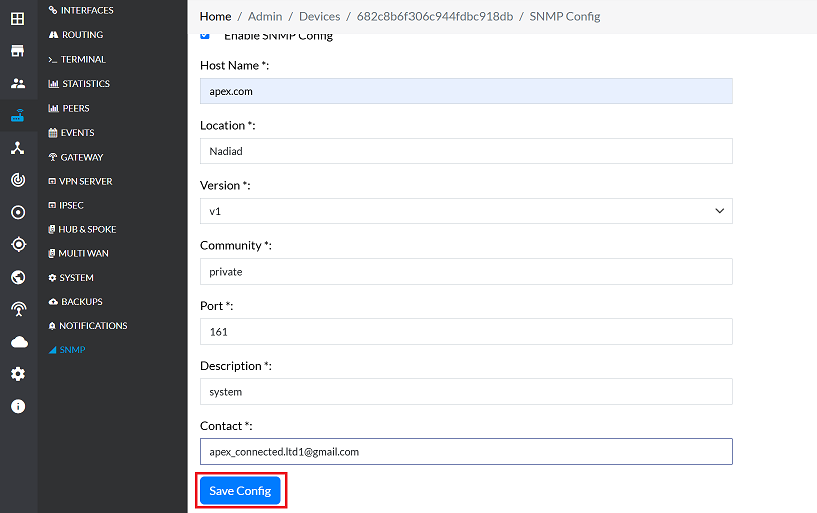
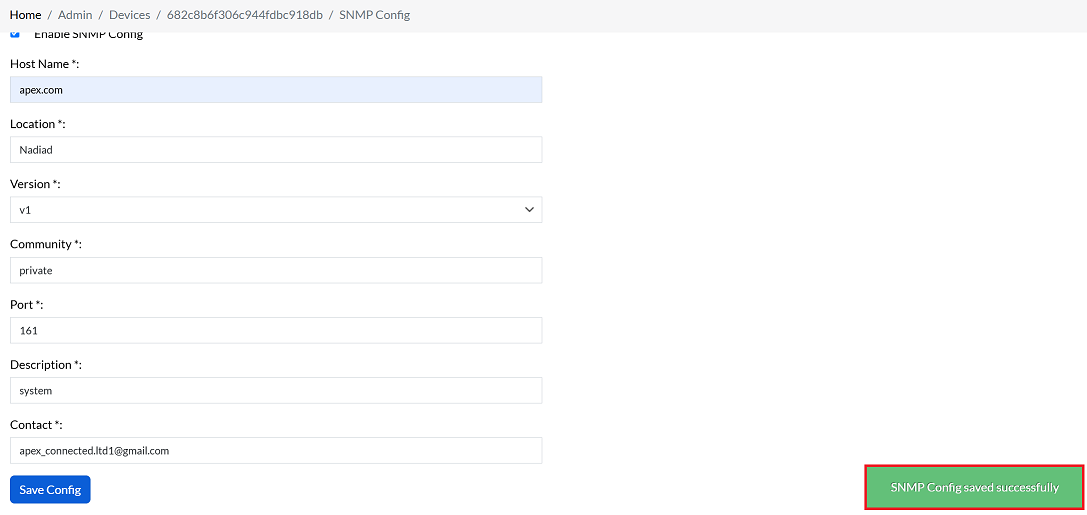
Once all the required SNMP information has been entered, click the Save Config button.
-
A success message, SNMP Config saved successfully will appear on the screen upon successful completion.
Important Notes for Users
- Enable SNMP Only When Required:- SNMP should be enabled only if monitoring or management tools are using it. Avoid keeping it enabled unnecessarily for security reasons.
- Choose the Correct SNMP Version:-
- Use v3 wherever possible, as it provides authentication and encryption.
- v1/v2c are less secure and should be used only in trusted environments.
- Strong Password & Username Recommended:- When using SNMP v3, always configure strong usernames and passwords to prevent unauthorized access.
- Port Configuration Must Match Monitoring Tool:- Ensure that the SNMP port value configured here matches the port configured on your monitoring server.
- Community String Sensitivity (v1/v2c):- The Community string works like a password. Avoid using common strings such as public or private.
- Security Level Selection (v3)
- noAuthNoPriv → No authentication or encryption (least secure)
- authNoPriv → Authentication only
- authPriv → Authentication + Encryption (most secure)
- Configuration Changes Require Save:- SNMP settings are applied only after clicking Save Config.
- Ensure Email Format is Valid:- The Contact Email field must contain a valid email format to avoid validation errors.
- Avoid Sharing SNMP Credentials:- SNMP usernames, passwords, and community strings should only be shared with authorized administrators.
- Device Restart Not Required:- SNMP settings are applied dynamically and do not require reboot unless otherwise specified.
FAQs
Q1: What is SNMP and why is it used?
SNMP (Simple Network Management Protocol) is a standard protocol used to monitor and manage network devices such as routers, switches, firewalls, and CE devices. It allows administrators to: Collect performance data (e.g., CPU usage, bandwidth, interface status). Monitor device health and availability. Receive alerts when devices go offline or encounter issues. Configure certain parameters remotely. SNMP is widely used because it provides a centralized way to manage multiple devices, ensuring better visibility, troubleshooting, and proactive maintenance of the network.
Q2: What are the main differences between SNMP v1, v2c, and v3?
SNMP v1:- The earliest version, simple and lightweight. Uses community strings (public, private) for access control. Limited security (no encryption, basic authentication). SNMP v2c:- Improved over v1 with better performance and more detailed error reporting. Still uses community strings for access control. Security remains weak (no encryption, only basic authentication). SNMP v3:- The most secure and modern version. Supports multiple security levels: noAuthNoPriv – No authentication, no encryption. authNoPriv – Authentication only (SHA/MD5). authPriv – Authentication + encryption (AES/DES). Provides strong authentication, privacy (encryption), and user-based access control. Recommended for production environments where security is critical.