Timezone Configuration
This document explains the standard steps for setting the correct time zone on a CE Device. This makes sure the device's time, logs, and scheduled tasks all use the proper local time (like Asia/Shanghai)
Configuring the System Timezone
-
Log in using the required Login credentials.
-
Navigate to the main device list and select the target CE Device.
-
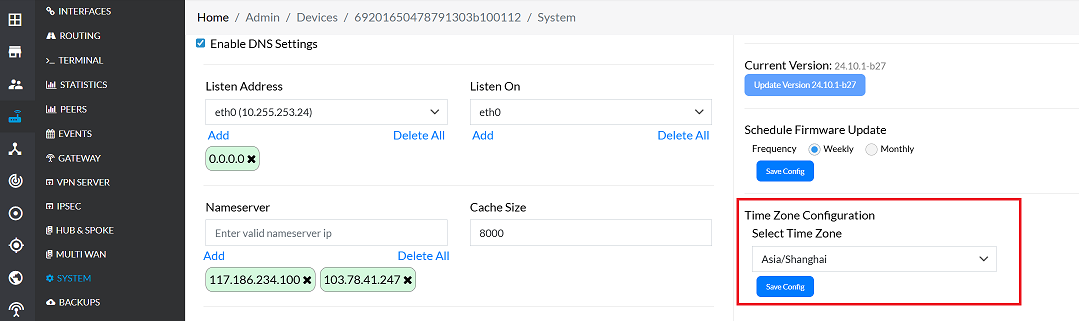
From the device menu, proceed to: System -> Time Zone Configuration
-
Locate the Time Zone dropdown menu.
-
Select the appropriate time zone from the list based on the device's geographical location.
- Example: For devices located in China (Shanghai), select Asia/Shanghai.
- Note: The available time zones adhere to the standard IANA Time Zone Database format (e.g., Continent/City).
- Example: For devices located in China (Shanghai), select Asia/Shanghai.
-
Once the desired time zone is selected (per requirements), click the Save Config button to apply the setting.
-
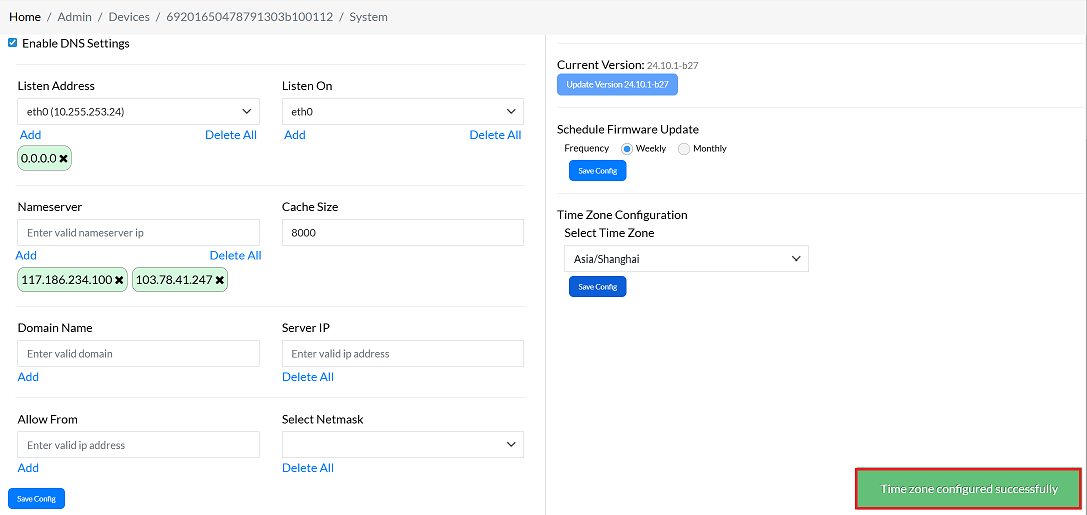
Upon successful configuration, a confirmation message will be displayed on the screen. Time zone Configured successfully.
Important Notes for Users
- The selected timezone directly affects device logs, reports, and scheduled operations.
- Make sure the selected timezone matches the actual physical location of the device.
- If the timezone is changed, previously recorded logs will continue using the old timestamp.
- Only authorized users with configuration permissions should modify timezone settings.
- Always double-check the selected timezone before saving to avoid incorrect log timestamps.
- Internet connectivity may be required for accurate time synchronization (depending on system setup).
FAQs
Q:1 What timezone format should I select?
You should select the IANA Time Zone Database format (e.g., Continent/City). Examples: Asia/Shanghai, Europe/London, America/New_York. This format ensures compatibility across systems and accurate alignment with daylight saving rules and regional time standards. Always choose the entry that matches the geographical location of the device.
Q:2 Do I need to restart the device after changing the timezone?
No, a full device restart is not required after changing the timezone. Once you select the timezone and click Save Config, the change is applied immediately. System logs, scheduled tasks, and displayed time will begin using the updated timezone without rebooting. A restart may only be necessary if other dependent services fail to reflect the change, but in most cases, it is not needed.