Terminal
The Terminal feature, available within the CE Device, is a powerful tool designed for system administrators and experienced users. It provides direct, in-depth access to the command line of your managed devices, making system management, configuration checking, and complex troubleshooting more efficient.
Key Benefits:
- Direct Command Line Access: Interact with the device's operating system using familiar command-line commands.
- No Separate Connection Required: Eliminates the need to use and configure separate tools like SSH clients or serial connections. Everything is handled directly through the CE device .
- Streamlined Management: Perform advanced tasks, check detailed settings, and troubleshoot issues quickly from a single console.
Accessing Terminal
There are two primary methods to open the Terminal for a selected CE Device:
Method 1: Direct Access from the Device Listing Grid
This is the fastest way to open a terminal directly from the list of managed CE devices.
-
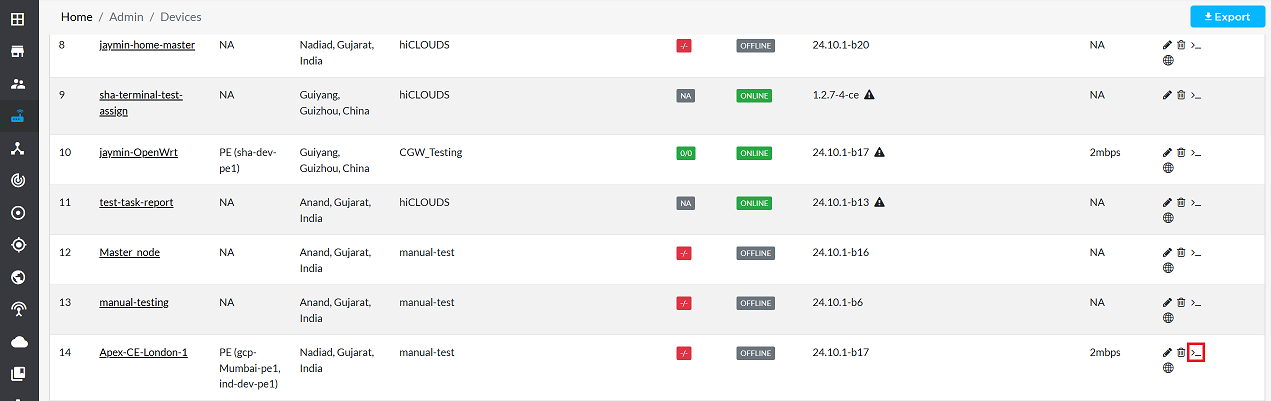
Find a specific CE device in the listing grid.
-
Go to the terminal on the right side of the device row and click on it as shown in the image.
-
Clicking on it will open the terminal.

Method 2: Access from the Device Details Page
-
Go to the Login > CE Device > [Select CE] > Terminal
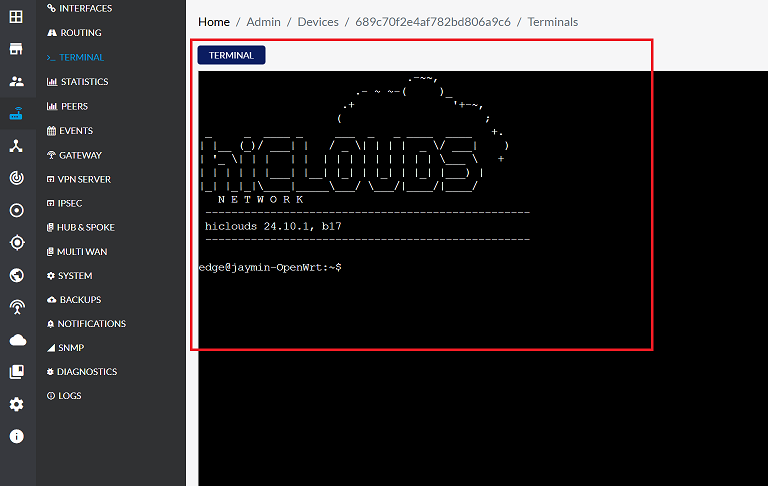
The Terminal can only be accessed when the device is online. If the device is offline, the Terminal will not open.
Important Notes for Users
- Terminal access should be used carefully and only by trained users
- Incorrect commands may impact device performance or connectivity
- Always verify commands before execution
- System audit logs may record terminal activity (if enabled)
- Only users with the required permissions/roles can access the Terminal
- If the device disconnects during a session, your terminal session will be closed
- Avoid running destructive or experimental commands on production devices
- Use configuration-level changes only when necessary and approved
- If unsure, contact your system administrator before proceeding
FAQs
Q1: Which reasons can cause the terminal not to open
Server problem: If the backend server is down or not responding, Whitelist error: When access is blocked due to missing or incorrect whitelisting, Service issue: Required services may not be running properly, Config update pending: If the latest configuration hasn’t been applied yet, General server issue: Other connectivity or system-level problems.
Q2: Can multiple users use the Terminal at the same time?
No. The Terminal session is designed for single‑user access at a time. If another user is already using the Terminal for that CE device, additional users will not be able to open a simultaneous session. This prevents configuration conflicts, command overlap, and accidental changes that could occur if multiple users interacted with the same device at once.