VPN Clients
A VPN client establishes a secure and encrypted connection to a remote network or server, ensuring data security. This guide provides step-by-step instructions for configuring and connecting vpn clients using openvpn. The process involves downloading a configuration file, importing it into the openvpn application, entering credentials, and establishing a connection.
Connecting a VPN Client
Download Configuration File
-
Download the VPN client configuration file from the designated source to the local device.
vpn-userIt is necessary to create the first VPN user. To learn how to create a VPN user, please visit this link: vpn user
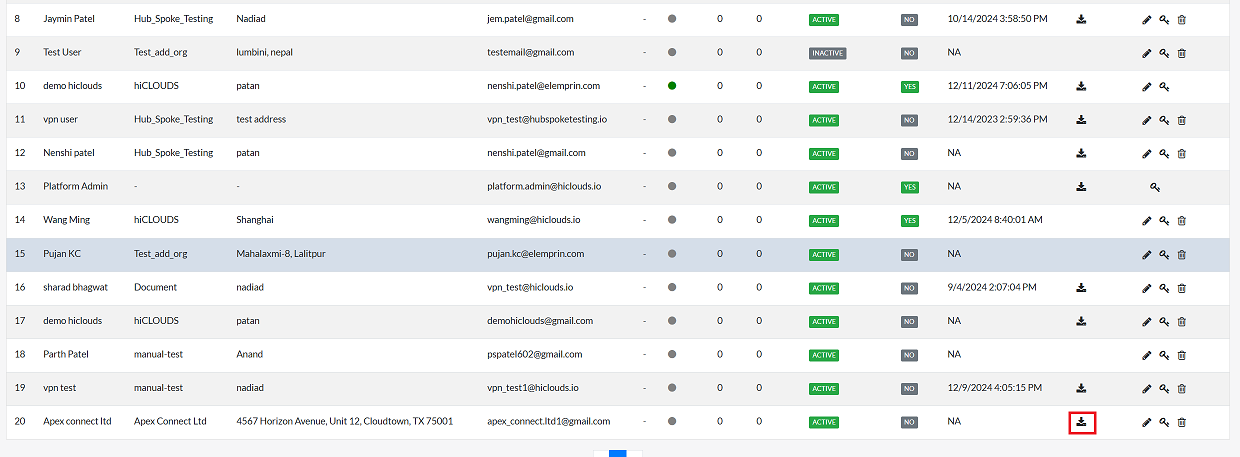
Launch OpenVPN Applicatio
- Visit the official OpenVPN client download page to download the OpenVPN Connect application for Windows.
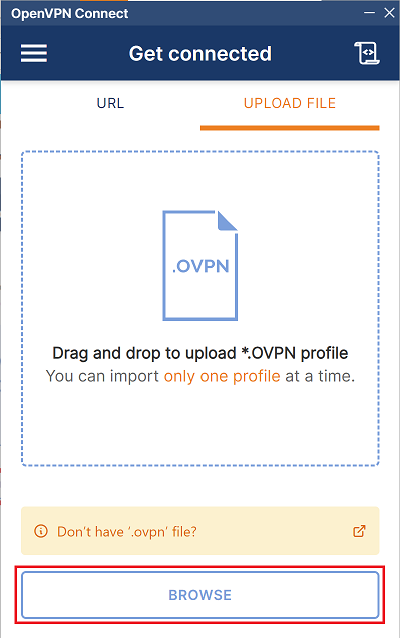
- Open the OpenVPN client on the system. By default, the application opens the Import Profile menu.
Import Configuration File
-
Click on the Upload File button.
-
Select the Browse option and locate the previously downloaded configuration file.
Enter Credentials
-
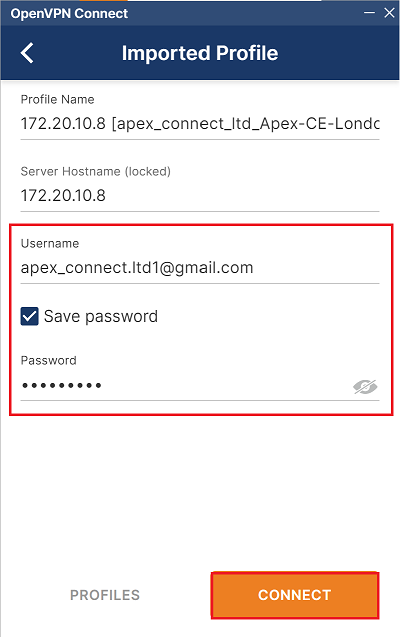
Provide the following details in the respective fields:
- Username: Enter your assigned username (i.g: apex_connect.ltd1@gmail.com).
- Password: Enter your password.
-
Check the Save Password option to avoid entering credentials repeatedly.
-
Click on the Connect button to initiate the VPN connection.
Establish Connection
-
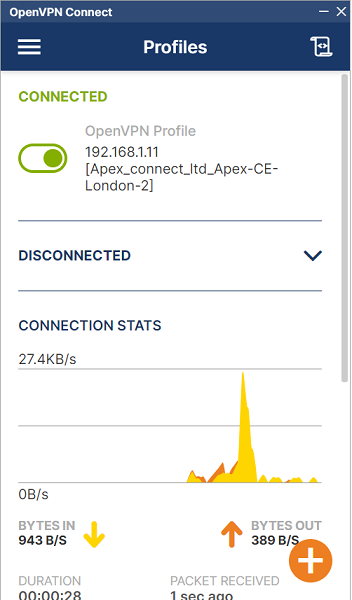
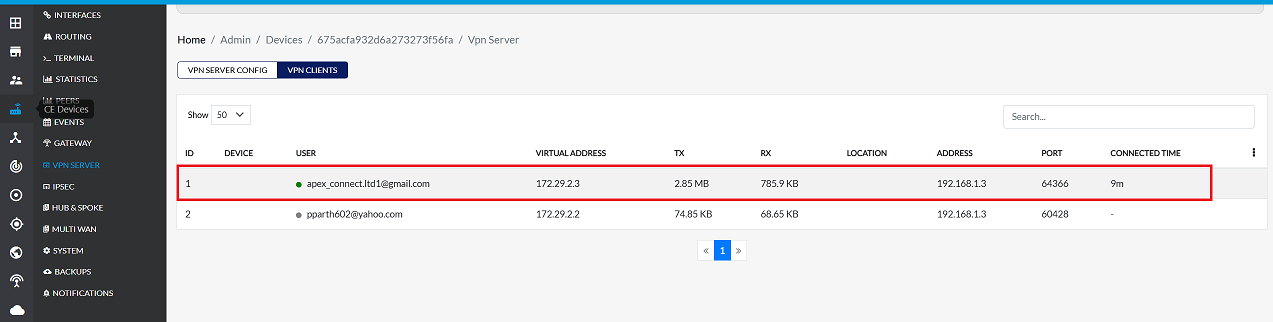
VPN will be Connected.
-
Once connected, the VPN status will display as Connected in the OpenVPN client interface.
hiCLOUDS VPN Client
- Alternatively, the hiCLOUDS Client application can be utilized. For detailed instructions and comprehensive guidance, refer to the hiCLOUDS Client documentation
Important Notes for Users
- Ensure that your VPN username and password are kept confidential at all times.
- Do not share the VPN configuration file with unauthorized users.
- A stable internet connection is required for VPN connectivity.
- If authentication fails, verify your credentials or contact your administrator.
- Use Save Password only on trusted and personal devices.
- Disconnect the VPN when it is no longer required to free system resources.
- If you switch devices, request a new configuration file if needed.
- Organization policies may restrict simultaneous logins from multiple devices.
- If the VPN disconnects frequently, check your internet connectivity or firewall settings.
- For security reasons, never modify the configuration file manually.
FAQs
Q1: Can I use the same configuration file on multiple devices?
Yes, you can use the same VPN configuration file on multiple devices, but each device must log in with its own username and password.