Exporting Organization Details
This document outlines the steps to export organization details from the system, which can then be viewed in an Excel spreadsheet.
Steps to Export Organization Data
Follow these instructions to download the organization data:
-
Log In: Navigate to the Login page and sign in to the account.
-
Access Organization: From the main dashboard, go to the Organization section.
-
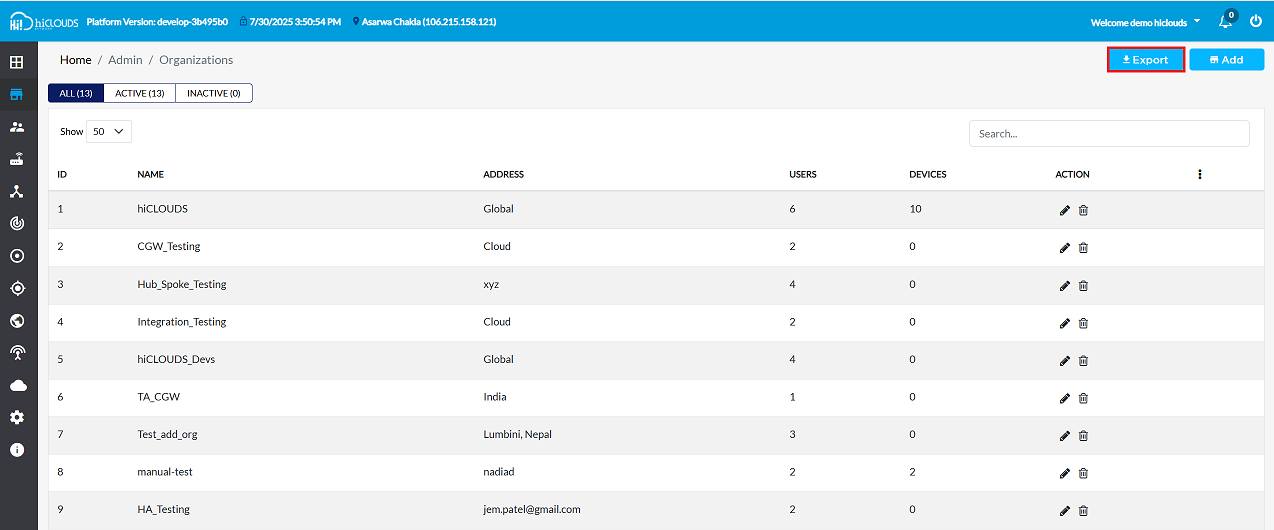
Initiate Export: Locate and click the Export button.
- As shown in the figure, the Export button is typically found in the upper-right corner of the screen. Clicking this will immediately start the download of the organization data file.
-
Locate Downloaded File: Once the download is complete, open the file explorer and navigate to the Downloads folder (typically located at
This PC > Downloads). -
Open Excel File: Find and open the exported file. It will be an Excel spreadsheet (
.xlsxor.xlsformat).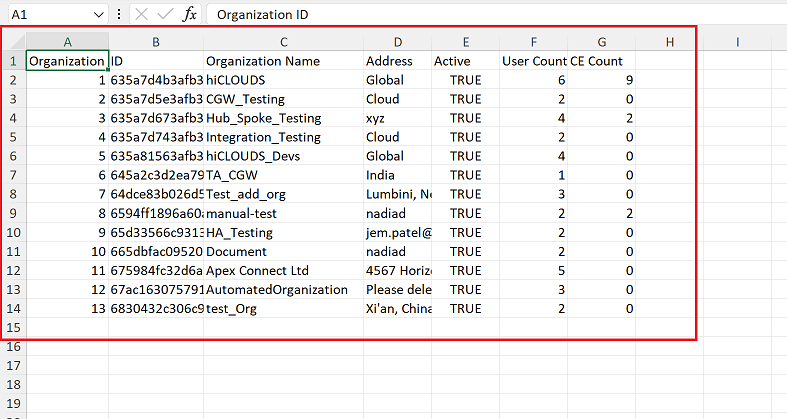
Understanding the Exported Data
The exported Excel file will contain a comprehensive list of all organizations, with details organized into the following columns:
| Column Header | Description |
|---|---|
| Organization ID | A unique identifier for each organization. |
| Organization Name | The registered name of the organization. |
| Address | The physical or registered address of the organization. |
| Active | Indicates whether the organization is currently active (TRUE/FALSE). |
| User Count | The total number of active users associated with the organization. |
| CE Count | The number of "CE" (likely "Customer Environment" or similar, depending on product context) instances associated with the organization. |
Example Data
Below is a sample of the data typically found in the exported Excel sheet.
| Organization ID | Organization Name | Address | Active | User Count | CE Count |
|---|---|---|---|---|---|
635a7d4b3afb390024124ad7 | hiCLOUDS | Global | TRUE | 6 | 9 |
635a7d5e3afb390024124adb | CGW_Testing Cloud | TRUE | 2 | 0 | |
635a7d673afb390024124add | Hub_Spoke_Testing | xyz | TRUE | 4 | 2 |
635a7d743afb390024124adf | Integration_Testing Cloud | TRUE | 2 | 0 | |
635a81563afb390024124b48 | hiCLOUDS_Devs | Global | TRUE | 4 | 0 |
645a2c3d2ea790744a5535c7 | TA_CGW | India | TRUE | 1 | 0 |
64dce83b026d5e22714b9114 | Test_add_org | Lumbini, Nepal | TRUE | 3 | 0 |
6594ff1896a60a6b120c18b9 | manual-test | nadiad | TRUE | 2 | 2 |
65d33566c931356b829dccef | HA_Testing | jem.patel@gmail.com | TRUE | 2 | 0 |
665dbfac0952062fa6120f87 | Document | nadiad | TRUE | 2 | 0 |
675984fc32d6a273273f0fb9 | Apex Connect Ltd | 4567 Horizon Avenue, Unit 12, Cloudtown, TX 75001 | TRUE | 5 | 0 |
67ac16307579114b8a5ee0ac | AutomatedOrganization | Please delete it | TRUE | 3 | 0 |
6830432c306c944fdbc9a182 | test_Org | Xi'an, China | TRUE | 2 | 0 |
Important Notes for Users
- The export feature is available only to users with Organization Management or Export permissions.
- The exported file format is always Excel (.xlsx).
- Export always downloads all organizations; filtering does not limit exported output.
- If the exported file does not open, ensure Microsoft Excel or another spreadsheet viewer is installed.
- If the export button is disabled, check your internet connection and user rights.
- "CE Count" refers to the number of CE (Customer Edge) devices assigned to the organization.
- Very large datasets may take a few seconds to download—do not refresh during download.
FAQs
Q:1 What user rights are required to export organization data?
Administrative rights or equivalent permissions are required to access the Organization section and perform exports. Users without these permissions will not see the Export option.
Q:2 What format will the exported file be in?
The exported file will be in Excel format (.xlsx or .xls). This allows easy viewing, filtering, and analysis of organization details in spreadsheet applications like Microsoft Excel.
Q:3 Can I export data for only a specific organization?
By default, the export process downloads all organization data. To view details for a specific organization, the data can be filtered within Excel after export. Some systems may also provide advanced filters before export, depending on the configuration
Q:4 What to do if the export process fails?
If the export fails: Ensure you have the required permissions, Check your internet connection, Try refreshing the dashboard and repeating the export, If the issue persists, contact your system administrator or support team for assistance
Q:5 What does "CE Count" mean?
CE Count refers to the number of Customer Environment (CE) instances or similar product-specific environments associated with the organization. It indicates how many separate environments are linked to that organization.