Organization Alert Setting
When a device in the organization transitions between online and offline status, the system will send a notification to the updated email ID to notify the concerned persons.
How to Set Up Organization Notifications
-
Login to the platform using credentials. After logging in, the Dashboard will open.
-
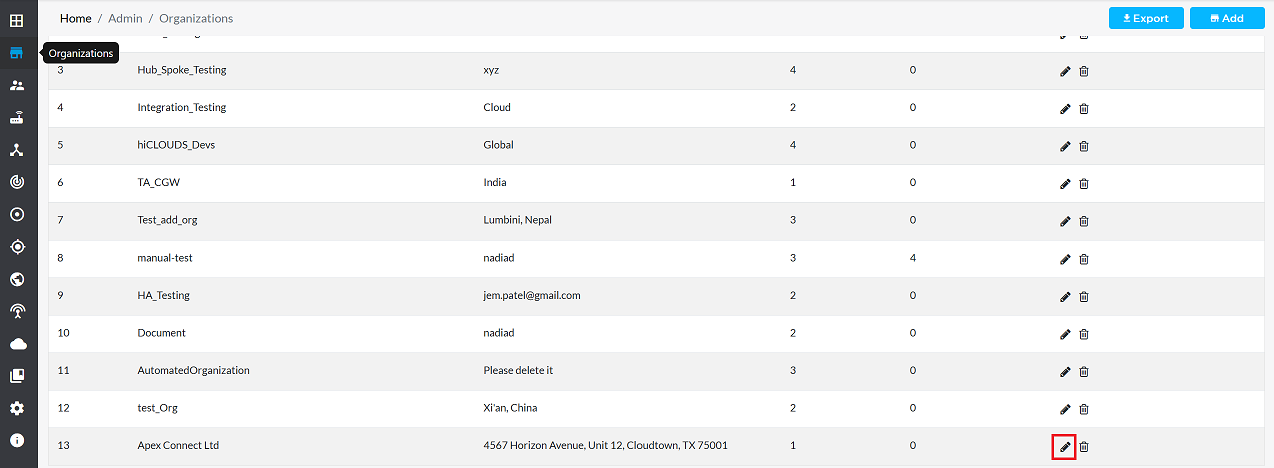
From the dashboard, click on the Organization tab. This will open the Organization Listing Grid, where a list of all existing organizations is displayed.
-
Click on the Edit option next to the organization for which notifications are to be received. This opens the section to edit the organization details.
-
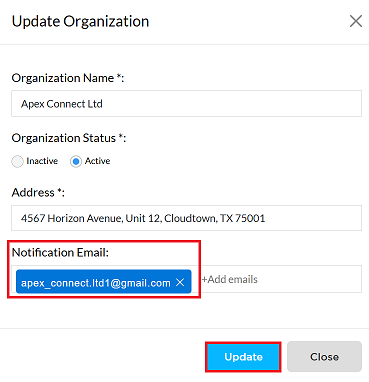
In the edit form, find the "Notification Email" field.
-
In this field, type the email address to receive notifications. Example: apex_connect.ltd1@gmail.com
ImportantAdding this email address will cause the system to automatically send notifications when the organization's status (online/offline) changes.
Multiple-email-addressesIf want to send more than one personalized notification, can also add multiple emails.
Notification-DeliveryIf an email address is not added to this field, no notifications will be sent by the system.
-
Verify that the email address is written correctly. After verifying, click the Update button to save the changes.
-
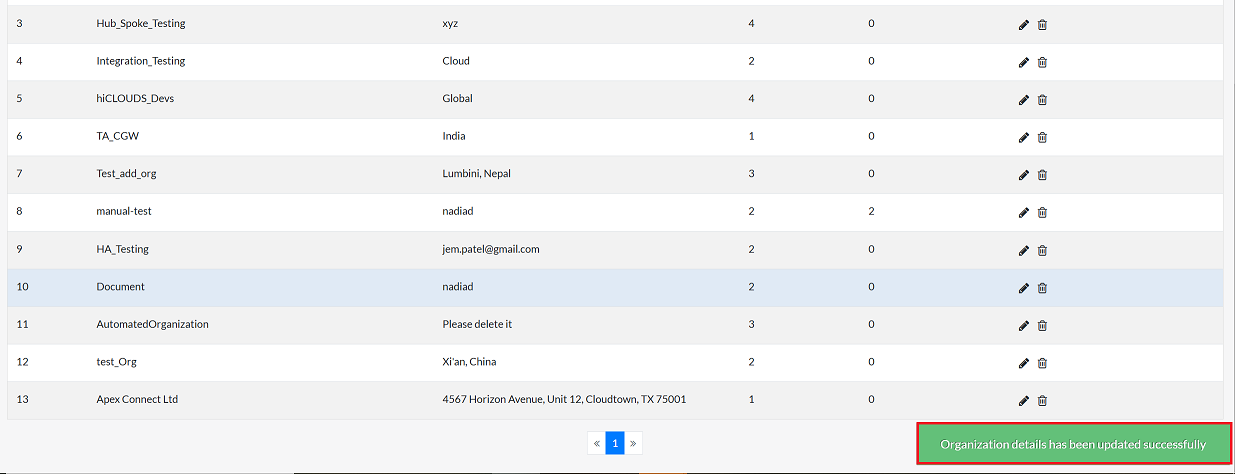
A message confirming Organization details have been saved successfully will appear on the screen.
Important Notes for Users
- Ensure that all added email addresses are valid and active; invalid emails may cause notification delivery failure.
- Notifications are triggered only when devices change state (online → offline or offline → online).
- If no device is associated with the organization, no notifications will be generated.
- For organizations with a large number of devices, multiple state-change notifications may be received in a short time.
- Adding too many email recipients may cause delays depending on the mail service provider.
- If users are not receiving notifications, check the spam folder or ensure the domain is not blocked by the email client.
- Only users with the appropriate permission levels can update or modify notification email settings.
FAQs
Q:1 What types of notifications will I receive?
Notifications are sent whenever a device goes online or offline.
Q:2 How do I remove an email address from the notification list?
In the Notification Email field, click the "X" icon next to the email address you want to remove, then click Update to save the changes.