Replace PE
This guide outlines the steps to replace a PE (Provider Edge) device on the platform. This process allows a seamless transition when updating or replacing existing PE devices, with options to keep the existing configuration or assign new IPs.
Replacement Process
-
First, log in to the platform using valid credentials. After successful login, the device management dashboard appears.
-
From the dashboard, select PE Device Menu. This menu allows managing all provider edge devices.
-
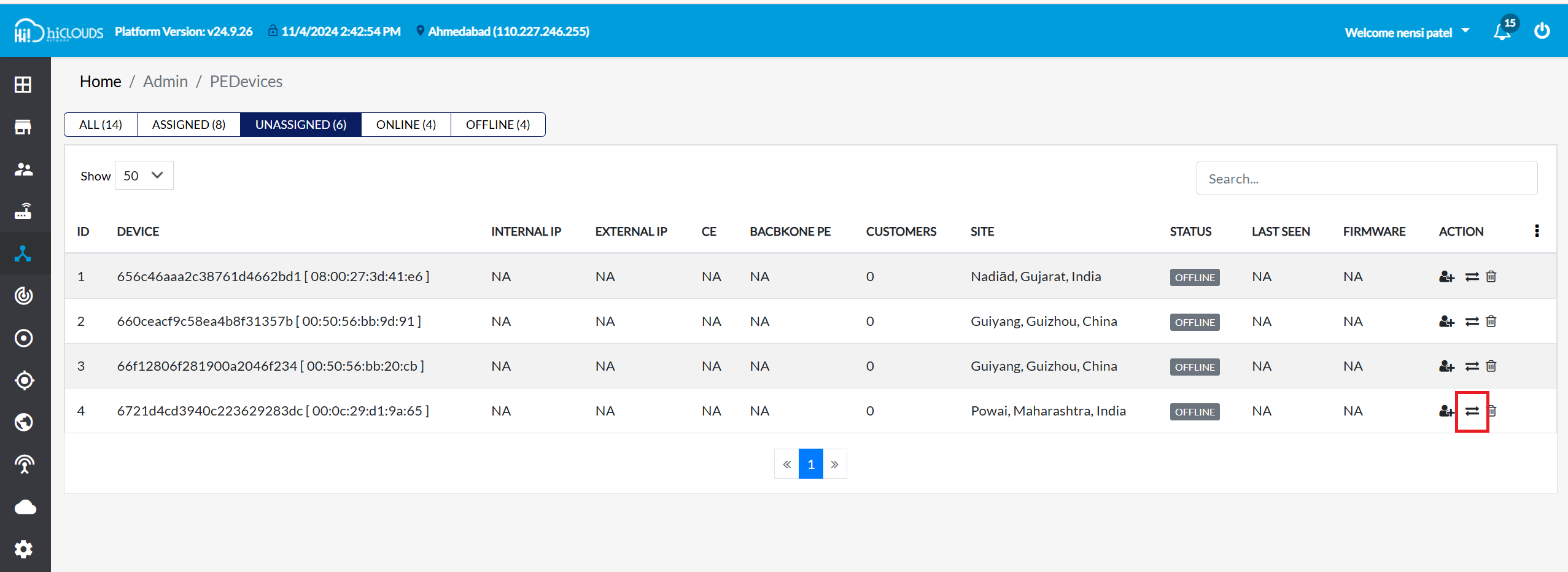
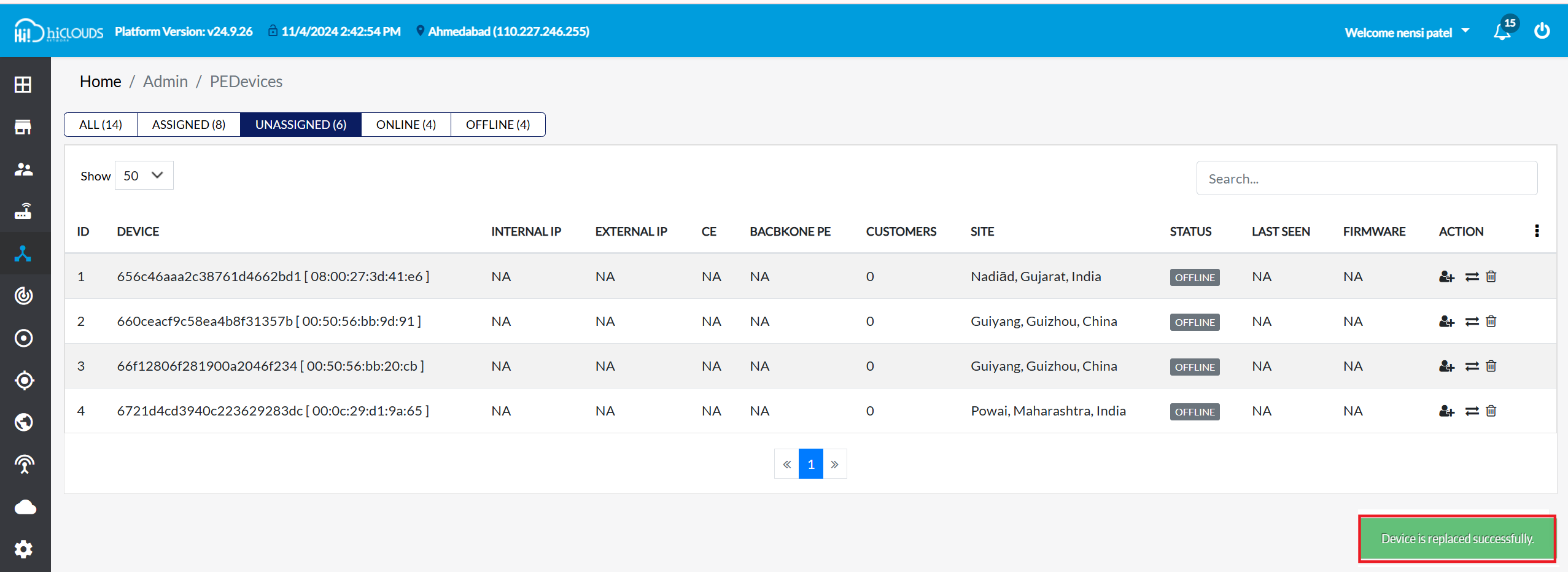
Find a device eligible for replacement: In the PE Device menu, click the Unassigned tab. This tab will list devices that are eligible for replacement.
-
Click on the Replace PE icon on the right side opposite the device to be replaced. This opens the replacement form.
-
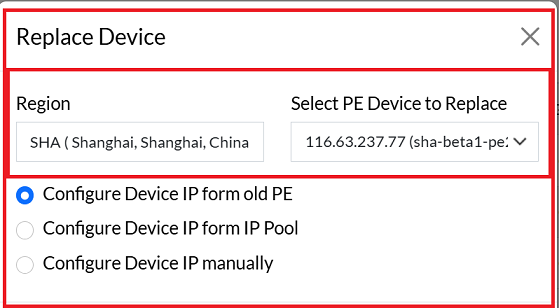
Complete the following fields:
- Region: Select the appropriate region from the dropdown list to filter devices based on location.
- Select PE Device to Replace: Choose the device needing replacement from the selected region.
orgnizationOnly devices within the specified region will appear in the replacement selection list.
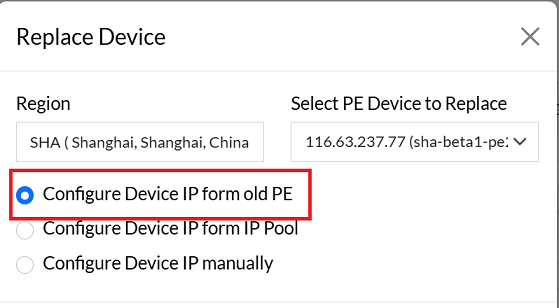
Configure Device IP form old PE
-
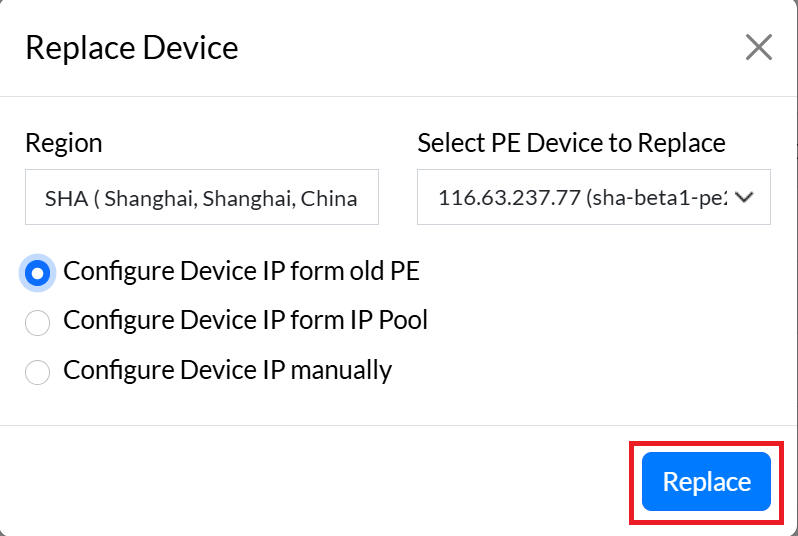
If the user needs to keep the configuration of the changing PE, select Configure device IP from old PE, which is the default option. This setting allows the new device to use the previous PE's IP configuration, making the transition seamless.
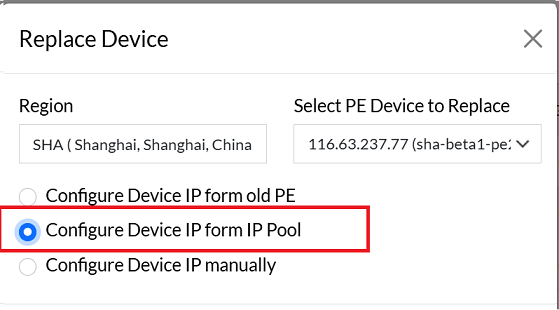
Configure Device IP form IP Pool
-
When the data center location changes, the device IP may also change. If you prefer not to use the current IP and instead want to assign a random IP, go to Configure Device IP form IP Pool and select an IP from the available IP pool. Which will automatically select.
Configure Device IP manually
-
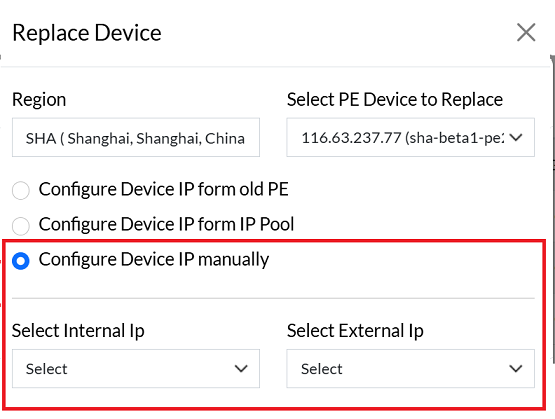
When the user chooses to Configure Device IP manually, two dropdowns will appear. In these dropdowns, the user can select which IP Address to apply. There are two options: External IP and Internal IP. The user can select either option manually as needed.
-
Once all fields are populated, click Replace to complete the replacement process.
-
Upon successful replacement, a message will appear on the screen Device is replaced successfully.
FAQ
Q:1 What is the impact on CE devices when they are connected to PE devices?
CE (Customer Edge) devices rely on PE devices for network connectivity and routing. When connected to a PE: CE devices gain access to backbone and cloud services. Their traffic is routed through the PE for external communication. Configuration updates and policies applied on the PE are automatically extended to the connected CE devices. If a PE is replaced, CE devices may temporarily lose connectivity until the replacement is completed and IP assignments are properly configured.
Q:2 How to get a PE device listed in the "Unassigned" tab.
A PE device appears in the Unassigned tab when: It has not yet been linked to any region or organization. It is newly added to the system but not assigned. An existing PE device is unassigned manually from its current region. To move a device into the Unassigned tab, remove its region assignment or add a new device without assigning it during setup.
Important Notes for Users
- PE replacement should only be performed by authorized users with appropriate access rights.
- Always verify the selected region and device before confirming replacement.
- If you want a seamless migration without service impact, use Configure device IP from old PE.
- When assigning new IPs, ensure routing and firewall rules are updated accordingly.
- Manual IP configuration should only be used by experienced administrators.
- If the device is in production, schedule replacement during a maintenance window.
- Once replacement is completed, verify CE connectivity and service status.
- If any error appears during replacement, do not retry repeatedly — review logs and resolve the cause first.