Regions
This is a very extensive document that gives you a guide on how to manage regions, which includes adding regions, updating regions, and deleting regions or region configurations from a network.
Regions are components of network configuration, and the administration can specify and manage individual zones in the network. Each region has its share of unique characteristics like ip address, subnet mask, and gateway configuration. In this document, we describe how to create, modify, and remove regions in the system.
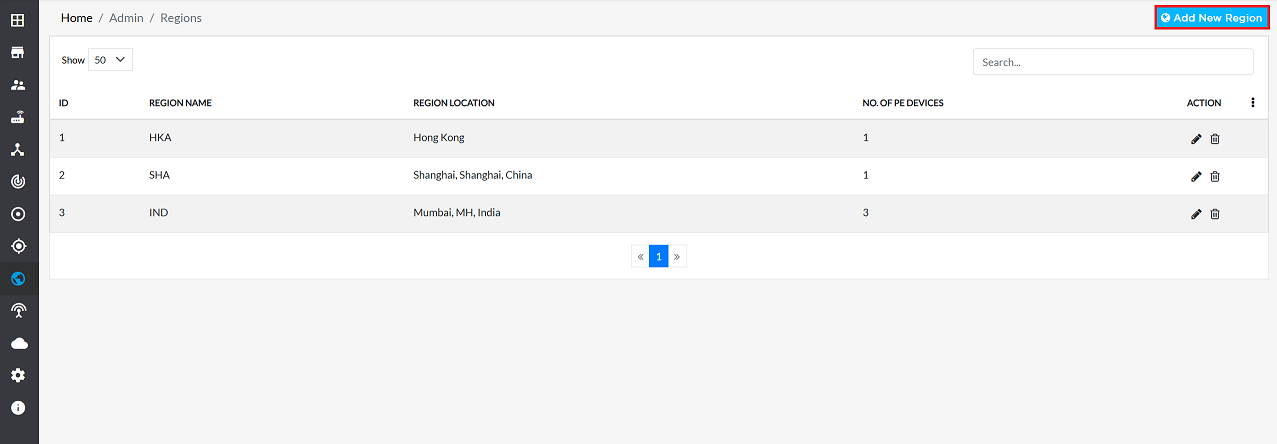
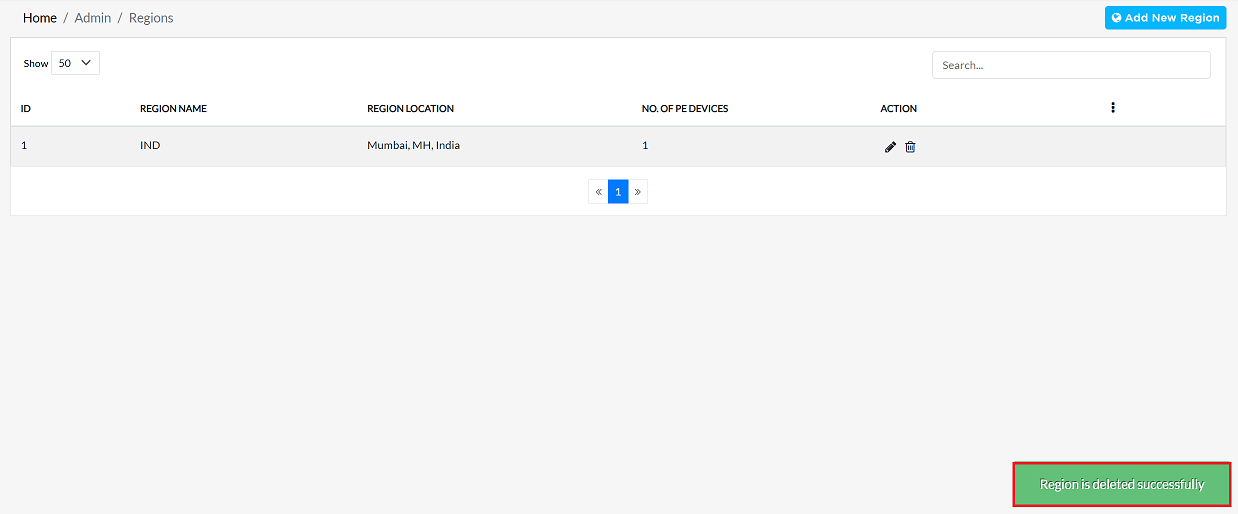
| Field Name | Description |
|---|---|
| Region Name | The unique name assigned to the region. |
| Region Location | The physical or logical location of the region. |
| No. of PE Devices | The number of Provider Edge (PE) devices associated with the region. |
| Actions | Options to Edit or Delete the region configuration. |
Creating Region
-
Go to the login > regions > Add new Region.
-
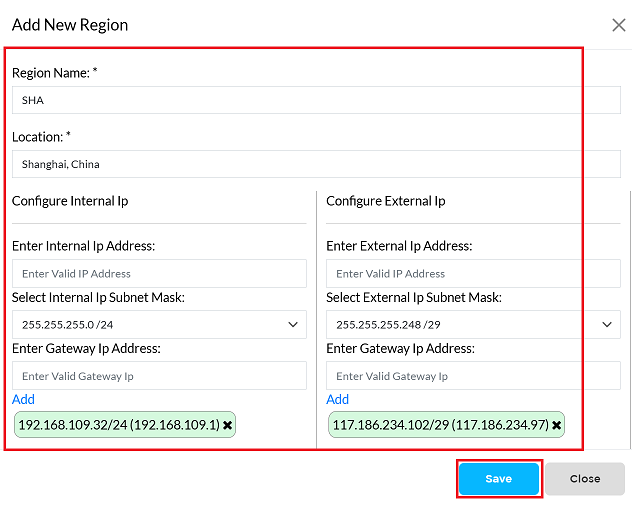
Provide the following information in the respective fields
- Region Name: Enter the name of the region.
- Location: Specify the physical or logical location of the region.
- Enter Internal Ip Address: Input the internal IP address for the region. (i.e, 192.168.109.32)
internal-ip
You can add multiple internal IP addresses if required.
- Select Internal Ip Subnet Mask: Select the subnet mask from the dropdown menu. (i.e, 255.255.255.0/24)
- Enter Gateway Ip Address: Provide the gateway IP address for internal traffic. (i.e, 192.168.109.1)
- Enter External Ip Address: Input the external IP address for the region. (i.e, 117.186.234.102)
external-ip
You can add multiple external IP addresses if required.
- Select External Ip Subnet Mask: Select the external subnet mask from the dropdown menu. (i.e, 255.255.255.248/29)
- Enter Gateway Ip Address: Provide the gateway IP address for external traffic. (i.e, 117.186.234.97)
- Click on the Save button.
-
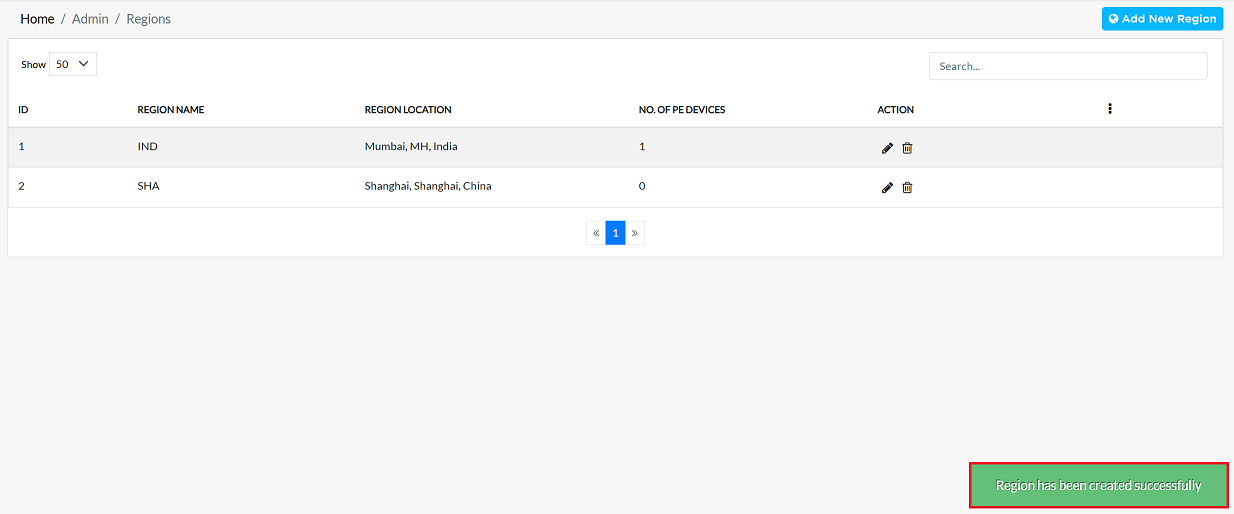
Upon successfully saving, a confirmation message will appear Region has been created successfully.
Editing region
-
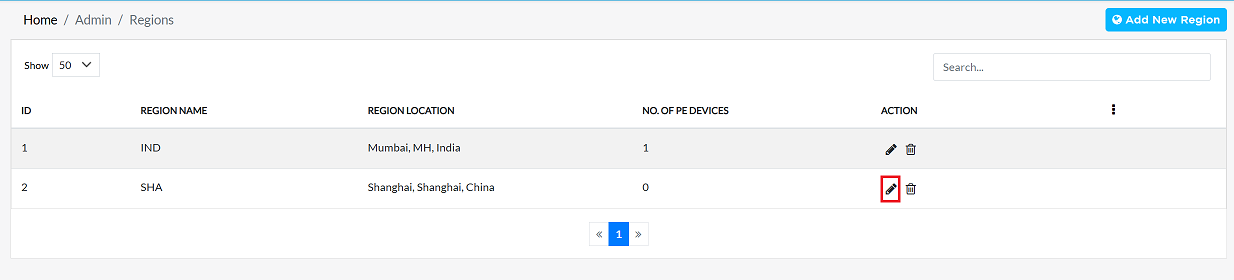
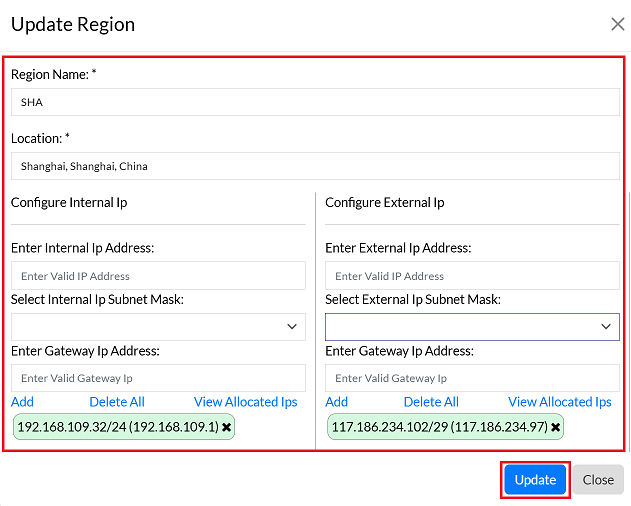
Select the desired region from the list. Click the Edit button located to the right of the region name.
-
Modify the required fields, including Net Mask, Gateway Ip Address, External Ip Address, External Ip Subnet Mask, Gateway Ip Address.
-
After making the changes, click the Update button.
-
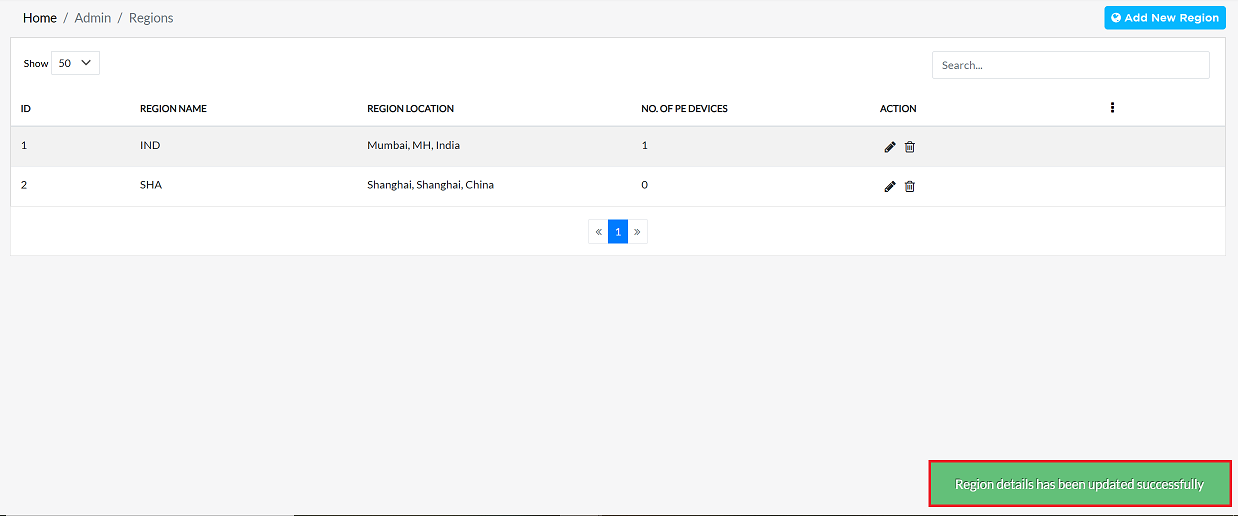
Upon successfully updating, a confirmation message will appear Region details has been updated successfully.
Deleting Region
To delete any region, follow these steps:
-
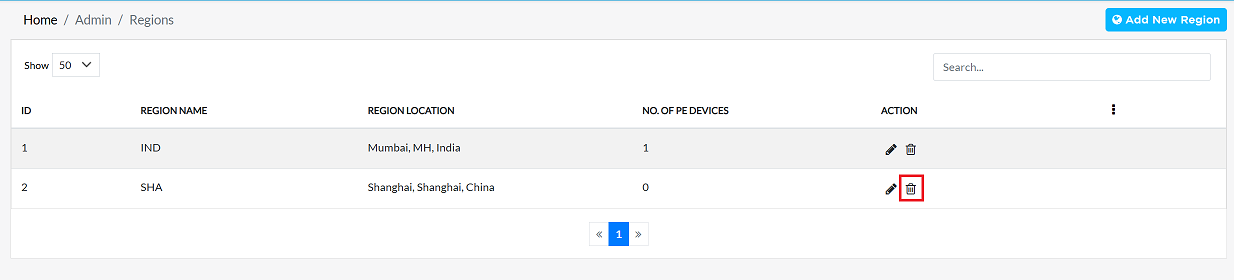
Click on the Delete option in the 'Action' column in the row of the region to be deleted.
-
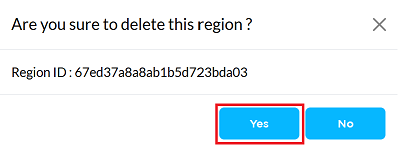
By clicking on the Delete option, a confirmation message popup will open on the screen. This popup asks to confirm the deletion action again, which prevents accidental deletion.
- The region has two options available:
- Confirm Delete: If the site really wants to delete the information, click on the Yes button in the popup.
- Cancel Delete: If not intended to delete or clicked by mistake, click on the No button to cancel the action and keep the information safe.
- The region has two options available:
-
Decision taken in the image As mentioned, the Yes button has been clicked in the image. This means that the deletion action has been confirmed by the region and the relevant data will be removed from the system.
-
Upon successfully deletion, a confirmation message will appear Region is delete successfully.
Important Notes for Users
- Deleted regions cannot be recovered; use caution before deletion.
- Only users with proper admin permissions can create, edit, or delete regions.
- Ensure IP addresses, subnet masks, and gateway IPs are correct before saving to avoid network conflicts.
- Use consistent region naming conventions for easier identification.
- If multiple internal or external IPs are required, always verify they do not overlap with existing regions.
- Always double-check all configurations before clicking Save or Update.
FAQS
Q:1 What is the difference between internal and external IP configurations?
Ans: 1. Internal IP: Used for communication within the network (intranet), 2. External IP: Used for communication with external networks (internet).