Global Settings
Global configuration allows you to set up notifications for all devices in the system. A notification will be sent to the configured email addresses when any device goes offline or online. Follow these steps to set up global notifications:
-
Navigate to Login > Settings > Global Setting.
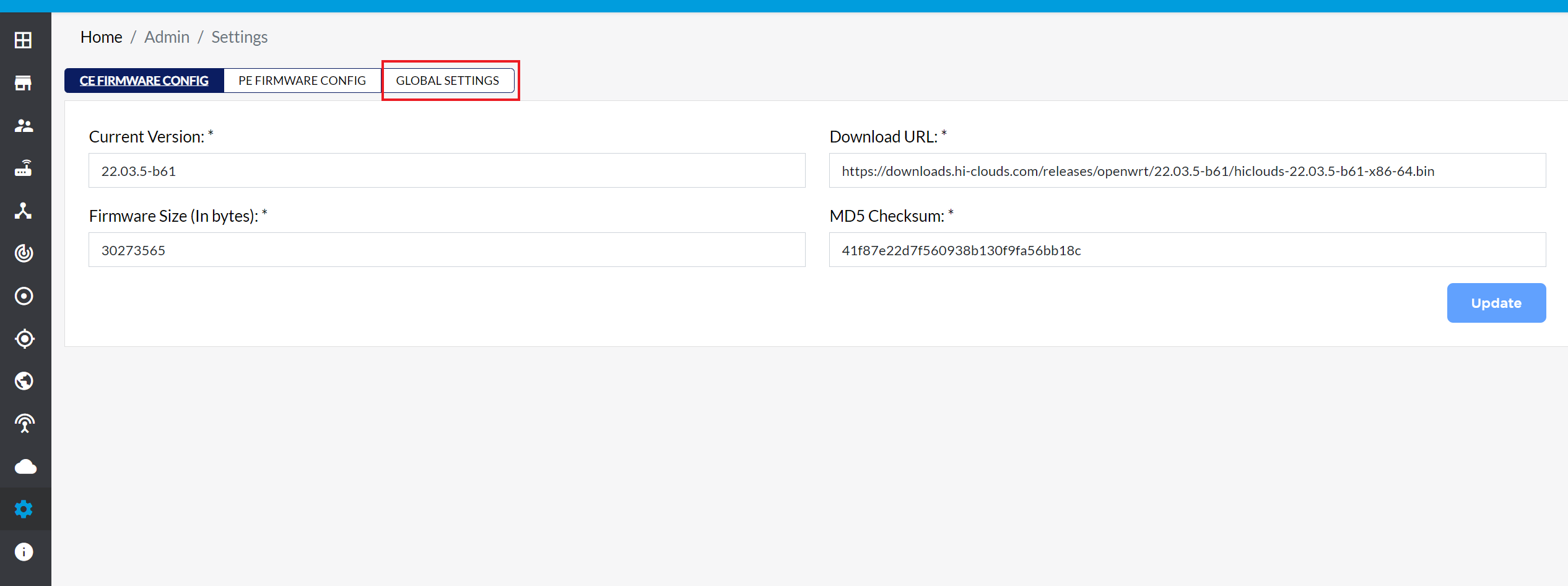
-
Notification Email: Input the email address for global notifications. After entering the email address, press Enter to add the notification.
-
Click the Update button to apply the changes.
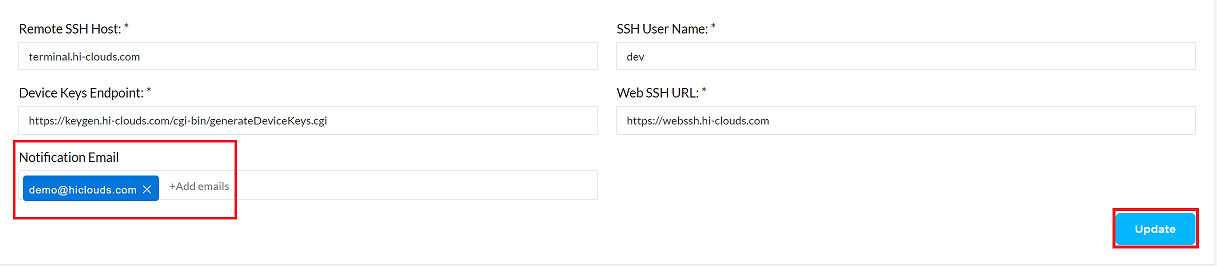
-
A confirmation message, Global configuration details have been saved successfully will appear.
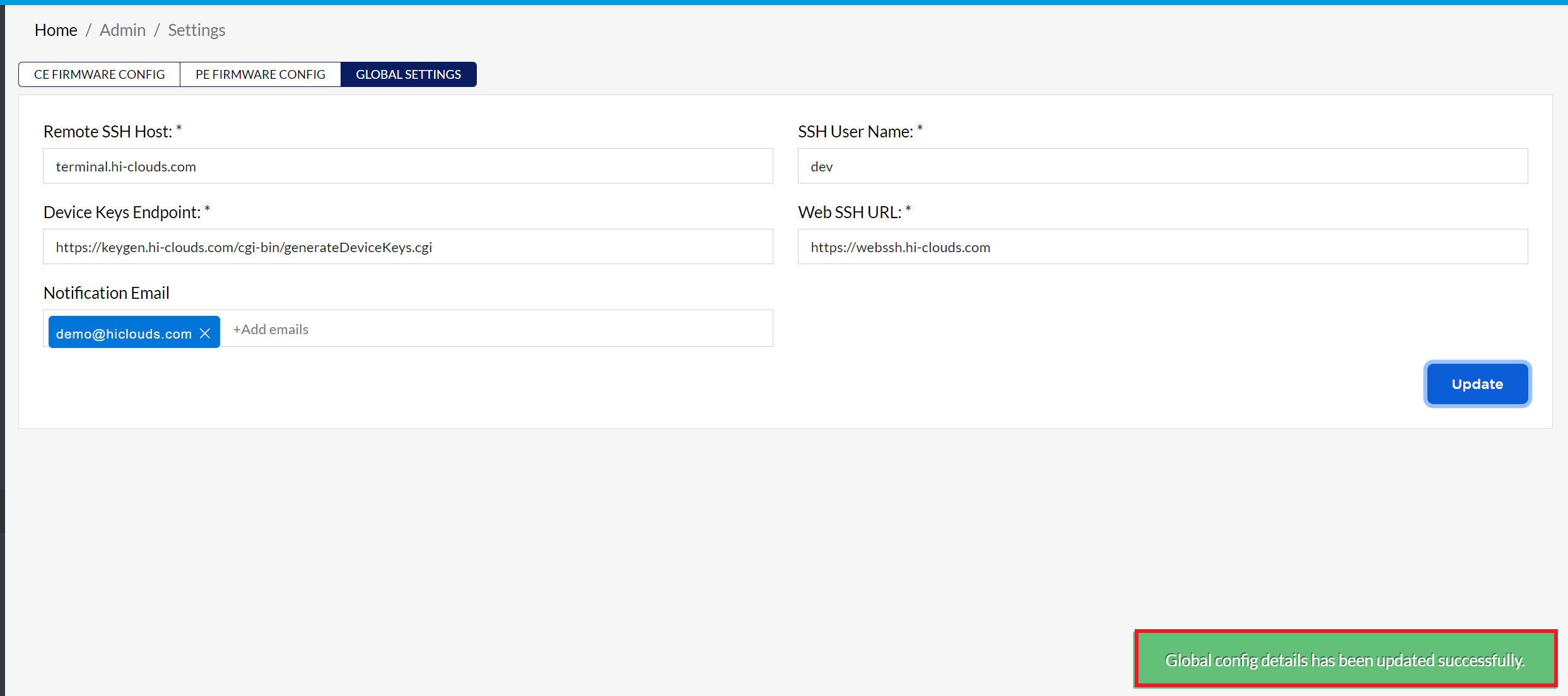
User can add multiple email addresses for notifications in all configurations (global setting). Each email address listed will receive status updates when a respective entity transitions online or offline.
Important Notes for Users
- Only users with admin or notification configuration permissions can update global settings.
- Ensure email addresses are valid and active, otherwise notifications will not be delivered.
- Be cautious when adding multiple emails to avoid spamming unintended recipients.
- Any changes require clicking Update; otherwise, new emails will not be saved.
- Removing an email requires clicking the X icon next to the address and then saving via Update.
FAQs
Q:1 What types of notifications will I receive?
Ans: Notifications are sent whenever a device goes online or offline.
Q:2 How do I remove an email address from the notification list?
Ans: In the Notification Email field, click the "X" icon next to the email address you want to remove, then click Update to save the changes.