MultiFactor Authentication
This guide shows administrators and users how to turn on and set up Multi-Factor Authentication (MFA). It explains why MFA makes login safer, where to find the settings, and provides step-by-step instructions for setup and logging in.
What Problem Does It Solve?
- Traditional username-password logins are vulnerable if credentials are stolen.
- MFA introduces an additional verification layer (OTP via email), reducing unauthorized access risks.
- Ensures compliance with modern security standards and protects sensitive data.
What Will the User Achieve After Reading This?
Administrators will:
- Enable MFA for specific accounts
- Configure global OTP timeout settings
- Ensure secure login policies
End Users will:
- Experience enhanced login security
- Authenticate using a 6-digit OTP sent to their registered email
Features Included
| Feature | Description |
|---|---|
| Enable/Disable MFA per User | Allows configuring MFA for individual accounts. |
| Email-based 6-digit OTP | OTP is sent to the user's registered email ID. |
| Global OTP Expiry Configuration | Admin defines the OTP expiry duration. |
| UI-based Login Verification | OTP entry is required during login. |
Navigation Path
| Task | Navigation Path |
|---|---|
| Enable MFA for User | Login → User → Edit |
| Configure OTP Timeout | Setting → Global Setting |
| User Login with OTP | Logout → Login Page → Enter OTP |
Step-by-Step Process
Enabling Multi-Factor Authentication for a User
Follow these steps to activate MFA for the desired user account:
-
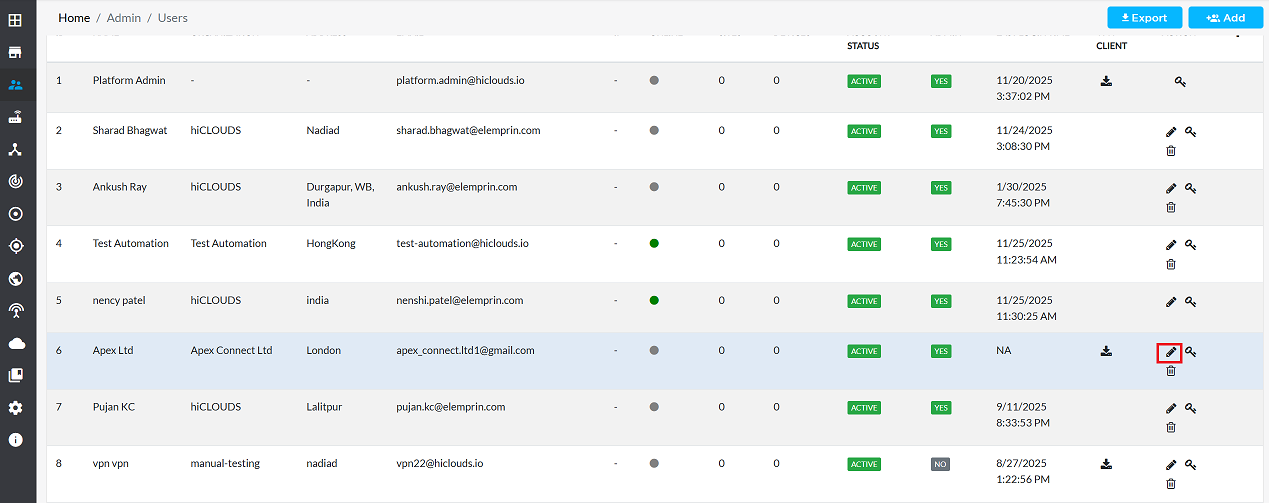
Go to Login > User.
-
Locate the specific user for whom to add Multi-Factor Authentication.
-
Click the Edit action button corresponding to the selected user.
-
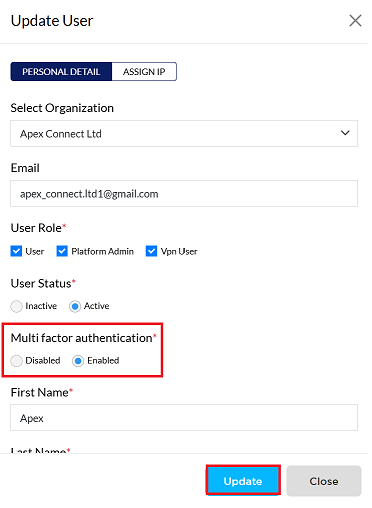
On the user editing screen, scroll to the Multi Factor Authentication configuration section.
- Two options are available: ‘Disable’ and ‘Enable’. Click on the Enable.
-
Click the Update button to save the global configuration.
-
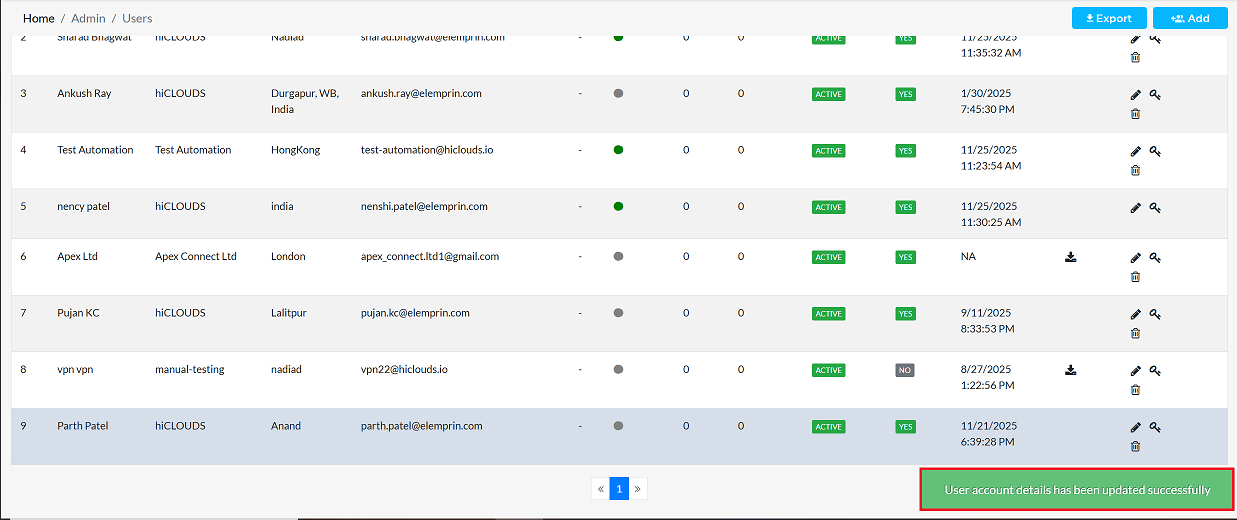
A confirmation message, such as User account details has been updated successfully, will confirm the successful of the configuration change.
Configure Global OTP Timeout Setting
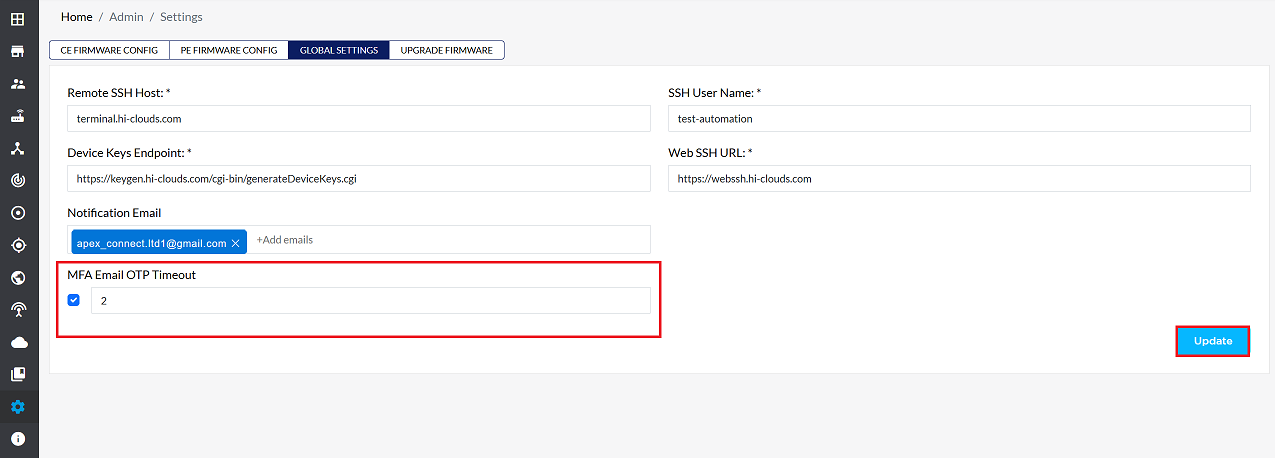
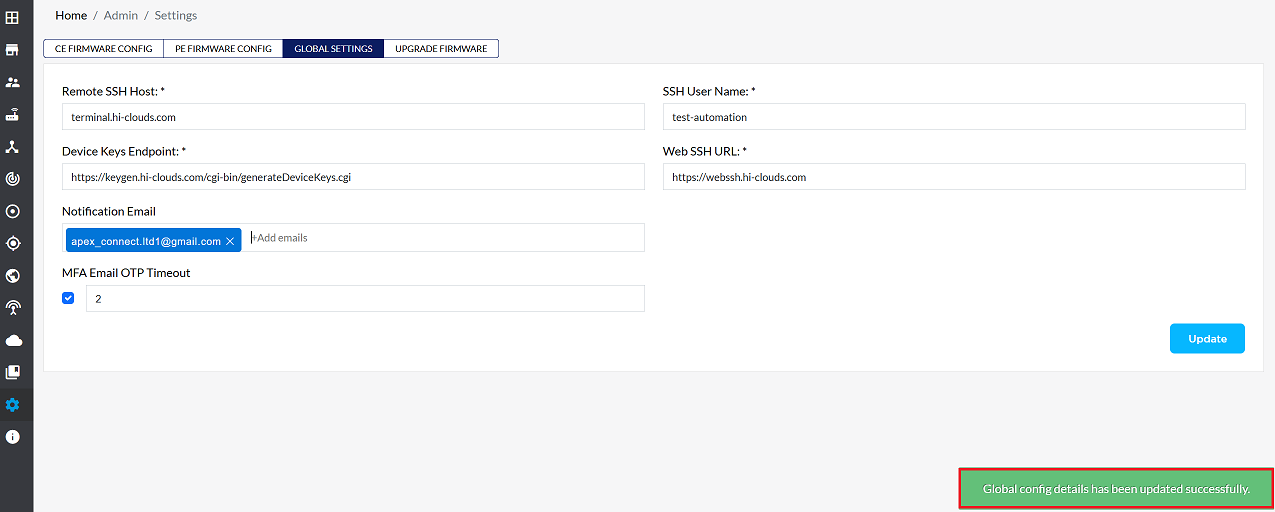
The MFA Email OTP Timeout setting defines the validity duration for the generated One-Time Password sent via email. This is a system-wide setting:
-
Navigate to Setting > Global Setting.
-
Locate the MFA Email OTP Timeout option.
-
Click the check box and enter the desired timeout duration in minutes.
- Example: Entering 2 means the generated OTP will expire 2 minutes after it is sent. The user must enter and verify the OTP before this time limit.
-
Click on the Update button.
-
The system will display the confirmation message, Global config details has been update successfully.
User Login with MFA
Once MFA is enabled for a user, the login process incorporates an additional OTP verification step:
-
The user must first Logout of any active session. The logout function is typically accessed via an icon or button in the platform's upper-right corner.

-
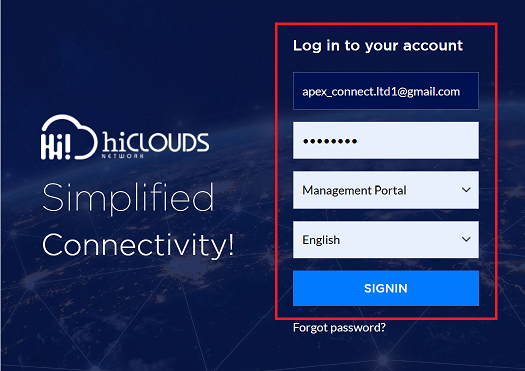
On the platform's login page, the user enters their standard credentials (e.g., username and password) and clicks the SIGNIN button.
-
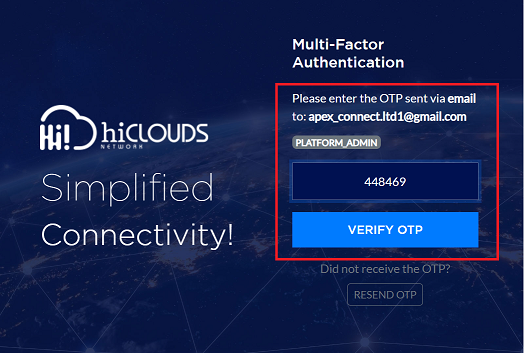
The system recognizes the MFA-enabled status and presents an Enter OTP prompt on the screen.
-
Concurrently, the system automatically dispatches a 6-digit OTP to the Email ID registered for that specific user account.
-
The user is required to retrieve the OTP from their registered email's inbox
-
The received 6-digit OTP is then entered into the designated field on the login screen.
-
The user then clicks on Verify OTP.
-
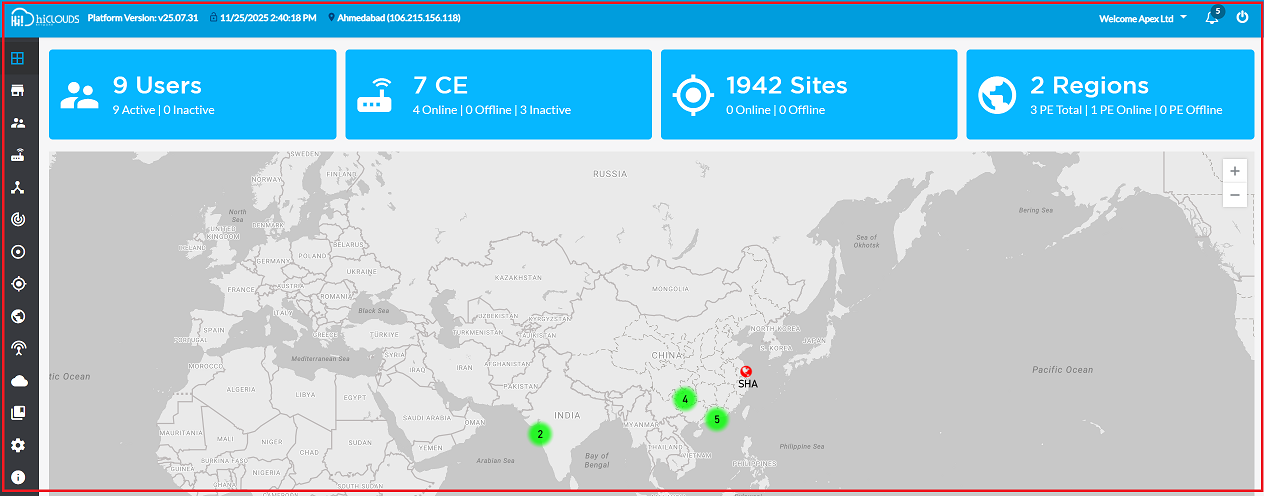
Successful verification of the OTP grants the user access to the platform, completing the secure login process.
Important Notes for Users
- Keep your registered email active and accessible:- OTP will always be sent to the email address linked with your account.
- Do not share your OTP with anyone:- OTPs are confidential security codes meant only for the authorized user.
- Enter the OTP within the configured expiry time:- If the OTP expires, you must restart the login process to receive a new one.
- Check Spam / Promotions folders if OTP email is not visible:- Email filters may sometimes redirect system messages.
- Ensure stable internet connectivity during login:- Slow or unstable internet may delay OTP delivery.
- Use the latest browser version for best performance:- Outdated browsers may not support some security functions.
- If you repeatedly do not receive OTP emails:- Contact your system administrator to verify your email configuration.
- Logging out and logging in again may be required:- When MFA is newly enabled on your account.
- Administrators may disable MFA only if required:- MFA improves security and prevents unauthorized account access.
FAQs
Q:1 What is Multi-Factor Authentication (MFA)?
MFA is a security mechanism that requires users to provide two or more forms of verification before accessing the system. In this platform, MFA combines the standard username-password login with a 6-digit OTP sent to the user’s registered email. This additional verification layer protects against unauthorized access even if login credentials are compromised.
Q:2 Can MFA be enabled for all users at once?
MFA can be enabled per user by editing individual accounts. Administrators cannot enable MFA for all users in a single bulk action through the interface. To enforce MFA system-wide, admins must configure each account separately or apply organizational policies that require MFA during account setup.
Q:3 How is the OTP delivered?
The OTP is a 6-digit code automatically generated by the system. It is delivered via email to the user’s registered email address associated with their account. The user retrieves the OTP from their inbox and enters it into the login screen to complete authentication.
Q:4 How long is the OTP valid?
The OTP validity is defined by the Global OTP Timeout setting configured by the administrator. Example: If the timeout is set to 2 minutes, the OTP will expire 2 minutes after being sent. Users must enter and verify the OTP within this time limit, otherwise a new OTP will need to be generated.