Upgrade Firmware
This document explains how to upgrade firmware for both CE (Customer Edge) and PE (Provider Edge) devices. In this process, the firmware of all online devices is upgraded to the version specified in the CE/PE firmware configuration.
Bulk Firmware Upgrade for CE Devices
To upgrade the firmware on all CE devices, begin by configuring the CE Firmware Config.
Before initiating the upgrade, update the CE firmware configuration to reflect the intended firmware version for the upgrade. This configuration is used in the device firmware upgrade process and is managed through the cloud platform settings.
To configure the CE firmware details, please refer to the CE firmware config document.
-
Once the CE firmware configuration is complete:
-
Navigate to Login > Settings > Upgrade Firmware.
-
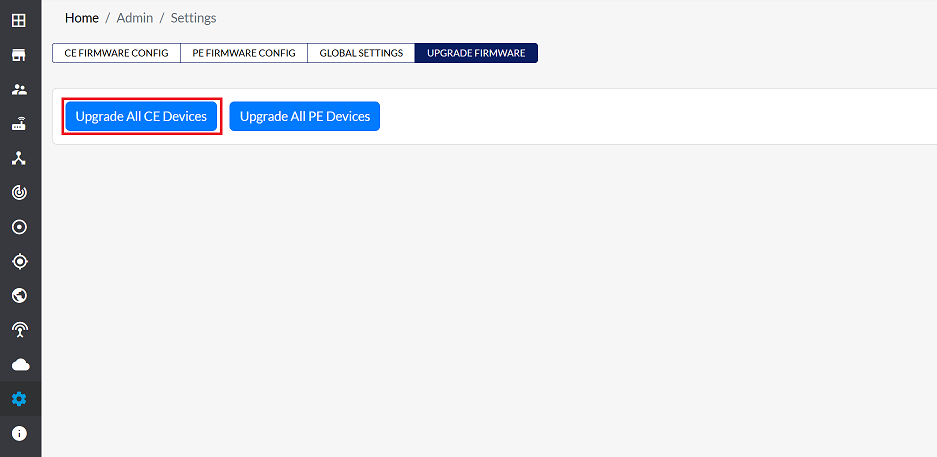
Click the Upgrade All CE Devices button.
-
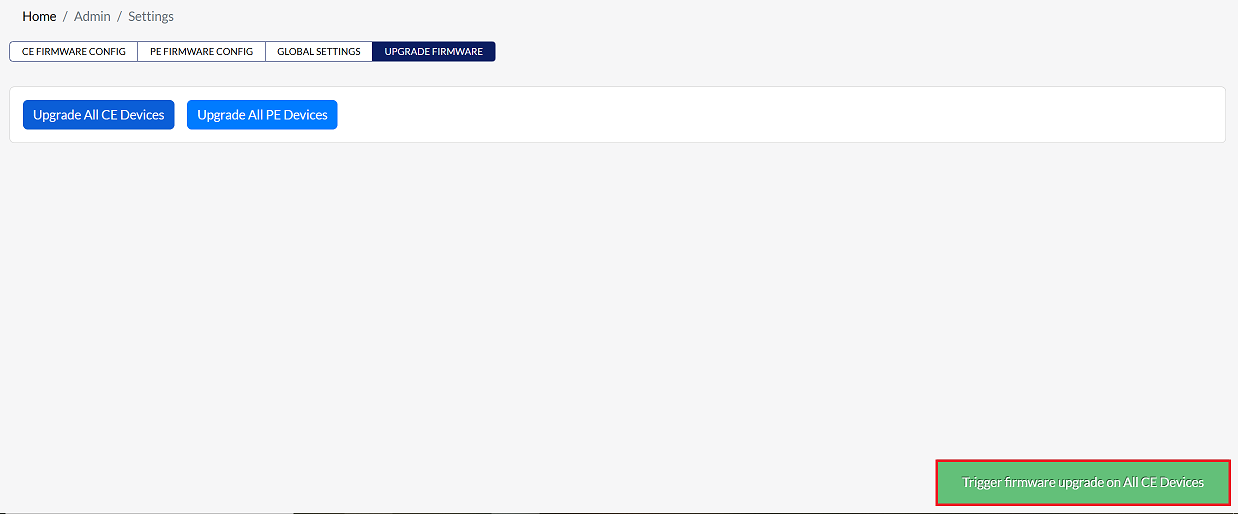
Clicking the 'Upgrade All CE' button starts a firmware upgrade for all online CE devices not already running the target version. A message stating Trigger firmware upgrade on ALL CE Devices will appear on the screen.
-
-
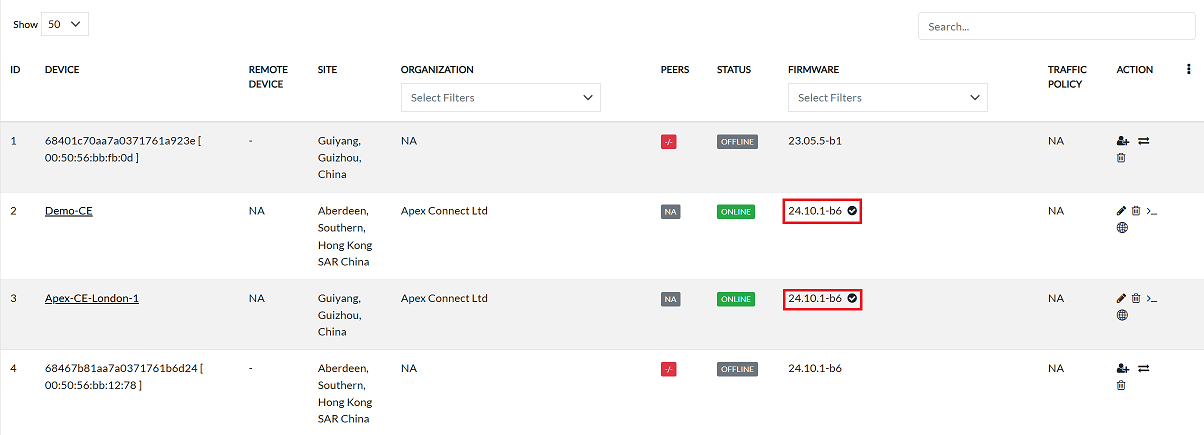
Navigate to the CE device section to monitor the upgrade progress. During the firmware upgrade, the firmware column will indicate the ongoing process.
-
Once the firmware upgrade is complete, a checkmark icon (as shown in the referenced image) appears in the Firmware column, indicating that the firmware upgrade was successful.
Bulk Firmware Upgrade for PE Devices
The process for upgrading PE device firmware is similar to that of CE devices.
As with CE devices, update the PE firmware configuration to reflect the desired firmware version for the upgrade. This configuration is used in the device firmware upgrade process and is managed by the cloud platform settings.
For detailed instructions on configuring PE firmware, please refer to the PE firmware Config document.
-
After configuring the PE firmware:
-
Navigate to Login > Settings > Upgrade Firmware.
-
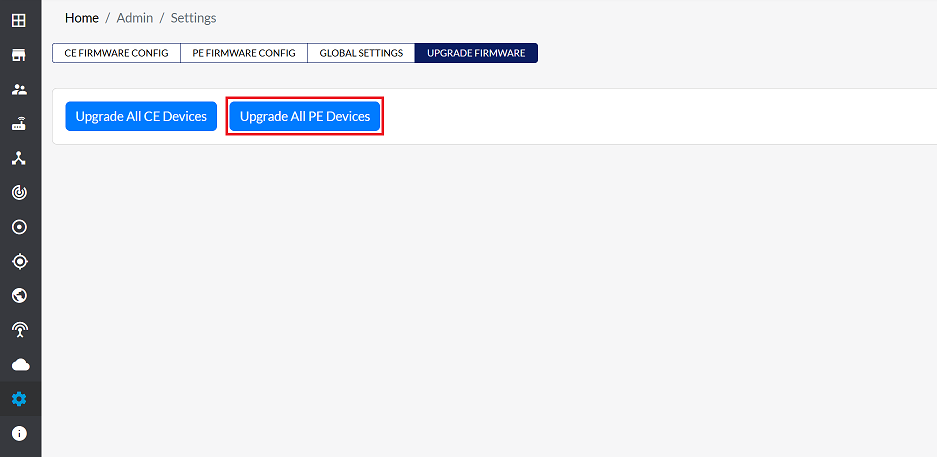
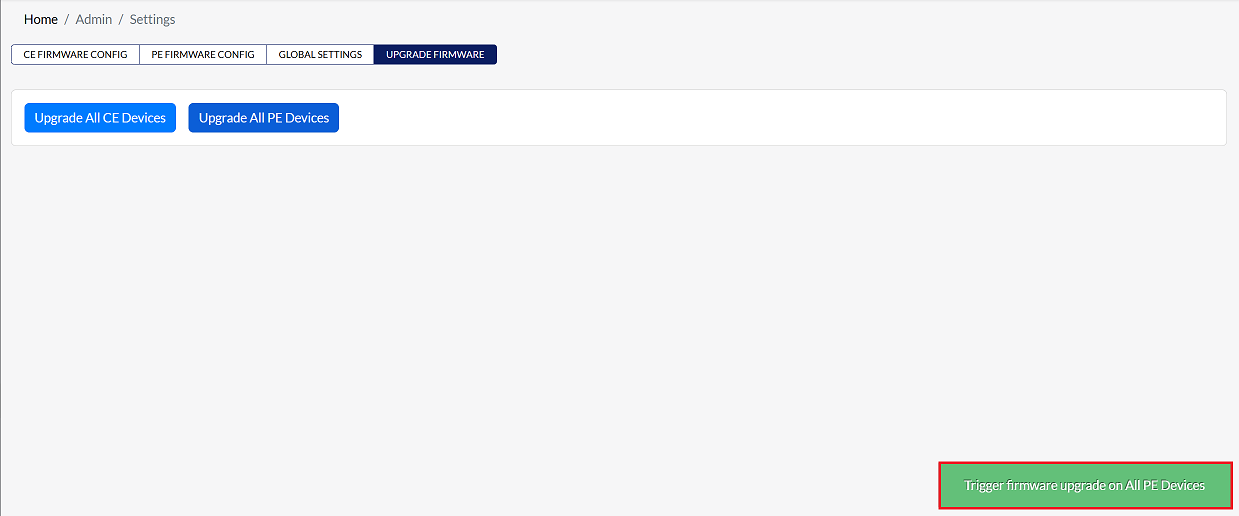
Click the Upgrade All PE Devices button.
-
Clicking the 'Upgrade All PE' button starts a firmware upgrade for all online PE devices not already running the target version. A message stating Trigger firmware upgrade on ALL PE Devices will appear on the screen.
-
-
As with CE devices, the upgrade progress can be monitored by navigating to the PE device section. The Firmware column will indicate the status of the firmware being upgraded.
-
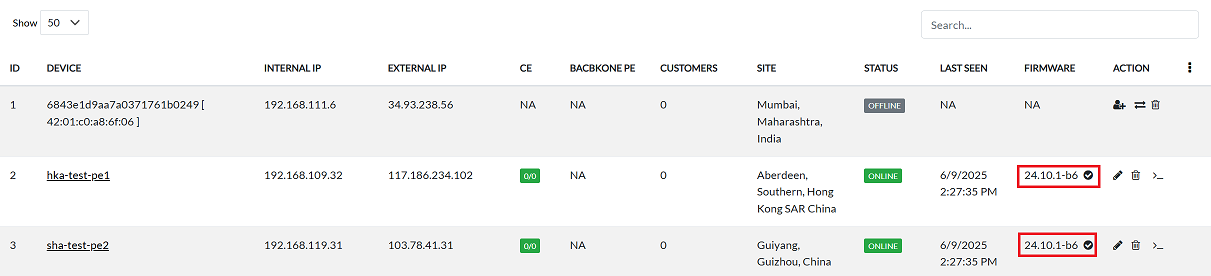
Once the firmware upgrade is complete, a checkmark icon appears in the Firmware column, indicating that the firmware upgrade was successful.
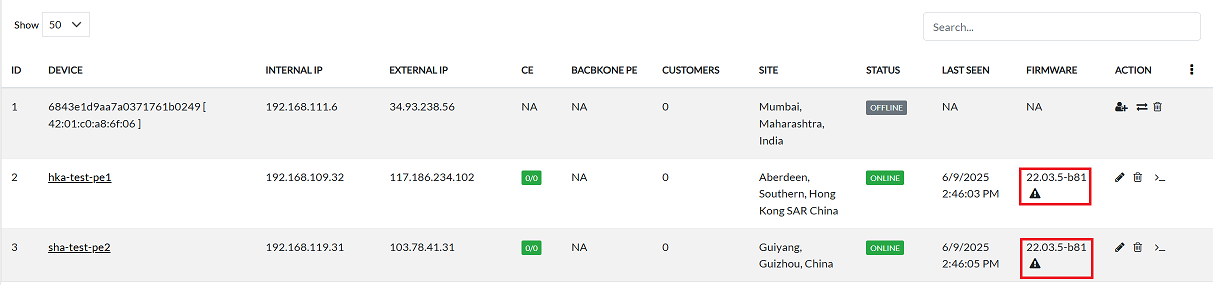
If a device’s firmware has not yet been upgraded, a warning icon (as shown in the provided image) appears next to the device. This icon, common to both CE and PE devices, indicates that a firmware update is available to upgrade.
Important Notes for Users
- Only online devices receive the upgrade. Offline devices will upgrade automatically when they come online (if supported).
- Ensure CE/PE firmware configuration is correct before triggering the upgrade.
- Devices already running the target version will not be upgraded again.
- Network interruption may temporarily occur during upgrade.
- Do not power-off or disconnect devices during upgrade.
- Upgrade progress must be monitored from the device listing page.
- Restart may occur automatically depending on firmware behavior.
- Use admin-level permissions to trigger upgrades.
- Warning icon indicates upgrade availability — not failure.
- Upgrade operations are irreversible once triggered.
FAQs
Q1: How can I monitor the progress of the firmware upgrade?
Navigate to the CE device section (for CE upgrades) or the PE device section (for PE upgrades). During the upgrade: The Firmware column will display the ongoing upgrade status. A checkmark icon will appear once the upgrade is successfully completed. If a device has not yet been upgraded, a warning icon will be shown, indicating that a firmware update is still pending. This allows administrators to track which devices are upgrading, which have completed, and which still require attention.