Sites
This document provides comprehensive guidelines for managing sites including creating, editing and deleting site entries in the system. Each section outlines step-by-step instructions, supported by visual references, to ensure a seamless operation for administrators.
What is a site?
A site represents a specific physical or logical location within an organization's network infrastructure, such as a branch office, data center, or remote facility. Each site is equipped with network devices that enable secure and efficient connectivity. Sites are uniquely identified within the network framework and are managed centrally to enforce policies, monitor performance, and ensure reliable communication between locations.
Creating Site
-
Go to the Login > Sites > Add New Site.
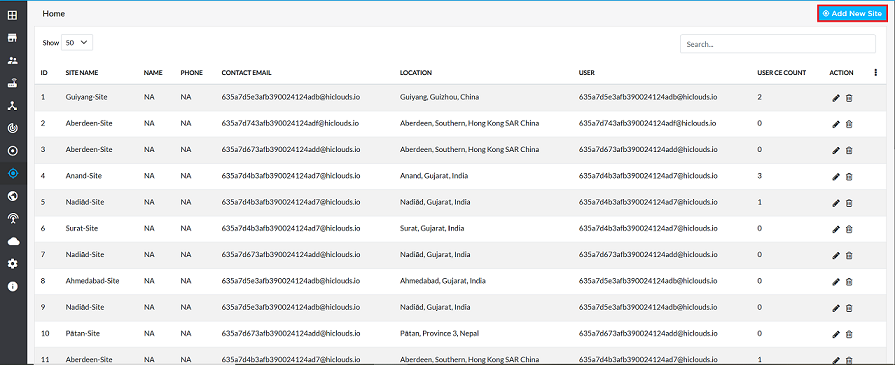
-
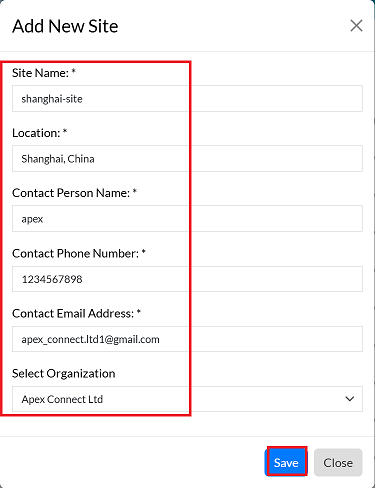
Provide the following details in the respective fields
- Site Name: Enter the site name (i.e, shanghai-site).
- Location: Specify the site location (i.e, shanghai,china).
- Contact Person Name: Enter the name of the contact person. (i.e, apex)
- Contact Phone Number: Provide the contact phone number. (i.e,1234567898)
- Contact Email Address: Enter the contact email address. (i.e,apex_connect.ltd1@gmail.com).
- Select Organization: Use the dropdown menu to select the associated organization. (i.e,Apex Connect Ltd).
- Click on the Save button.
-
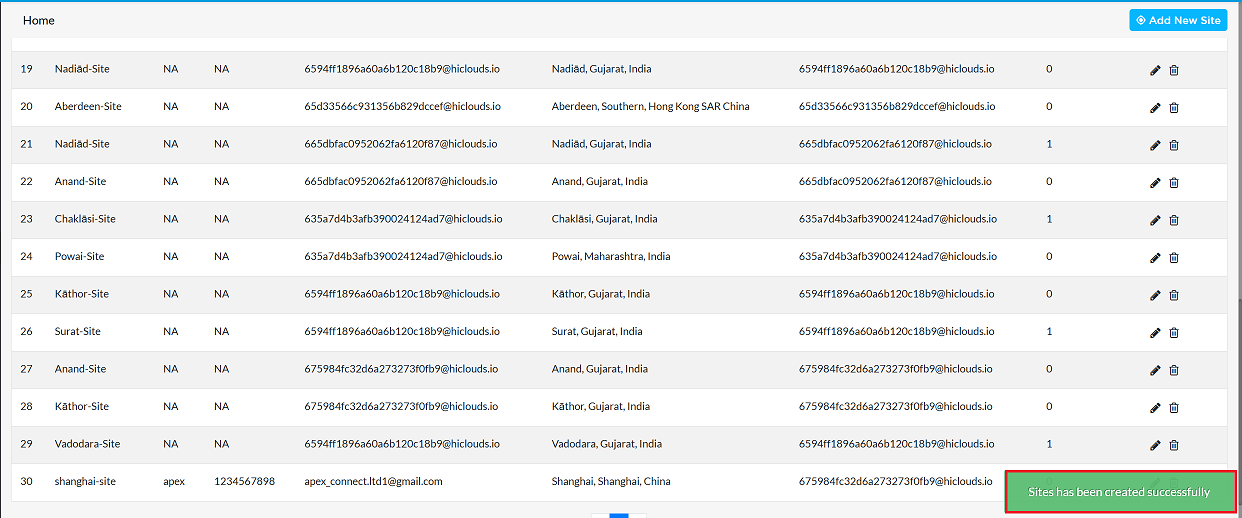
Upon successful creation, a confirmation message will be displayed Site has been created successfully.
Editing Site
-
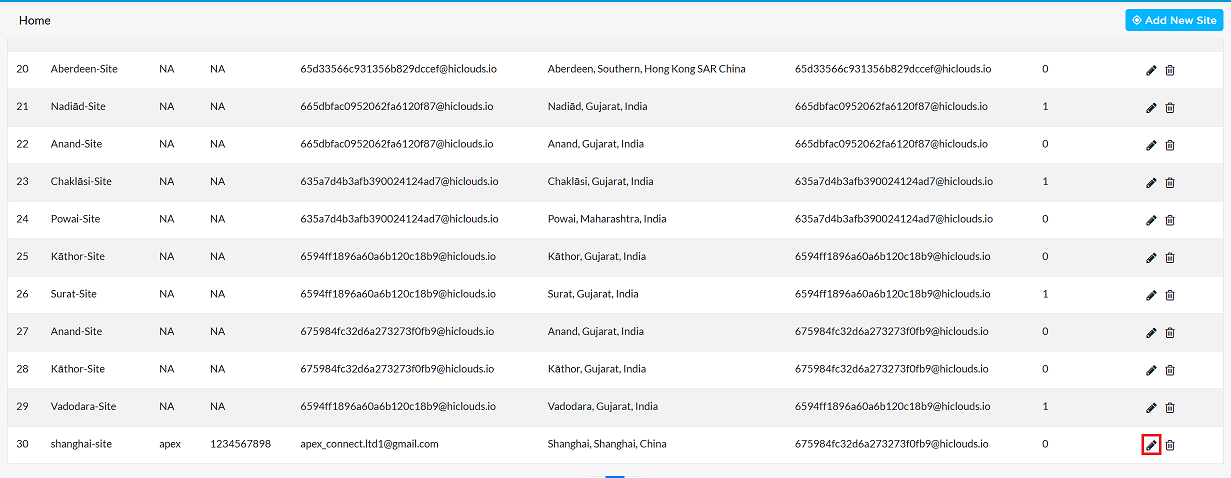
Find the desired site in the list and click the Edit button on the right.
-
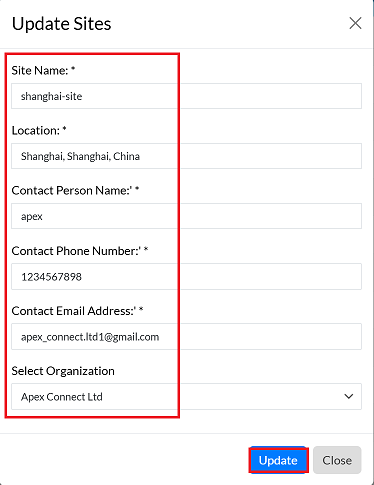
The following sections can be modified as needed:
- Site Name: If the site name needs to be changed, it can be changed here.
- Location: If the geographical location of the site needs to be changed or updated, change it here.
- Contact Person Name: If the name of the main contact person needs to be changed, update it here.
- Contact Phone Number: If the telephone number for the contact needs to be changed, change it here.
- Contact Email Address: If the email address for the contact needs to be changed, change it here.
- Select Organization: If the organization needs to be changed or updated, change it here.
-
Click the Update button to save changes.
-
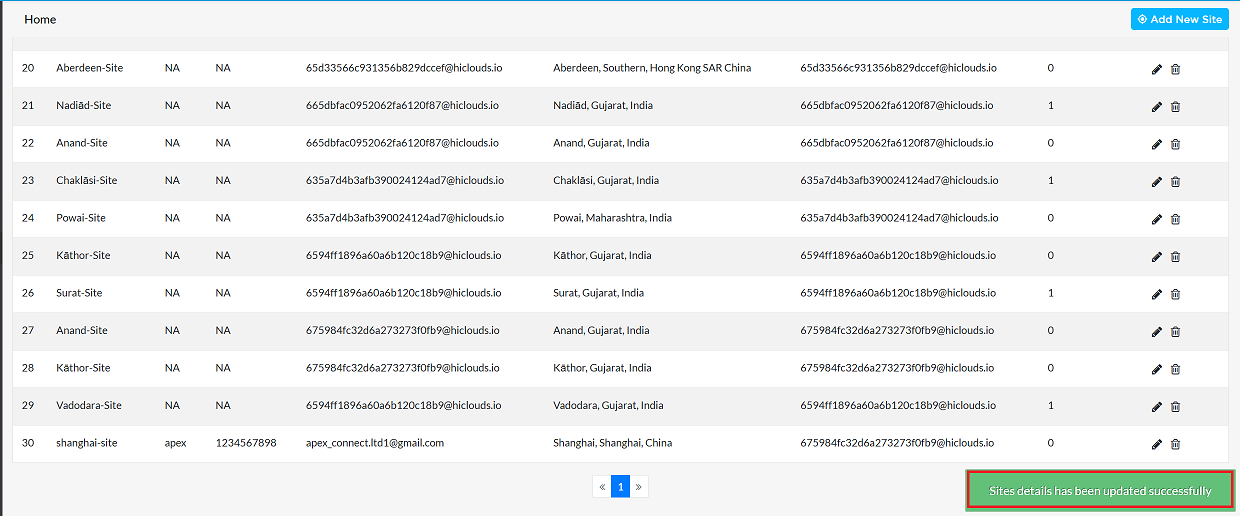
Upon successful update, a confirmation message will appear Sites details has been updated successfully.
Deleting Site
To delete any sites, follow these steps:
-
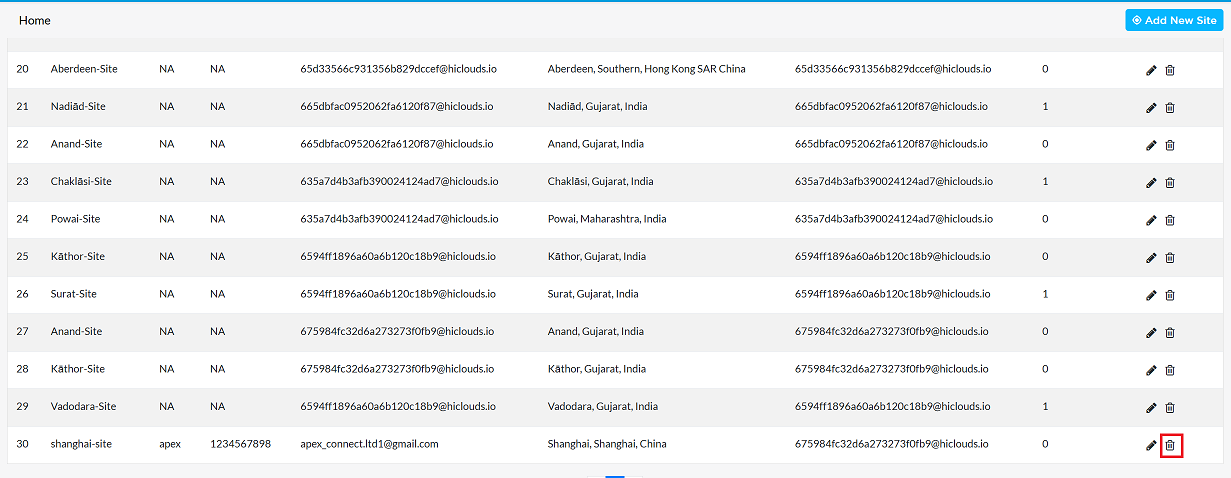
Click on the Delete option in the 'Action' column in the row of the sites to be deleted.
-
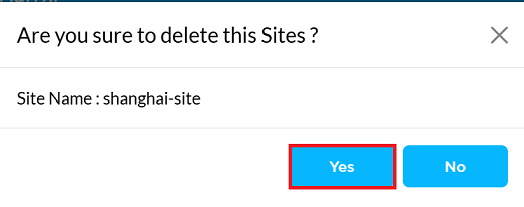
By clicking on the Delete option, a confirmation message popup will open on the screen. This popup asks to confirm the deletion action again, which prevents accidental deletion.
- The site has two options available:
- Confirm Delete: If the site really wants to delete the information, click on the Yes button in the popup.
- Cancel Delete: If not intended to delete or clicked by mistake, click on the No button to cancel the action and keep the information safe.
- The site has two options available:
-
Decision taken in the image As mentioned, the Yes button has been clicked in the image. This means that the deletion action has been confirmed by the site and the relevant data will be removed from the system.
-
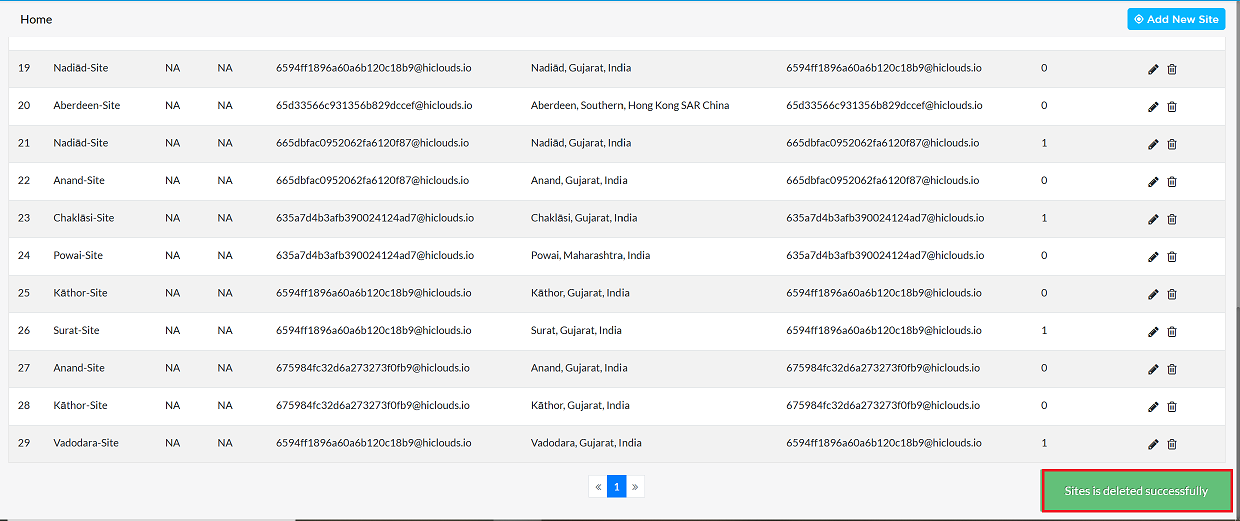
Once deleted, a confirmation message will be displayed Site is deleted successfully.
Important Notes for Users
- Only authorized users with the required permissions can create, edit, or delete sites.
- A site must always be linked to a valid organization.
- Before deleting a site, ensure that no critical devices or services are dependent on it.
- If a site is no longer in use but should remain in records, consider maintaining documentation before deletion.
- Enter accurate contact and location details to ensure smooth communication and troubleshooting.
- All changes made to site information will affect associated system modules and reports.
- Deleted sites cannot be restored. If unsure, verify before confirming deletion.
FAQS
Q:1 Can I upload sites in bulk?
Ans: Bulk upload functionality is not available in the current version. Sites must be added individually.
Q:2 How do I assign multiple organizations to a single site?
Ans: Currently, the system supports only one organization per site. For additional requirements, create separate site entries.