Password Reset
This document provides a step-by-step guide on how to reset the password and then log in to the platform in case the user forgets their password.
Steps to Reset Password
-
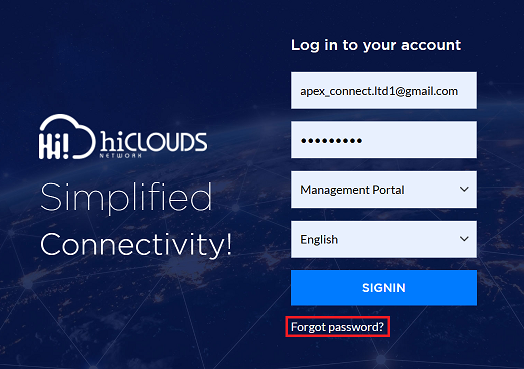
Go to the Login Panel. And click on Forgot Password.
-
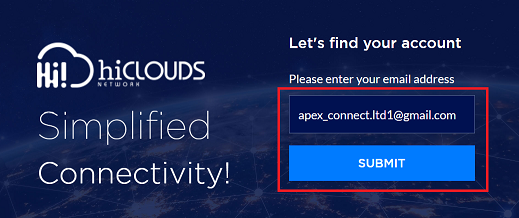
You will then be asked to enter your email address. Enter your registered email address there.
-
Click on the Submit button.
-
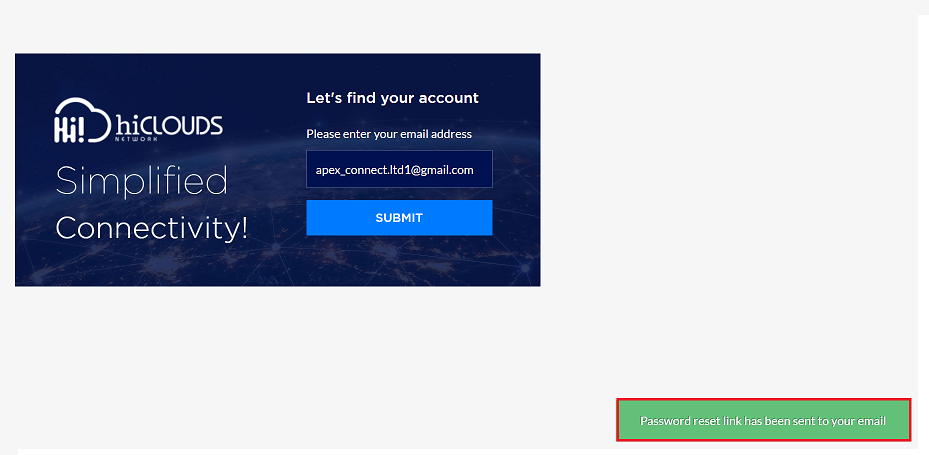
After submitting, a message will appear on the screen, such as: password reset link has been sent your email.
-
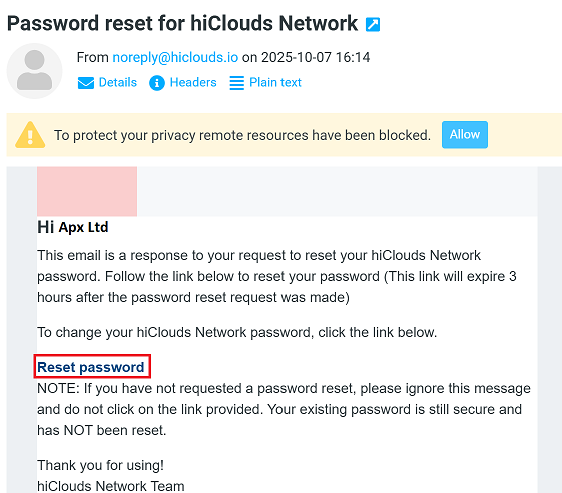
Check the inbox of the entered email. An email from the platform will arrive. Click on the Reset Password link provided in the email.
-
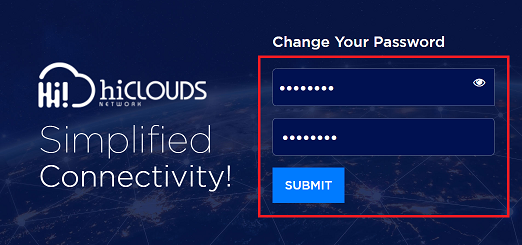
Clicking on the Reset Password link will open a new page, where a new password can be set.
- Enter New Password: Type the new password to keep here.
- Confirm Password: For security, re-enter the same new password entered above.
-
Click on the Submit button.
-
After the password is successfully reset, a message will appear on the screen: Your password has been reset successfully.
Login to the Platform
After resetting the password, can now log in to the platform:
-
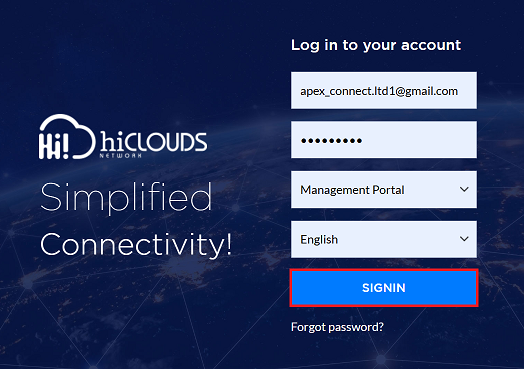
Go back to the main login page of the platform.
- Email ID: Enter the registered email ID.
- Password: Enter the newly reset password.
- Portal Select: Choose the portal as per the requirement. There are two portals available:
- 1. Management Portal
- 2. Customer Portal:- Customer Portal. For customers, select the Customer Portal. For instance, the Management Portal is selected here.
- Language: Select the preferred language, e.g., English.
- Click on the SIGNIN button.
-
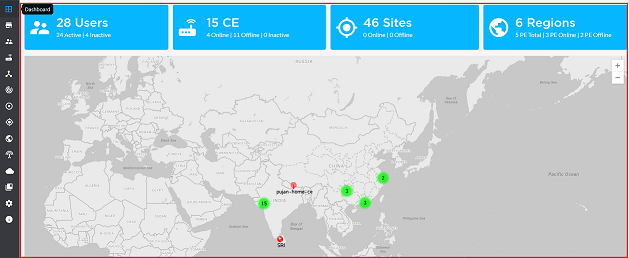
Upon signing in, access to the platform is granted, and the Dashboard will be displayed.
Important Notes for Users
- Make sure you enter the same email ID used during registration.
- Check Spam / Junk folders if you don’t see the reset email.
- Password must meet security rules (if applicable).
- Do not share the reset link with anyone.
- Reset links may expire after some time.
- Use a strong and unique password.
- If you still cannot reset your password, contact system support.
FAQs
Q:1 What should I do if I don’t receive the password reset email?
First, check your Spam/Junk folder to ensure the email wasn’t filtered there, Verify that you entered the correct registered email address on the reset page, Wait a few minutes, as sometimes email delivery can be delayed, If you still don’t see the email, try resubmitting the request, If the issue persists, contact the platform’s support team to confirm your account details and request assistance
Q:2 What should I do if the reset link doesn’t open?
Ensure you are clicking the link directly from the email, not copying it incorrectly, Try opening the link in a different browser or device, Clear your browser’s cache and cookies, then attempt again, Make sure the link hasn’t expired (reset links are often time-sensitive), If the link is broken or expired, request a new password reset link from the login panel, If none of these steps work, reach out to the support team for further help.