GCP
Creating a PE instance in Google Cloud involves choosing the right machine image, configuring the instance details, and ensuring its successful deployment. This guide provides a step-by-step process for creating a PE instance and verifying its configuration.
Creating PE Instance
-
Open your web browser or google, navigate to the Google Cloud Console, and log in using your credentials.
-
Go to Compute Engine > Machine Images.
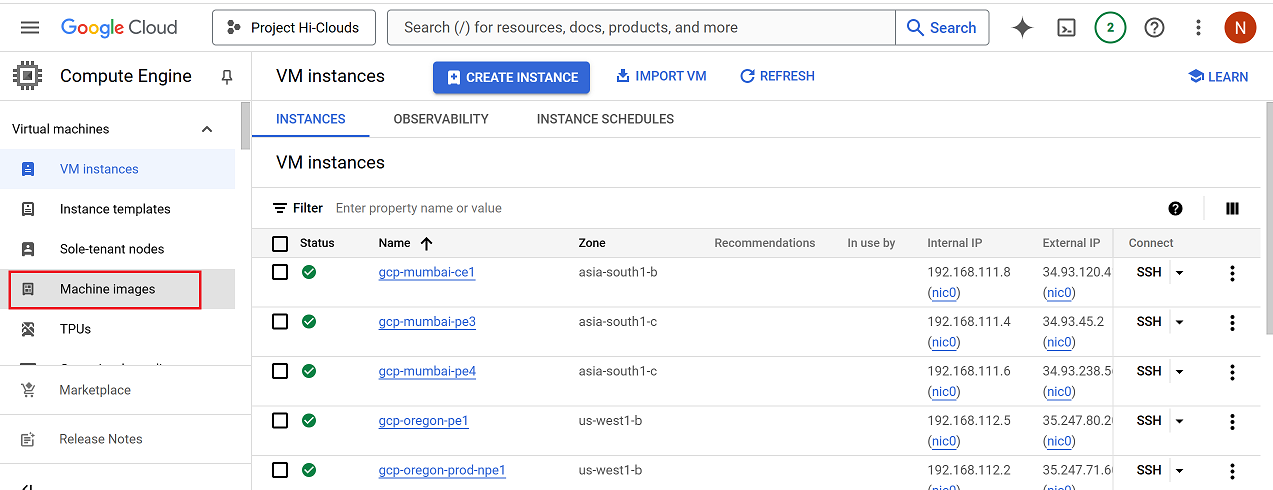
-
There property name and value will be seen.
-
Select the checkbox associated with the specific property.
-
Click on the three dots menu located on the right side of the selected property.
-
Select Create Instance from the dropdown menu.
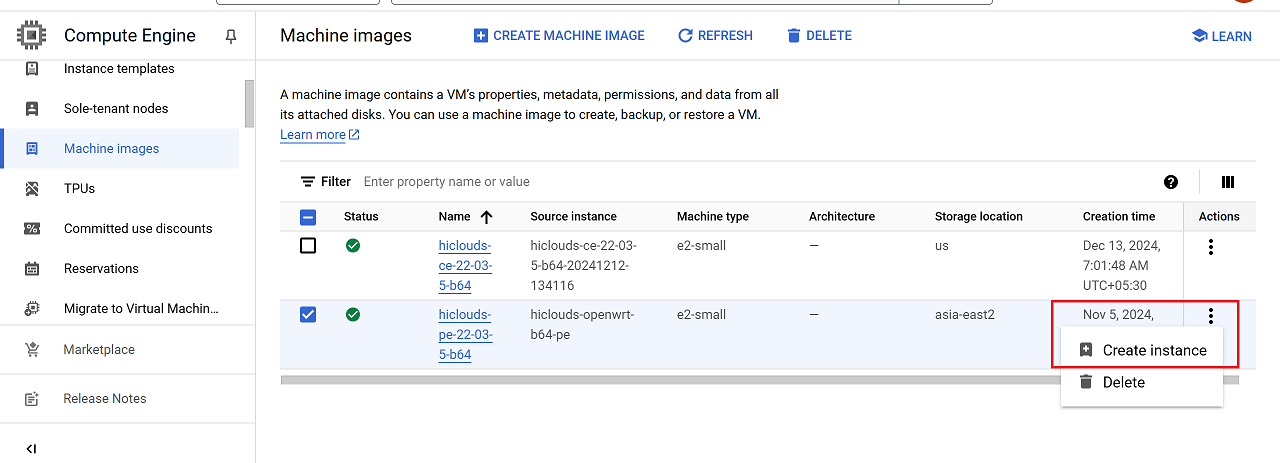
-
Fill in the following details in the configuration screen:
- Name: The name is auto-filled by default. Modify it if required.
- Region: Select the appropriate region (i.e.,
us-west1 (Oregon)). - Zone: Choose the desired zone (i.e.,
us-west1-c).
-
Once the configuration is complete, click the Create button.
If you select the region us-east5 (Columbus), a networking error will be displayed.
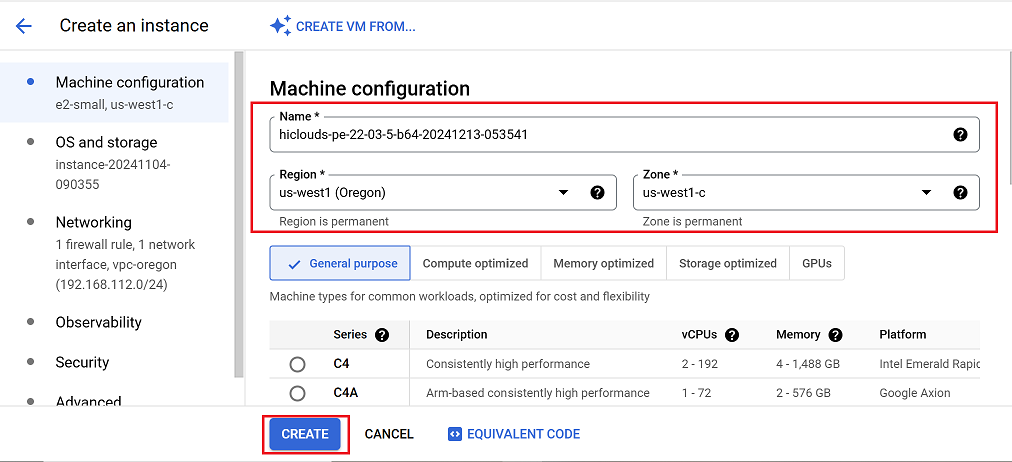
-
After successfully creating the instance, the page will automatically redirect to the VM Instances list.
-
Wait for 2–5 minutes or refresh the page to confirm the new instance appears in the list.
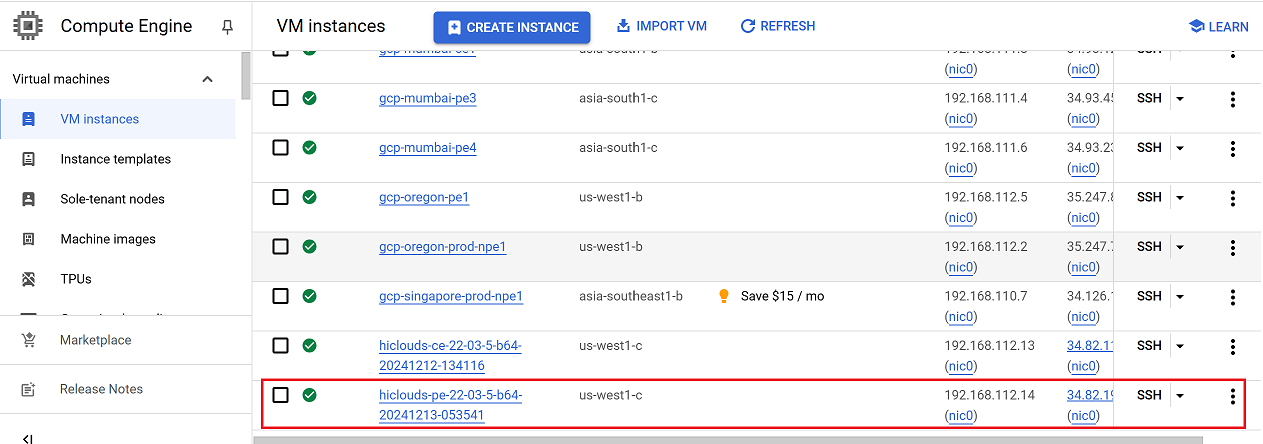
Verify the PE Instance
-
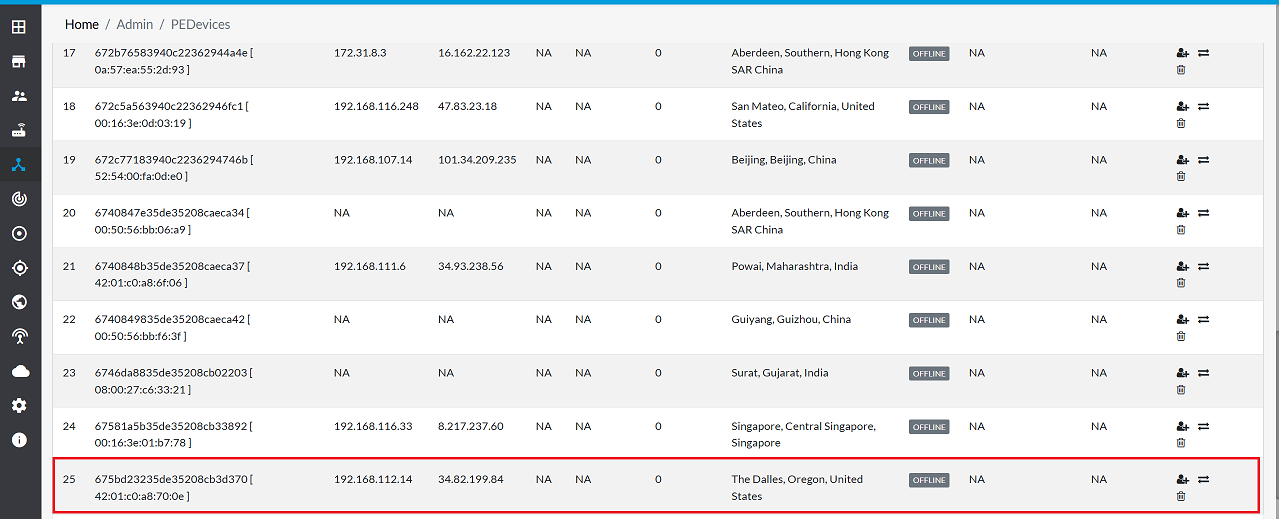
Once the PE is successfully created, proceed to the hiCLOUDS platform to verify its configuration.
-
Go to Login > PE Devices > ALL.
-
Make sure that the newly created PE instance appears in the list of devices.
Important Notes for Users
- Region Selection Matters: Avoid selecting us-east5 (Columbus) for PE creation, as it can trigger networking errors or deployment failures.
- Machine Image Accuracy: Always verify that the correct machine image is selected before creating the instance.
- Configuration Review: Double-check the Region, Zone, Network, and Subnet details before clicking Create to prevent misconfiguration.
- Instance Availability Delay: Newly created instances may take 2–5 minutes to appear in the VM Instances list.
- Access Permissions Required: Ensure you have the necessary GCP IAM permissions to create instances and view resources.
- Billing Impact: Running instances incur charges. Stop or delete unused instances promptly.
- Connectivity Validation: After creation, always verify the PE in the hiCLOUDS platform → PE Devices → ALL to confirm successful registration.
- Do Not Modify Critical Settings: Avoid changing network or firewall settings unless guided by your network administrator.
- Follow Organizational Compliance: Always adhere to your company’s security and deployment policies when creating cloud resources.
FAQs
Q1: How can I resolve the networking error in us-east5 (Columbus)?
Ans: If the error occurs while creating a networking virtual device, this region might have specific restrictions or unavailability. Choose another region or contact Google Cloud support for assistance. If the error occurs while creating a Private Endpoint (PE), please confirm with your backbone engineer whether the VPC and vSwitch have already been created in the us-east5 region.
Q2: Can I modify the PE instance after creation?
Ans: Yes, you can modify certain configurations like disk size and network settings via the VM Instances page.