Exporting CE Device Details
This document outlines the steps to export CE (Customer Edge) device details from the system, which can then be viewed in an Excel spreadsheet.
Steps to Export CE Device Data
Follow these instructions to download the CE device data:
-
Log In: Navigate to the Login page and sign in to your account.
-
Access CE Devices: From the main dashboard, go to the CE Devices section.
-
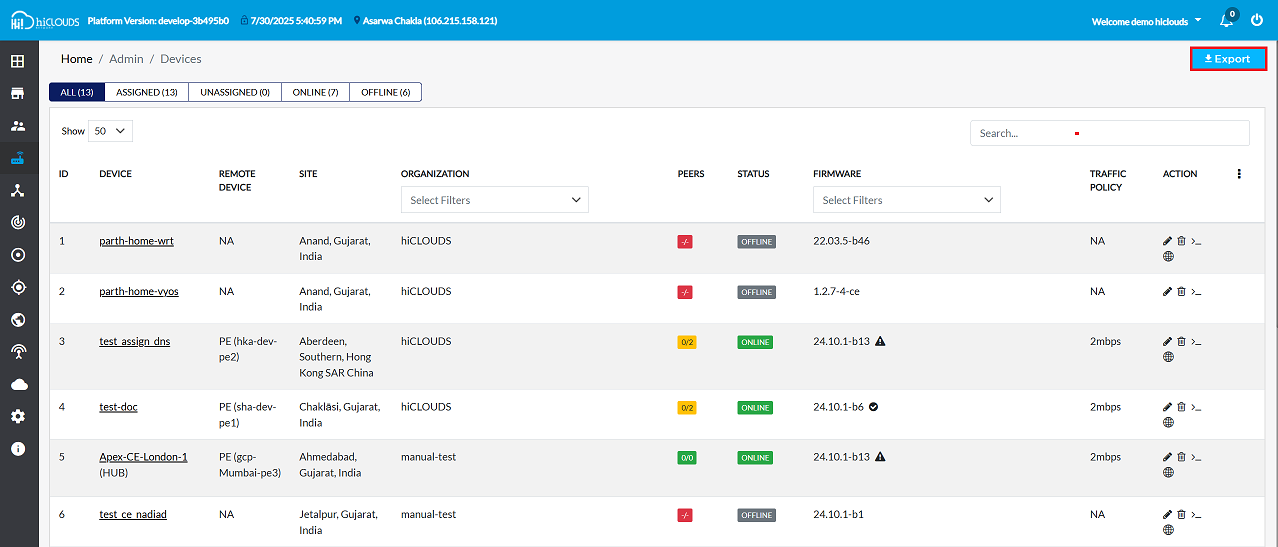
Initiate Export: Locate and click the Export button.
- As shown in the figure, the Export button is typically found in the upper-right corner of the screen. Clicking this will immediately start the download of the CE device data file.
-
Locate Downloaded File: Once the download is complete, open the file explorer and navigate to the Downloads folder (typically
This PC > Downloads). -
Open Excel File: Find and open the exported file. It will be an Excel spreadsheet (
.xlsxor.xlsformat).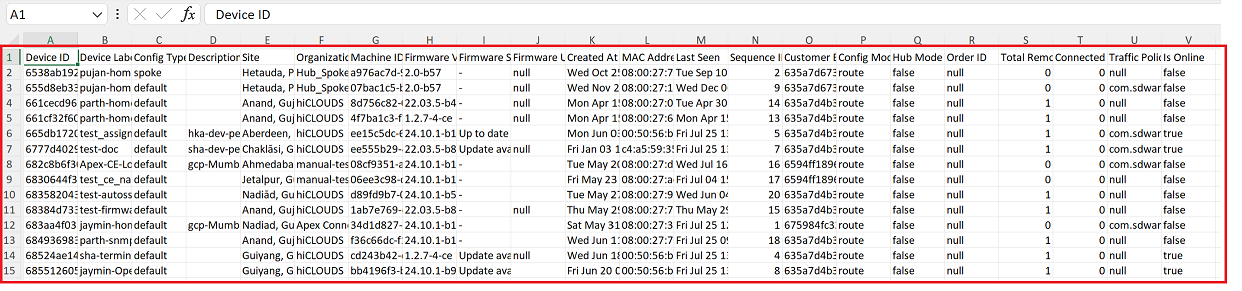
Understanding the Exported Data
The exported Excel file will contain a comprehensive list of all CE devices, with details organized into the following columns:
| Column Header | Description |
|---|---|
| Device ID | A unique identifier for each CE device. |
| Device Label | A human-readable name or label assigned to the device. |
| Config Type | The type of configuration applied to the device (e.g., spoke, default). |
| Description | A brief description or additional notes about the device. |
| Site | The geographical location or site where the device is deployed. |
| Organization | The organization to which the CE device belongs. |
| Machine ID | A unique identifier for the physical or virtual machine hosting the device. |
| Firmware Version | The current firmware version running on the device. |
| Firmware Status | The status of the device's firmware (e.g., Up to date, Update available). |
| Firmware Upgrade Status | The status of any ongoing or recent firmware upgrade process. |
| Created At | The timestamp when the device record was created in the system. |
| MAC Address | The Media Access Control (MAC) address of the device. |
| Last Seen | The timestamp when the device was last seen online by the system. |
| Sequence ID | A sequential identifier for the device. |
| Customer Email | The email address of the customer associated with the device. |
| Config Mode | The configuration mode of the device (e.g., route). |
| Hub Mode Enabled | Indicates whether Hub Mode is enabled for the device (TRUE/FALSE). |
| Order ID | The order ID associated with the device, if applicable. |
| Total Remote Sites | The total number of remote sites configured for this device. |
| Connected Remote Sites | The number of remote sites currently connected to this device. |
| Traffic Policy | Information about the traffic policy applied to the device. |
| Is Online | Indicates whether the device is currently online (TRUE/FALSE). |
Example Data
Below is a sample of the data typically found in the exported Excel sheet:
| Device ID | Device Label | Config Type | Description | Site | Organization | Machine ID | Firmware Version | Firmware Status | Firmware Upgrade Status | Created At | MAC Address | Last Seen | Sequence ID | Customer Email | Config Mode | Hub Mode Enabled | Order ID | Total Remote Sites | Connected Remote Sites | Traffic Policy | Is Online |
|---|---|---|---|---|---|---|---|---|---|---|---|---|---|---|---|---|---|---|---|---|---|
6538ab19212e5370ca96cf3b | pujan-home-spoke-2 | spoke | Hetauda, Province 3, Nepal | Hub_Spoke_Testing | a976ac7d-9463-3593-92f6-880c7b0c1283 | 2.0-b57 | - | null | Wed Oct 25 05:43:53 UTC 2023 | 08:00:27:7b:9e:04 | Tue Sep 10 16:34:44 UTC 2024 | 2 | 635a7d673afb390024124add@hiclouds.io | route | false | null | 0 | 0 | null | false | |
665db1720952062fa6120d39 | test_assign_dns | default | hka-dev-pe2 | Aberdeen, Southern, Hong Kong SAR China | hiCLOUDS | ee15c5dc-6760-35b3-ae2f-49b88ac1c12e | 24.10.1-b13 | Up to date | Mon Jun 03 12:05:06 UTC 2024 | 00:50:56:bb:c2:5d | Tue Jul 29 16:55:43 UTC 2025 | 5 | 635a7d4b3afb390024124ad7@hiclouds.io | route | false | null | 2 | 0 | com.sdwancloud.entities.DeviceTrafficPolicyConfigEntity@359ae48 | true | |
6777d40291e891292b844670 | test-doc | default | sha-dev-pe1 | Chaklāsi, Gujarat, India | hiCLOUDS | ee555b29-46ea-3b2c-be0c-e6faac52994f | 24.10.1-b13 | Up to date | Fri Jan 03 12:11:46 UTC 2025 | c4:a5:59:35:cc:8a | Tue Jul 29 16:55:36 UTC 2025 | 7 | 635a7d4b3afb390024124ad7@hiclouds.io | route | false | null | 2 | 0 | com.sdwancloud.entities.DeviceTrafficPolicyConfigEntity@209552e6 | true | |
682c8b6f306c944fdbc918db | Apex-CE-London-1 | default | gcp-Mumbai-pe3 | Ahmedabad, Gujarat, India | manual-test | 08cf9351-aaed-3634-b300-f25fe36d0300 | 24.10.1-b6 | - | Tue May 20 14:02:23 UTC 2025 | 08:00:27:db:34:f6 | Tue Jul 29 15:29:59 UTC 2025 | 16 | 6594ff1896a60a6b120c18b9@hiclouds.io | route | false | null | 0 | 0 | com.sdwancloud.entities.DeviceTrafficPolicyConfigEntity@25bb5554 | false | |
6888adb65a2430635f0d7ab1 | pujan-home-ce-1 | default | Lalitpur, Province 3, Nepal | hiCLOUDS | 24fe64da-1a32-334a-bec9-3596cd8306c6 | 24.10.1-b13 | Up to date | Tue Jul 29 11:17:10 UTC 2025 | 08:00:27:82:60:15 | Tue Jul 29 16:55:45 UTC 2025 | 19 | 635a7d4b3afb390024124ad7@hiclouds.io | route | false | null | 2 | 0 | null | true |