Past Logs
This document details the procedure for retrieving, filtering, and viewing Past Logs for a specified CE Device. This feature provides essential data for system diagnostics and network analysis by categorizing events into System Logs and Flow Logs.
| Field | Description |
|---|---|
| Feature Name | Past Logs (Historical Log Access) |
| Purpose | Retrieve and analyze System Events and Connection Events of the selected CE device for a specific historical date. |
| Access Path | Login → CE Devices → Select CE Device → Logs → Click Past Log |
| Configuration Steps | 1. Log Type Selection: Choose System Logs (System Events) or Flow Logs (Connection Events).2. Date Input: Enter the required historical date (e.g., 11/09/2025). |
| Log Type Category – System Logs | Records system events such as configuration changes, service start/stop, device status, internal warnings/errors. |
| Log Type Category – Flow Logs | Records connection events such as network traffic flow, successful/failed connection attempts, and data transfer metrics. |
| Data Retrieval | After clicking Submit, logs are processed based on the selected Log Type and Date and displayed in structured format. |
| Output Format | Each entry typically includes Timestamp, Log Type, and a detailed event message. |
Viewing Past Logs
Follow these steps to access and filter historical logs:
-
Navigate to the Login page.
-
Select CE Devices.
-
Choose the specific CE Device you wish to monitor from the displayed list.
-
Click on the Logs tab.
-
Click on Past Log to begin the historical log retrieval process.
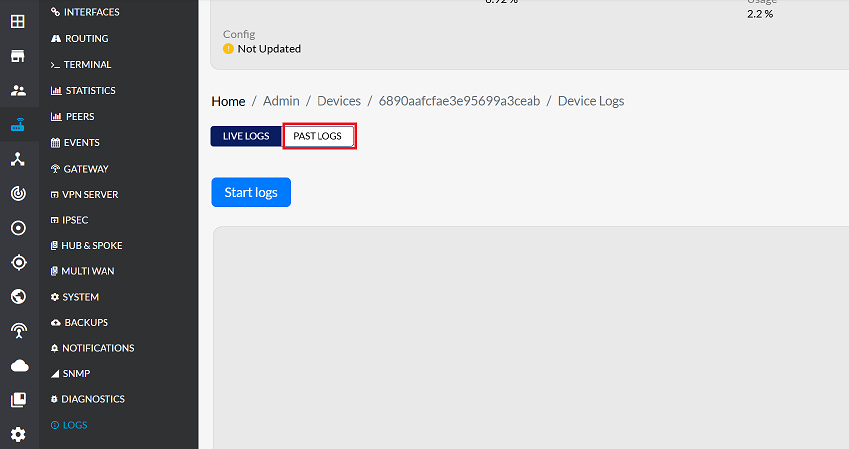
-
Upon clicking Past Log, you will be prompted to select a Log Type. This feature offers two primary categories of logs:
| Log Type | Description |
|---|---|
| System Logs | Records System Events (e.g., configuration changes, service startups/shutdowns, device status, and internal warnings/errors). |
| Flow Logs | Records Connection Events (e.g., network traffic flows, successful and failed connection attempts, and data transfer metrics). |
-
Select the required type based on the information you are seeking (
e.g., choose System Logs to troubleshoot device errors). -
In the Date field, enter the specific historical date for which you want to view the logs. (
e.g:-Enter 11/09/2025 to retrieve logs from that particular day.) -
Click the Submit button.
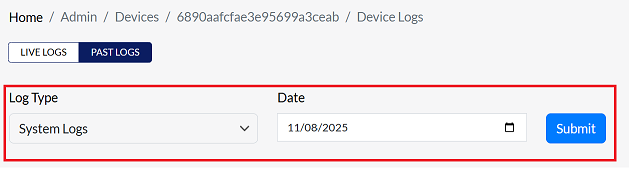
-
The system will then retrieve and display the filtered historical log entries. Each displayed entry will adhere to a structured format, typically including an Event Timestamp, the Log Type, and a Detailed Event Message.