Exporting Organization Details
This document outlines the steps to export organization details from the system, which can then be viewed in an Excel spreadsheet.
Steps to Export Organization Data
Follow these instructions to download the organization data:
-
Log In: Navigate to the Login page and sign in to the account.
-
Access Organization: From the main dashboard, go to the Organization section.
-
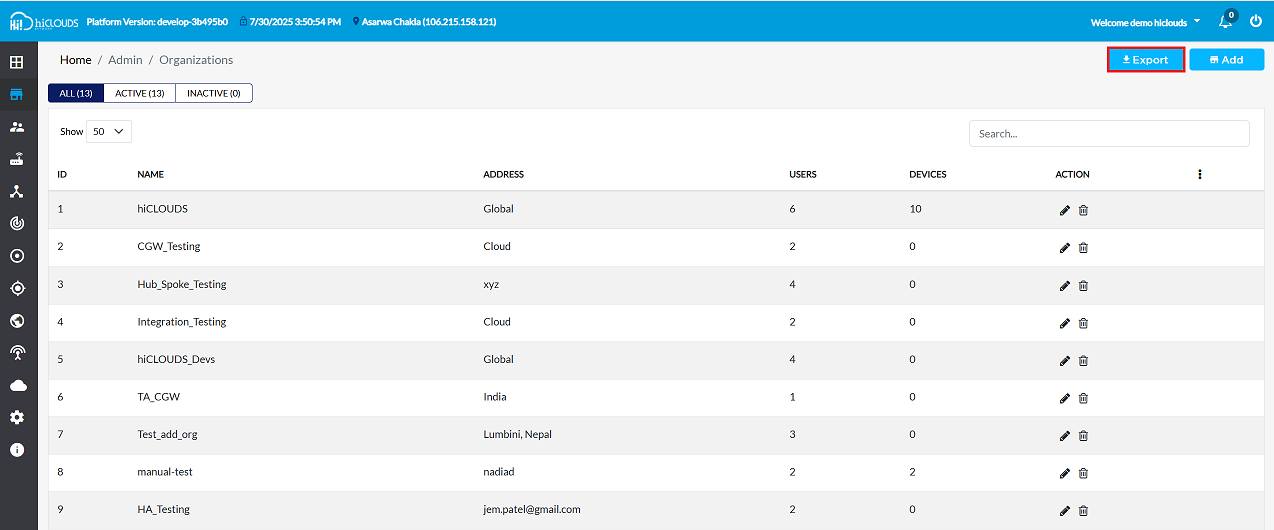
Initiate Export: Locate and click the Export button.
- As shown in the figure, the Export button is typically found in the upper-right corner of the screen. Clicking this will immediately start the download of the organization data file.
-
Locate Downloaded File: Once the download is complete, open the file explorer and navigate to the Downloads folder (typically located at
This PC > Downloads). -
Open Excel File: Find and open the exported file. It will be an Excel spreadsheet (
.xlsxor.xlsformat).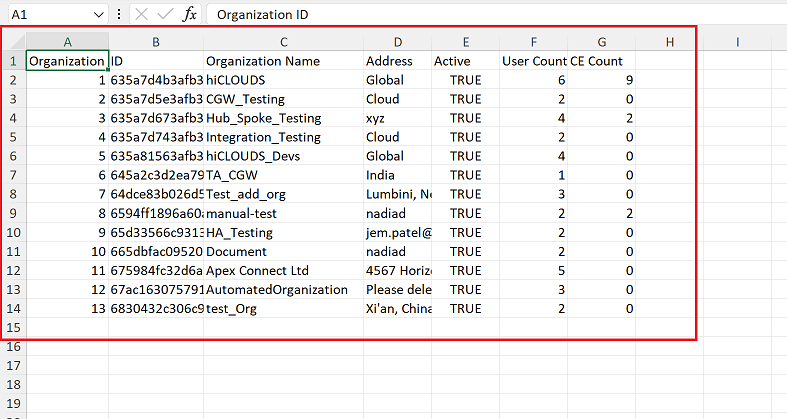
Understanding the Exported Data
The exported Excel file will contain a comprehensive list of all organizations, with details organized into the following columns:
| Column Header | Description |
|---|---|
| Organization ID | A unique identifier for each organization. |
| Organization Name | The registered name of the organization. |
| Address | The physical or registered address of the organization. |
| Active | Indicates whether the organization is currently active (TRUE/FALSE). |
| User Count | The total number of active users associated with the organization. |
| CE Count | The number of "CE" (likely "Customer Environment" or similar, depending on product context) instances associated with the organization. |
Example Data
Below is a sample of the data typically found in the exported Excel sheet.
| Organization ID | Organization Name | Address | Active | User Count | CE Count |
|---|---|---|---|---|---|
635a7d4b3afb390024124ad7 | hiCLOUDS | Global | TRUE | 6 | 9 |
635a7d5e3afb390024124adb | CGW_Testing Cloud | TRUE | 2 | 0 | |
635a7d673afb390024124add | Hub_Spoke_Testing | xyz | TRUE | 4 | 2 |
635a7d743afb390024124adf | Integration_Testing Cloud | TRUE | 2 | 0 | |
635a81563afb390024124b48 | hiCLOUDS_Devs | Global | TRUE | 4 | 0 |
645a2c3d2ea790744a5535c7 | TA_CGW | India | TRUE | 1 | 0 |
64dce83b026d5e22714b9114 | Test_add_org | Lumbini, Nepal | TRUE | 3 | 0 |
6594ff1896a60a6b120c18b9 | manual-test | nadiad | TRUE | 2 | 2 |
65d33566c931356b829dccef | HA_Testing | jem.patel@gmail.com | TRUE | 2 | 0 |
665dbfac0952062fa6120f87 | Document | nadiad | TRUE | 2 | 0 |
675984fc32d6a273273f0fb9 | Apex Connect Ltd | 4567 Horizon Avenue, Unit 12, Cloudtown, TX 75001 | TRUE | 5 | 0 |
67ac16307579114b8a5ee0ac | AutomatedOrganization | Please delete it | TRUE | 3 | 0 |
6830432c306c944fdbc9a182 | test_Org | Xi'an, China | TRUE | 2 | 0 |