Organization Alert Setting
When a device in the organization transitions between online and offline status, the system will send a notification to the updated email ID to notify the concerned persons.
How to Set Up Organization Notifications
-
Login to the platform using credentials. After logging in, the Dashboard will open.
-
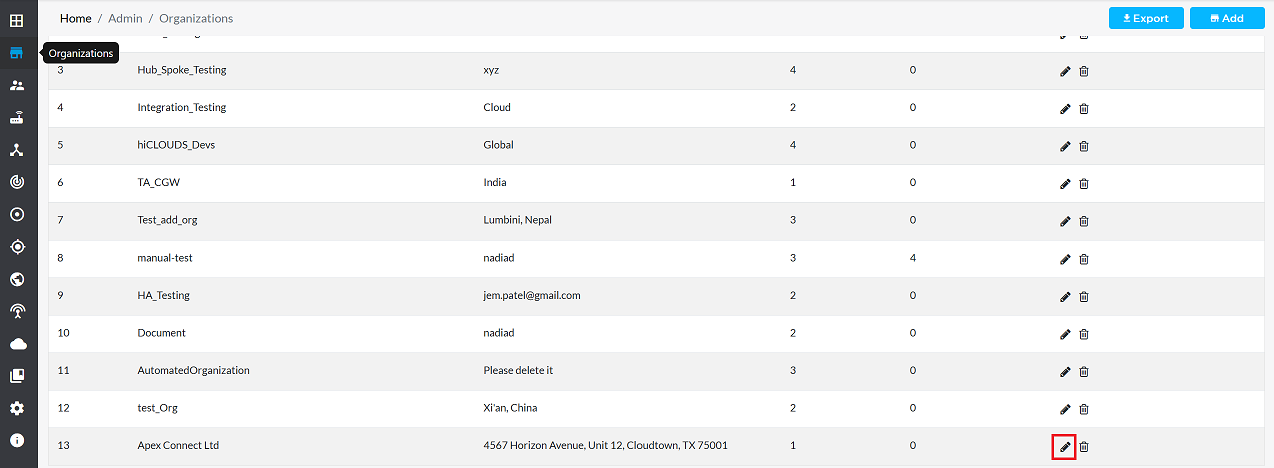
From the dashboard, click on the Organization tab. This will open the Organization Listing Grid, where a list of all existing organizations is displayed.
-
Click on the Edit option next to the organization for which notifications are to be received. This opens the section to edit the organization details.
-
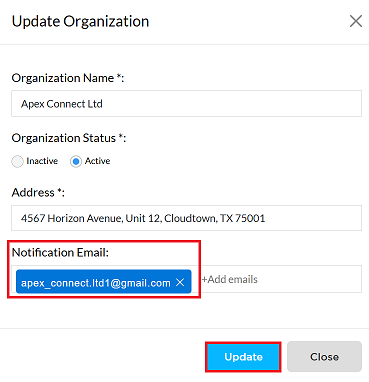
In the edit form, find the "Notification Email" field.
-
In this field, type the email address to receive notifications. Example: apex_connect.ltd1@gmail.com
ImportantAdding this email address will cause the system to automatically send notifications when the organization's status (online/offline) changes.
Multiple-email-addressesIf want to send more than one personalized notification, can also add multiple emails.
Notification-DeliveryIf an email address is not added to this field, no notifications will be sent by the system.
-
Verify that the email address is written correctly. After verifying, click the Update button to save the changes.
-
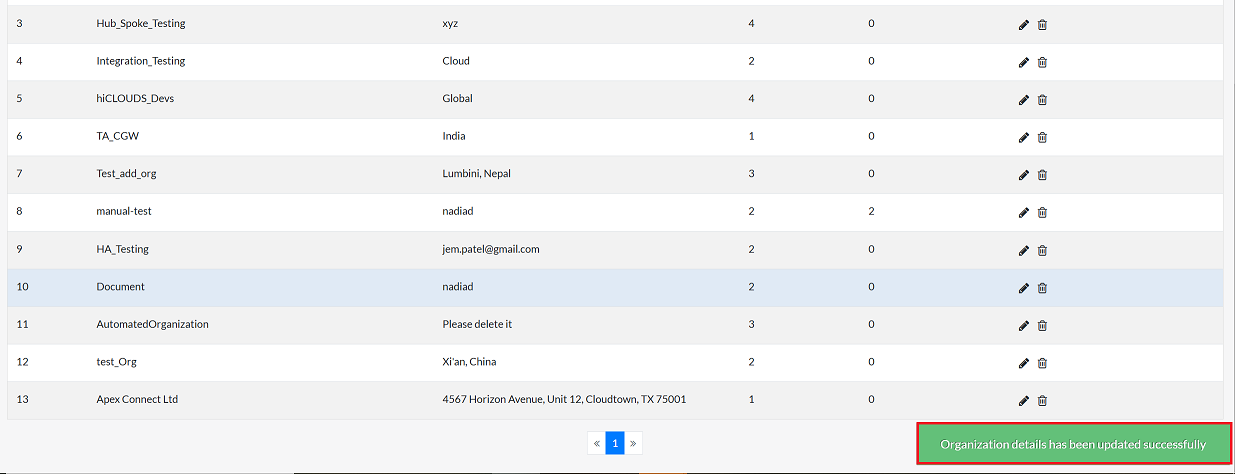
A message confirming Organization details have been saved successfully will appear on the screen.
FAQs
Q:1 What types of notifications will I receive?
Ans: Notifications are sent whenever a device goes online or offline.
Q:2 How do I remove an email address from the notification list?
Ans: In the Notification Email field, click the "X" icon next to the email address you want to remove, then click Update to save the changes.