Password Reset
This document provides a step-by-step guide on how to reset the password and then log in to the platform in case the user forgets their password.
Steps to Reset Password
-
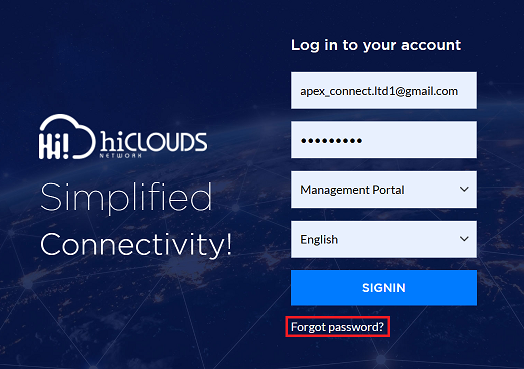
Go to the Login Panel. And click on Forgot Password.
-
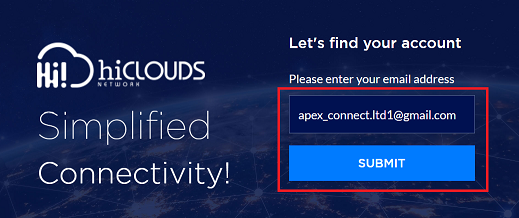
You will then be asked to enter your email address. Enter your registered email address there.
-
Click on the Submit button.
-
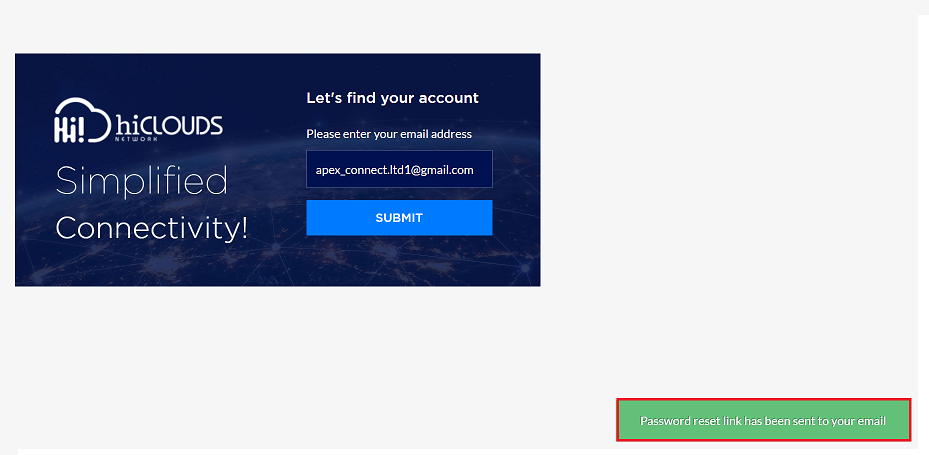
After submitting, a message will appear on the screen, such as: password reset link has been sent your email.
-
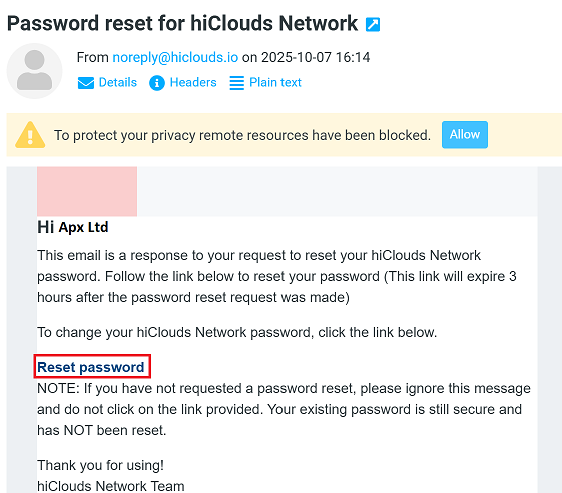
Check the inbox of the entered email. An email from the platform will arrive. Click on the Reset Password link provided in the email.
-
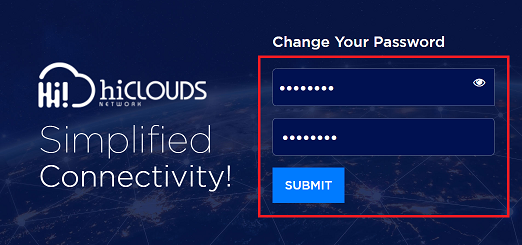
Clicking on the Reset Password link will open a new page, where a new password can be set.
- Enter New Password: Type the new password to keep here.
- Confirm Password: For security, re-enter the same new password entered above.
-
Click on the Submit button.
-
After the password is successfully reset, a message will appear on the screen: Your password has been reset successfully.
Login to the Platform
After resetting the password, can now log in to the platform:
-
Go back to the main login page of the platform.
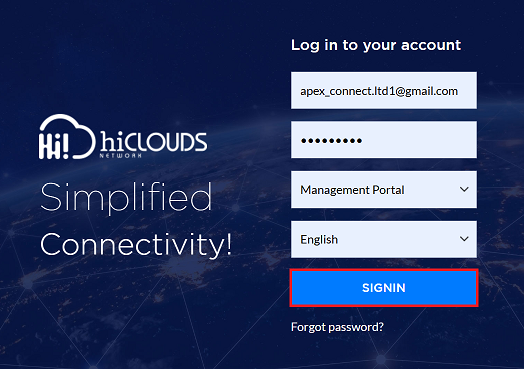
- Email ID: Enter the registered email ID.
- Password: Enter the newly reset password.
- Portal Select: Choose the portal as per the requirement. There are two portals available:
- 1. Management Portal
- 2. Customer Portal:- Customer Portal. For customers, select the Customer Portal. For instance, the Management Portal is selected here.
- Language: Select the preferred language, e.g., English.
- Click on the SIGNIN button.
-
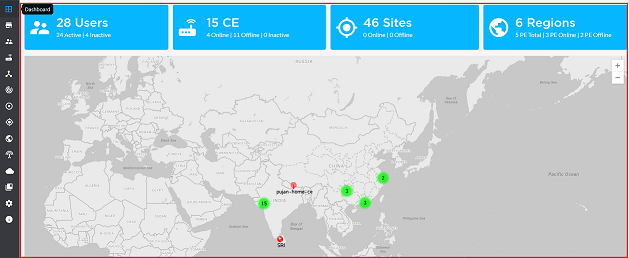
Upon signing in, access to the platform is granted, and the Dashboard will be displayed.