Advance
The Advanced tab in the Templates section provides a streamlined method for importing multiple monitoring targets in bulk. Instead of manually adding each target, administrators can add a CSV containing predefined target configurations. This approach is very efficient for large-scale deployments, ensures consistency across templates, and reduces manual effort. Once imported, targets behave in the same way as targets added individually, allowing for seamless editing, validation, and management.
Importing target definitions via CSV
-
Navigate to Login > Templates > Advance.
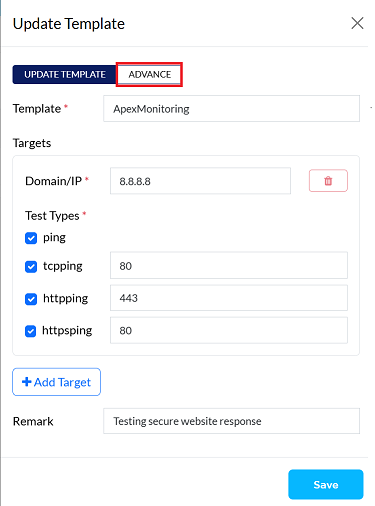
-
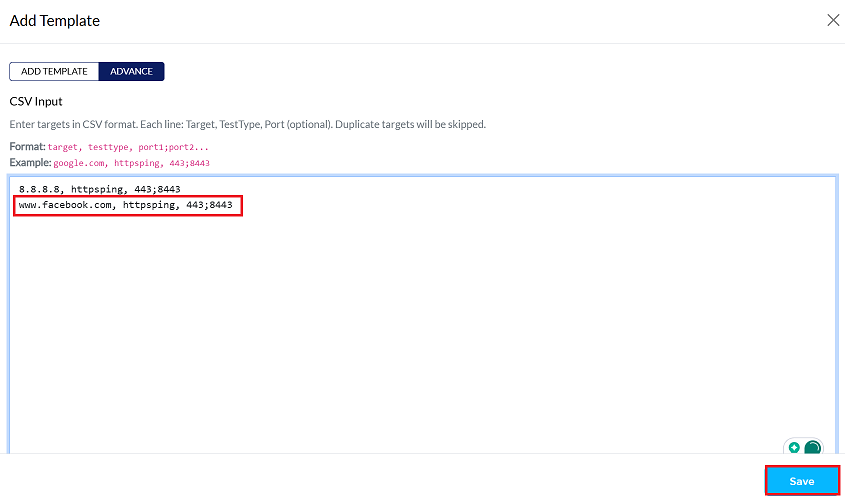
In the blank input area, paste or upload CSV-formatted target definitions.
Formate:domain, test_type, port(s)Example:
www.facebook.com, httpsping, 443;8443- Multiple ports can be specified using a semicolon (;).
-
Click Save to apply the configuration.
-
A confirmation message Probe template updated successfully will appear.
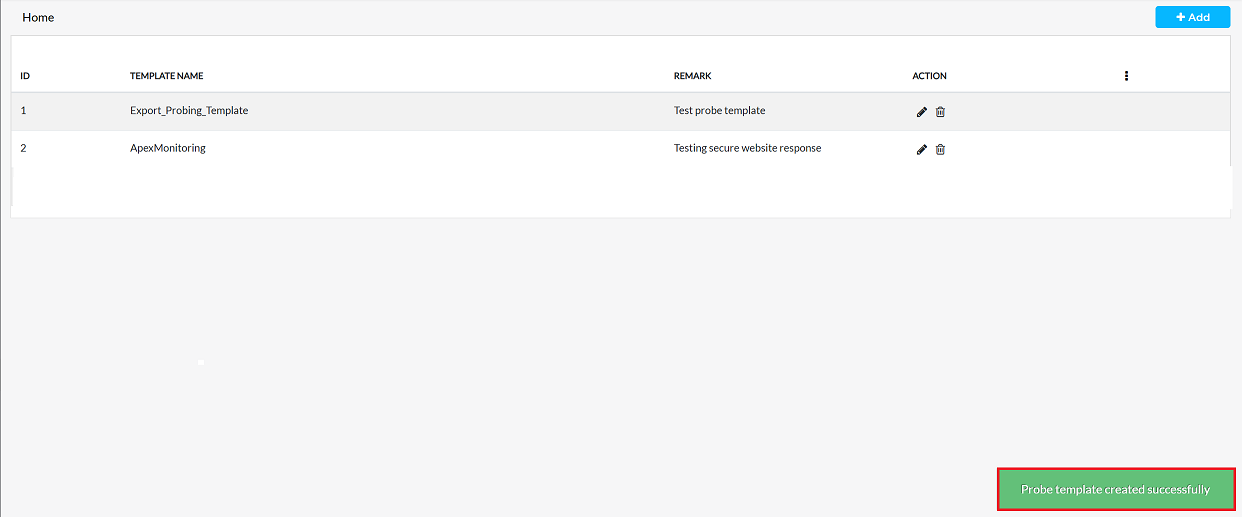
-
To verify, click Edit next to the template name and review the imported targets.
-
The imported targets will now be visible under the Templates tab, consistent with manually added targets.
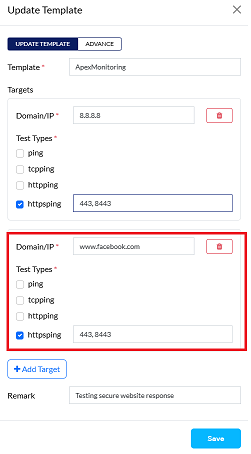
For bulk additions, the CSV import method is recommended as it significantly reduces manual effort compared to adding individual targets via the Add Target button.
Before adding targets in CSV style, a template must already exist.
- If a new configuration is being created, make sure that a template name is defined first. Refer to the Template Documentation for detailed instructions on creating a template.
- If a template has already been created, the existing template can be edited and targets can be added using the CSV method.
Important Notes for Users
- A template must already exist before uploading CSV targets. CSV import is only used for adding targets inside an existing template.
- Verify CSV format carefully before saving. Incorrect formatting may cause errors or prevent targets from being imported.
- Use a semicolon (;) to separate multiple ports. Example: 443;8443
- All imported targets behave like manually-added targets. You can edit, delete, and validate them from the Templates tab.
- Bulk upload is recommended for large deployments. This ensures consistency and reduces manual configuration time.
Always review imported data after saving. Go to the template edit screen to confirm the targets are added correctly.
Only authorized users should perform CSV imports. This prevents accidental changes to production monitoring targets.
FAQs
Q:1 What format should the CSV file follow?
The CSV must follow the format: domain, test_type, port(s). Domain/IP → Enter the domain name or IP address (e.g., www.facebook.com). Test Type → Specify the monitoring test type (e.g., httpsping, ping, tcpping, httpping). Port(s) → Enter one or more ports. Multiple ports can be listed using a semicolon (;). Example: www.facebook.com, httpsping, 443;8443. Each line in the CSV represents one monitoring target definition.