Organizations
What is an Organizations
The organization plays a special role in user management. Without it, it is impossible to create user and CE devices. Organization is only a structural prerequisite that sets the stage for the creation and management of users in the system. which provides a framework for effectively organizing and categorizing users.
Why do we need an Organizations
Organization is the basic structure for effective management and coordination in the system. The organization plays an important part in user and CE devices. A network can be set up with the help of one organization. Provides a framework for systematically organizing and classifying elements. Where resources data and users can be efficiently organized. Here organization plays an important role. It is also impossible to create a user without it. Organization is required before assigning an IP and configuring the device.
How to Create an Organizations
-
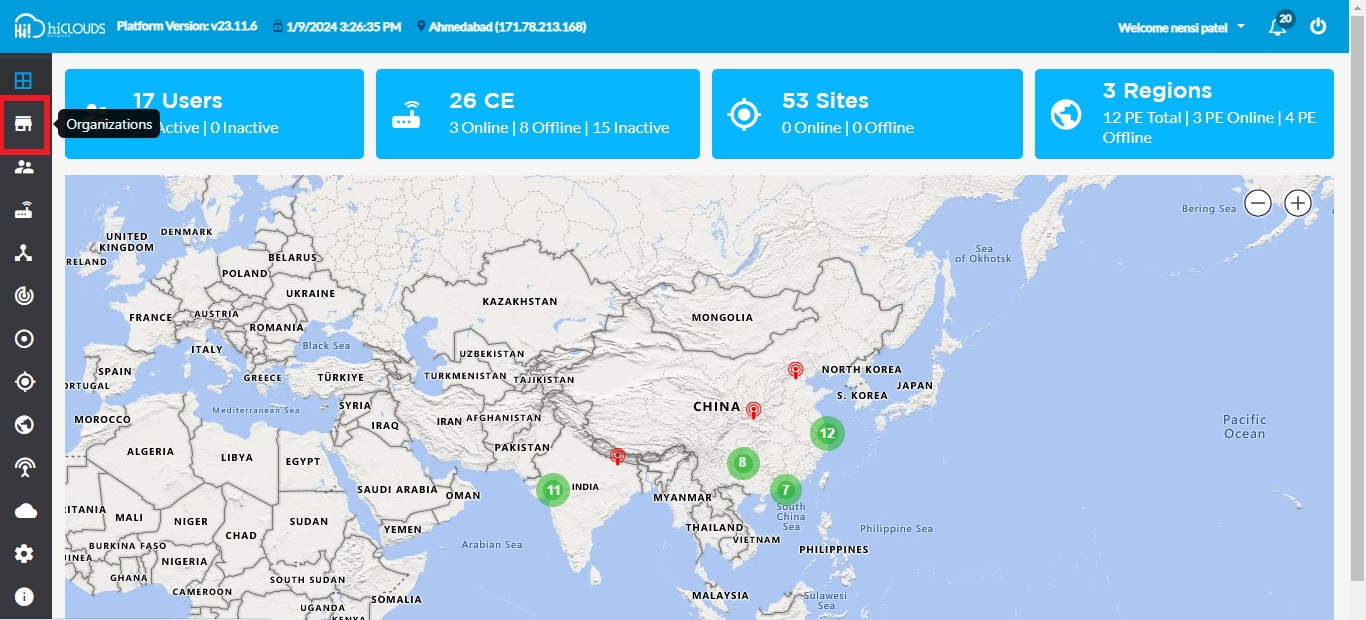
Click on the Organizations menu located on the left side.
-
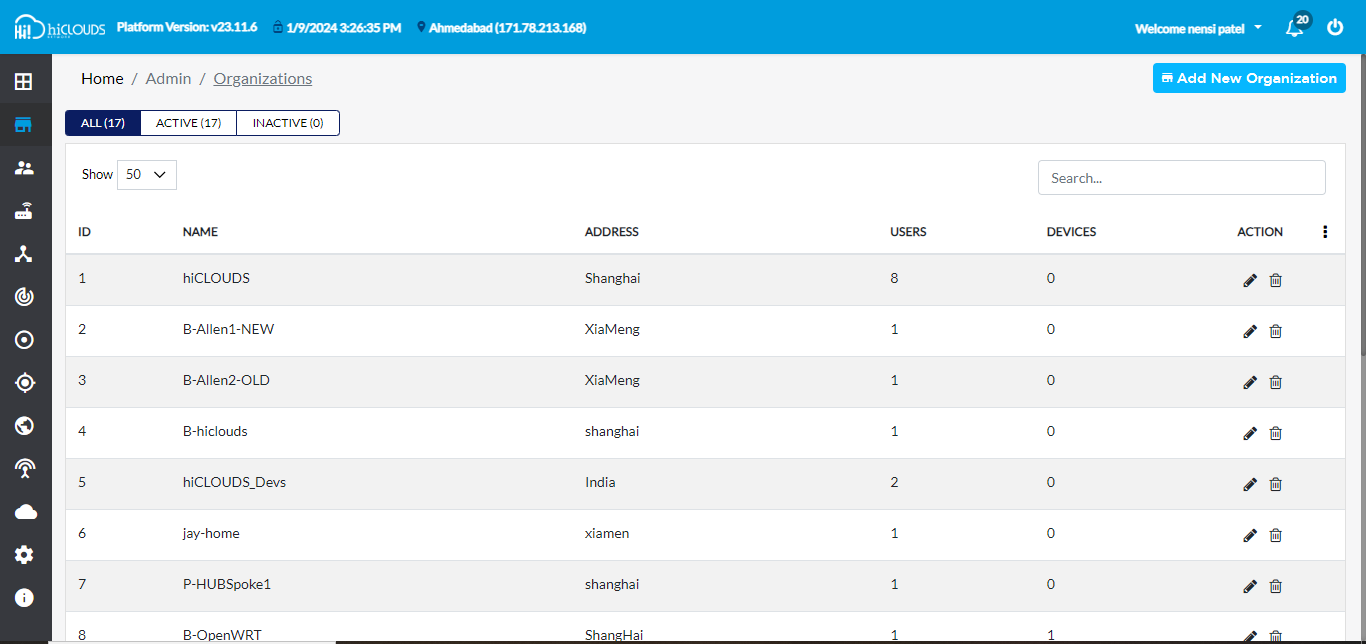
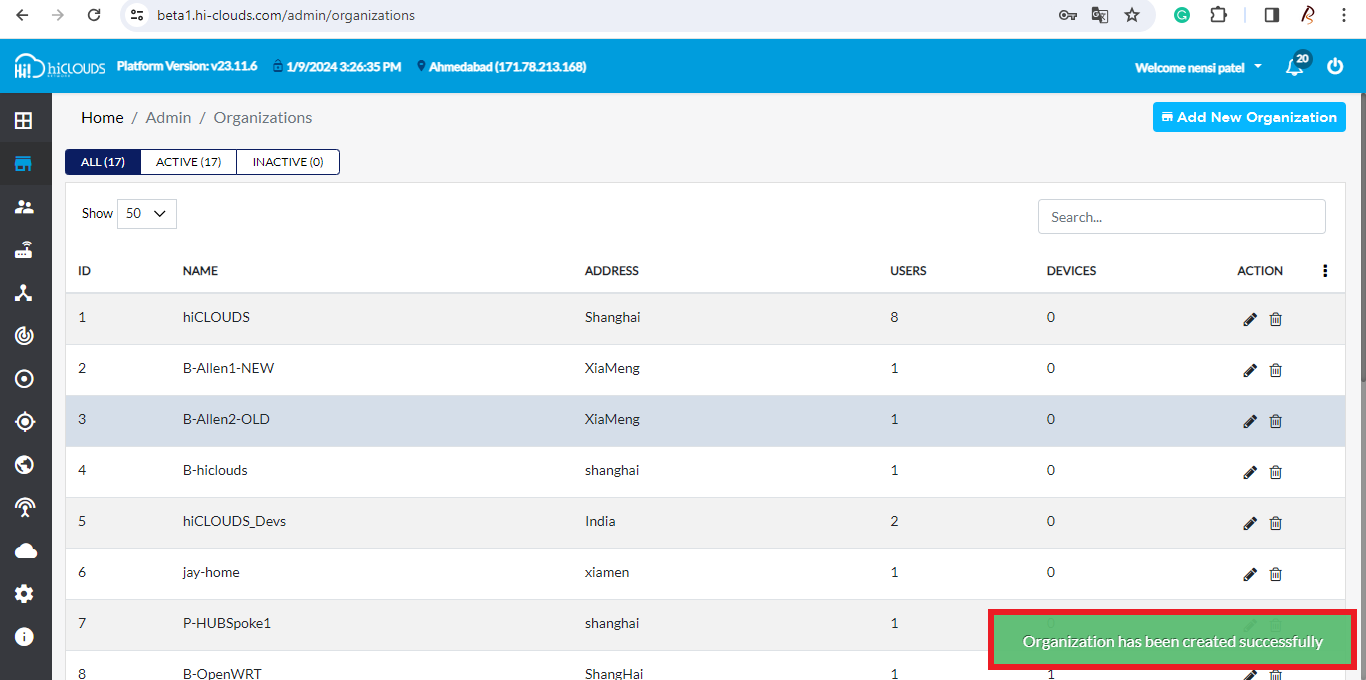
You will click on Organizations, there you will see a list of Organizations.
-
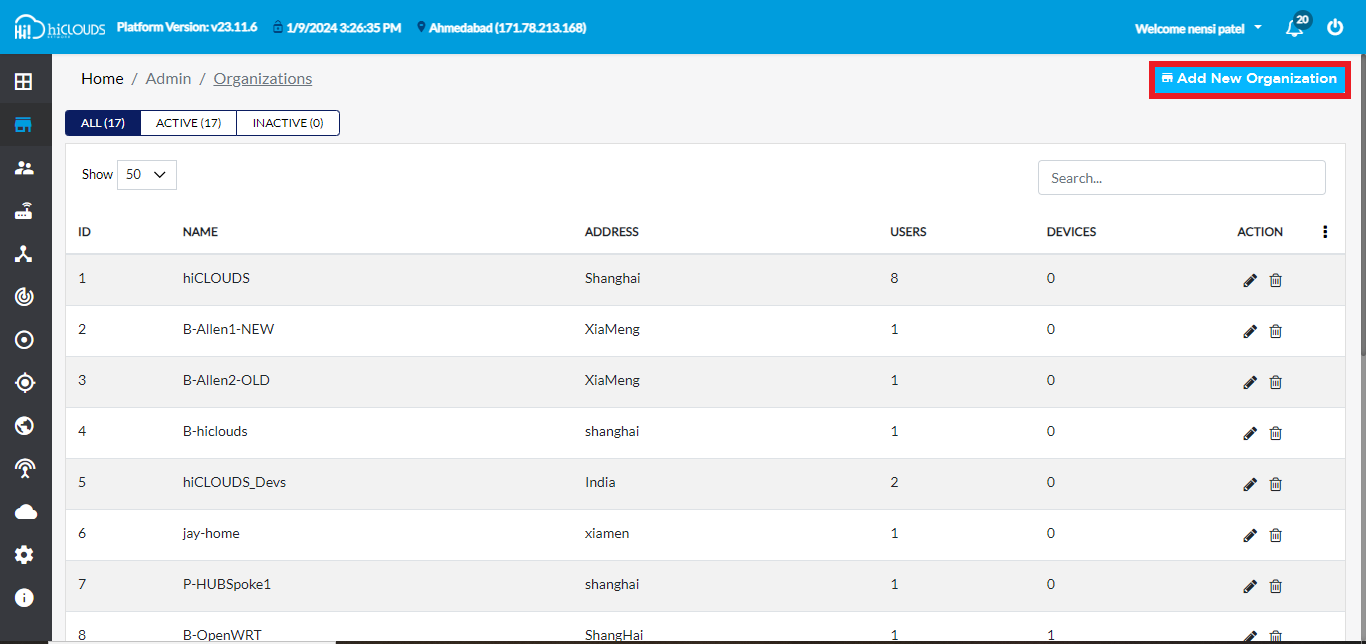
Click on Add New Organization on the right side to create a new Organization.
-
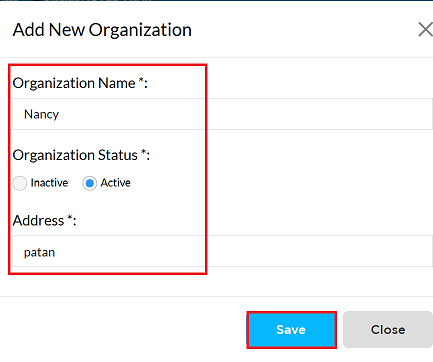
To create an organization, fill out the details provided below.
- Organization Name: Enter the Organization Name. For Ex: nancy.
- Organization Status : Click on the Active.
- Address: Enter the Address. For Ex: Patan.
- Now click on the Save button.
-
After clicking on the Save button, you will get the message Organization has been created successfully.
How to edit an Organization
-
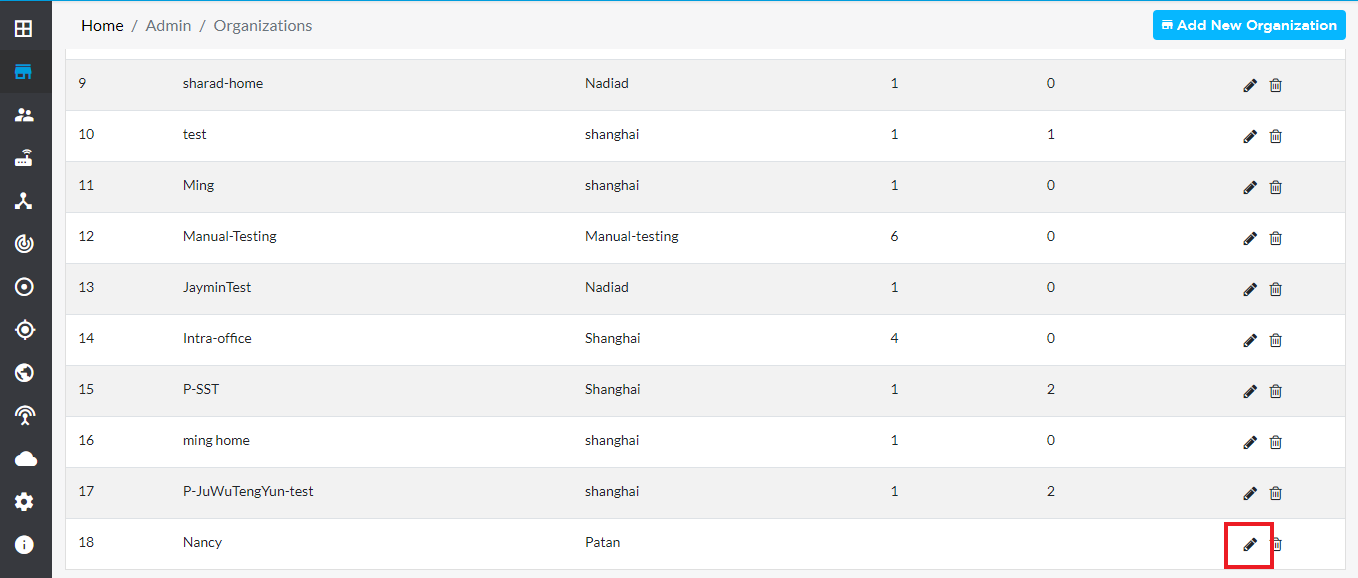
Go to the organization you want to edit.
-
Click on the Edit Located on the right side of your organization.
-
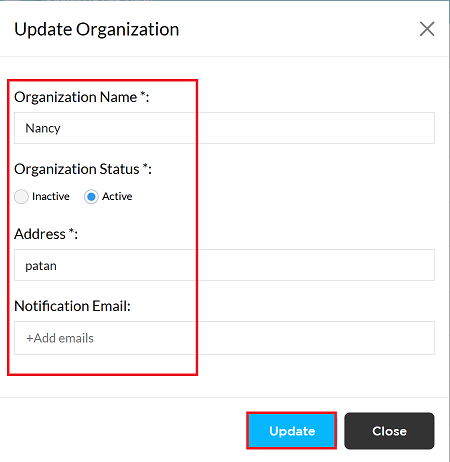
From here you can change Organization Name, Organization Status, Address, and Notification Email.
-
After clicking on the Update button.
-
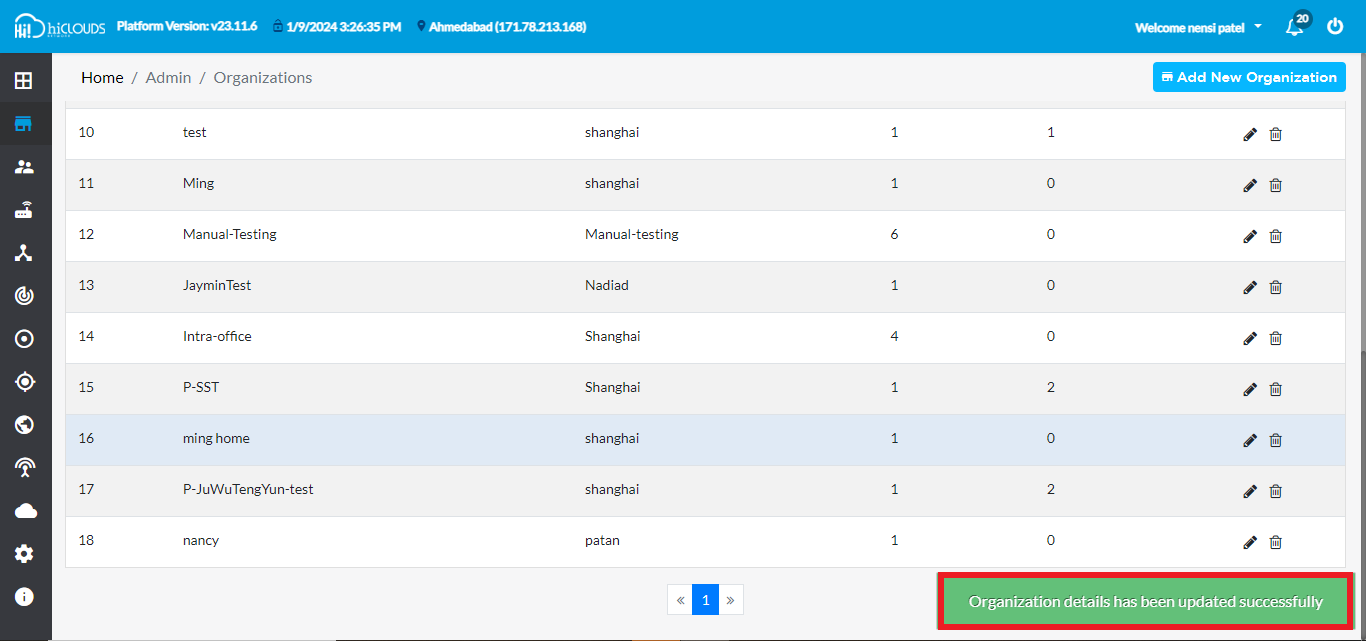
As soon as you click the Update button, you will get a message on the screen that the Organization details has been updated successfully.
How to delete an Organization
-
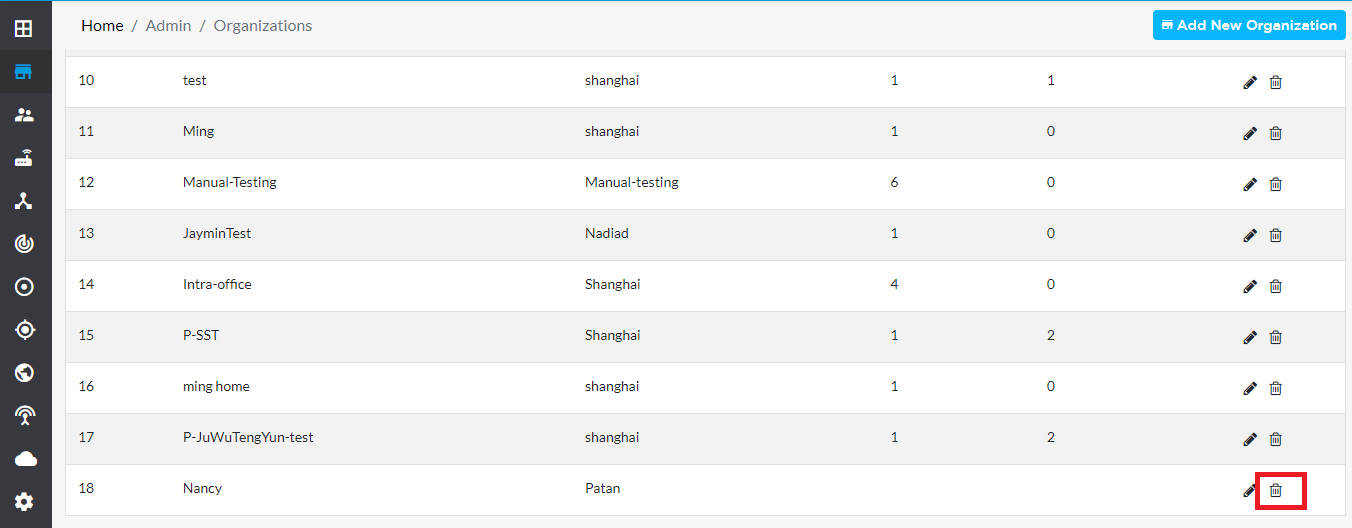
Click on the delete located on the right side.
-
There you will get a confirmation message. Click on the Yes button.

-
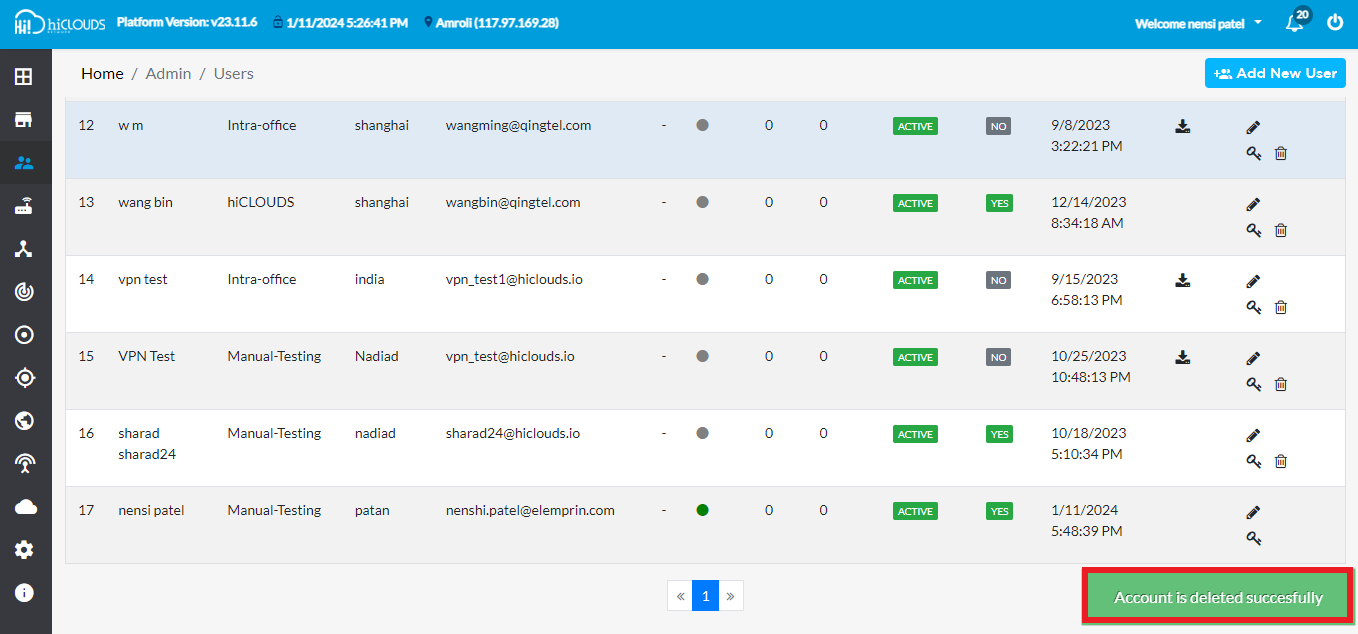
As soon as you click on Yes, you will get a message on the screen that the Account is deleted successfully.