Manage Remote Device
This guide will walk you through the process of managing remote devices in the VPN interface. By following these steps, you can successfully link/unlink the remote devices and configure the bridge interface and PE devices as required.
Steps to Manage a Remote Device
Navigate to Manage Remote Device
- Navigate to Login > CE Device > [Select CE] > Interface > VPN > [Pick VPN Interface] > Edit > Manage Remote Devices.
Configuring Remote Device Assignment
-
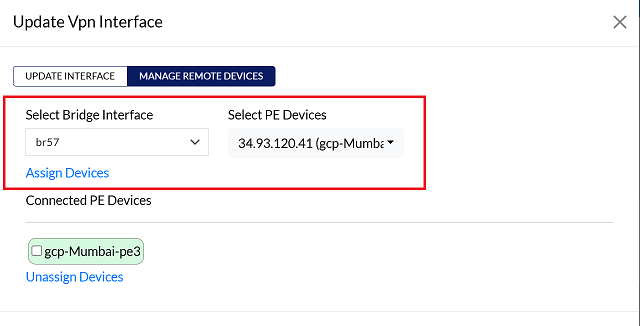
On the Manage Remote Device modal dialog, follow these steps
- Select Bridge Interface: Use the dropdown menu to choose the desired Bridge Interface.
- Select PE Devices: Use the dropdown menu to choose the appropriate PE Device.
-
Click on the Assign Device button.
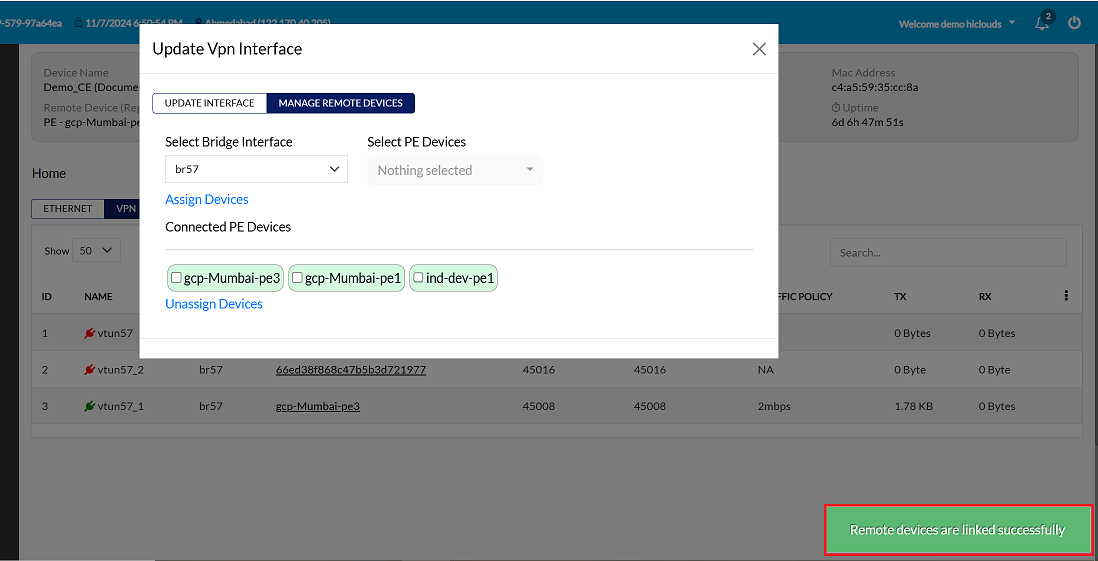
Confirmation Message
-
Upon clicking Assign, a confirmation message, Remote devices are linked successfully will appear on the screen.
Unlink Device
-
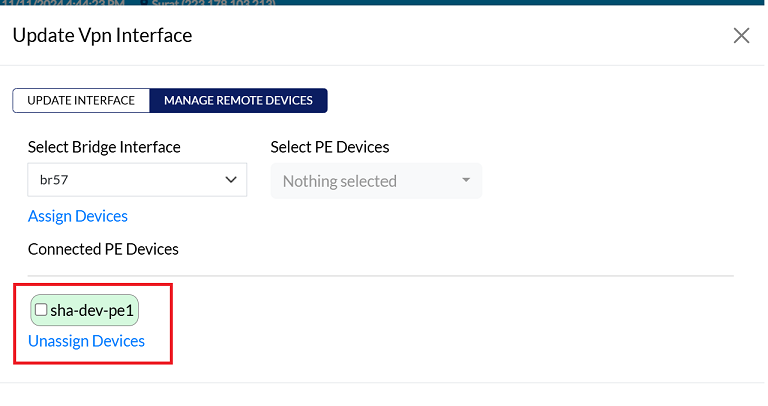
To unassign, select the assigned PE device by clicking the checkbox next to it, then click on Unassign Devices as shown in the image.
-
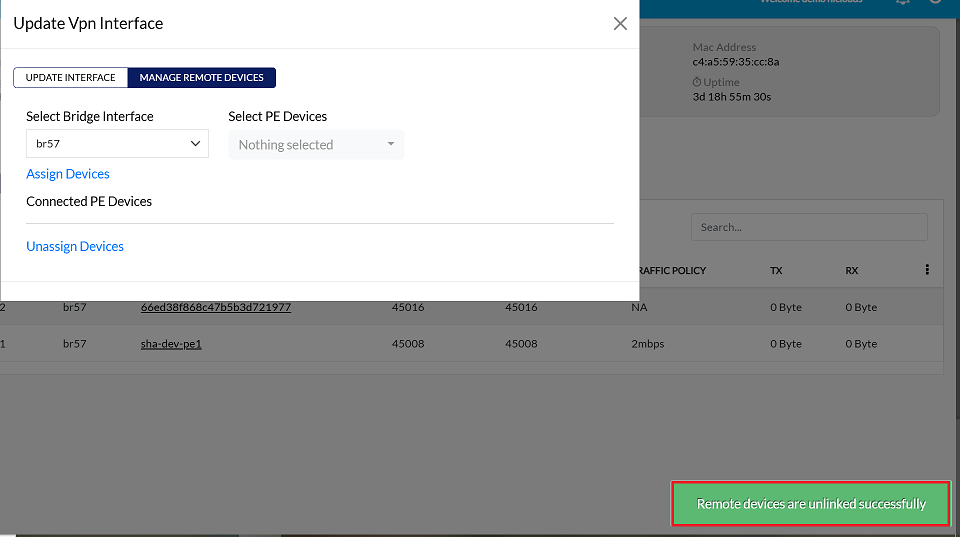
User will get a message on the screen that Remote devices are unlinked successfully.
Delete Device
-
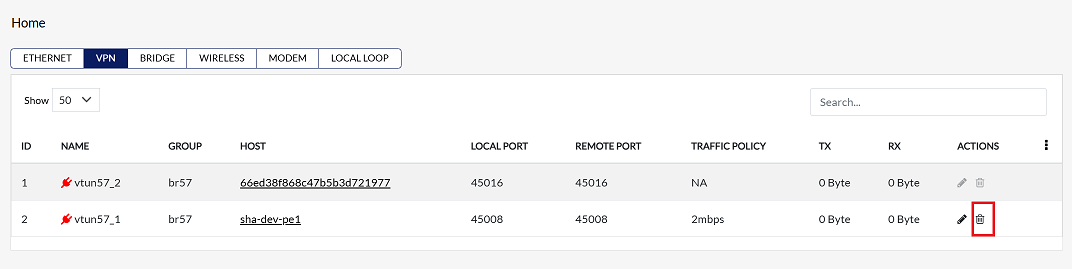
Click on the Delete button.
-
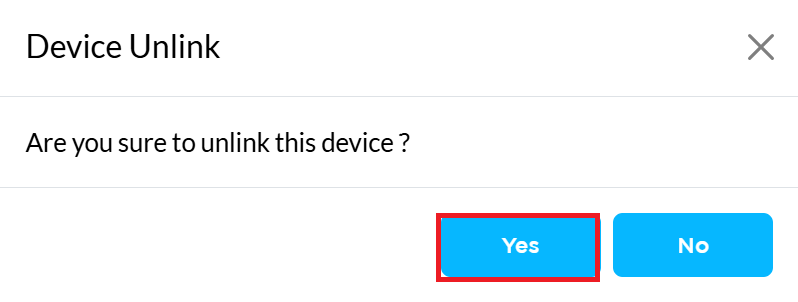
A confirmation message will appear. Click Yes button.
-
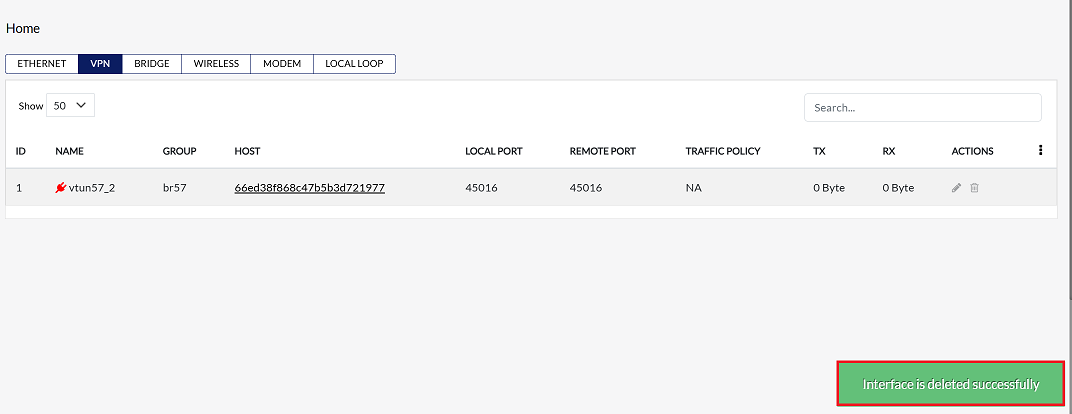
User will get a message on the screen that Interface is deleted successfully.